Migrate Amazon WorkMail to G Suite Before You Lose Your Data
09 Sep, 2026
588 Views 0 Like(s)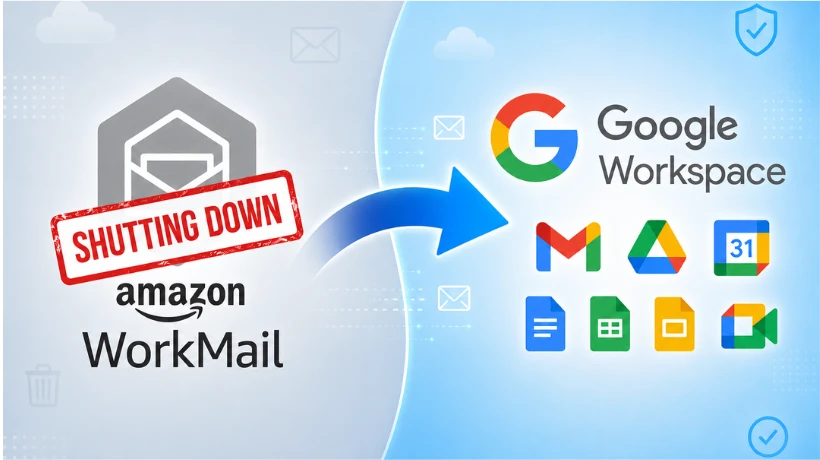
In this blog, you're going explore the different ways to migrate Amazon WorkMail to Google Workspace and how an automated method called Shoviv Software makes migration easy and efficient.
AWS has confirmed that it is shutting down Amazon WorkMail. If your organization still uses Amazon WorkMail, now is the time to migrate Amazon WorkMail to G Suite. Waiting until the last moment can put your emails, contacts, and calendars at risk. This blog explains why you should migrate Amazon WorkMail to Google Workspace, how to do it manually, and how a professional tool can make the process easier.
Note: AWS has confirmed the end of support for Amazon WorkMail. The service will stop working completely on March 31, 2027. Amazon WorkMail stopped accepting new users on April 30, 2026. Once the deadline passes, users will permanently lose access to all mailbox data.
Why Migrate Amazon WorkMail to G Suite?
Many businesses are choosing to migrate Amazon WorkMail to Google Workspace instead of other email platforms. Here is why this move makes sense for most teams.
All Tools in One Place Google Workspace brings Gmail, Calendar, Drive, Docs, Sheets, and Meet together. Users do not need to switch between different apps to get their work done.
Familiar Interface Most employees already know how Gmail works. This means less training time and a faster switch for the whole team.
Better Collaboration Google Workspace allows real-time editing and shared calendars. Teams can work on the same file together without sending files back and forth.
Reliable Storage Google Drive gives every user cloud storage that they can access easily from any device.
Easier Admin Work The Google Admin Console lets IT teams manage users, devices, and security settings from a single dashboard. This makes it simple to control the whole organization from one place.
Manual Method to Migrate AWS WorkMail to G Suite
If you want to try the manual route, here are the basic steps to migrate AWS WorkMail to G Suite:
-
Set up your Google Workspace account and create mailboxes for all users.
-
Gather the IMAP server details and passwords for each Amazon WorkMail account.
-
Open the Google Admin Console and set up migration using the Other IMAP Server option.
-
Match each Amazon WorkMail address with its correct Google Workspace mailbox.
-
Start the migration job and track its progress.
-
Once it finishes, check the migrated emails and update your MX records to point to Google Workspace.
Limitations of the Manual Migration Process
The manual method can work for very small mailboxes, but it carries several problems:
-
It takes a long time when the mailbox size is large.
-
It carries a higher chance of missing or losing data during the process.
-
You can only migrate one mailbox at a time, not in bulk.
-
The IMAP method moves emails only. It leaves contacts, calendars, and tasks behind.
-
Folder structure may not stay the same after migration.
-
Someone from your team has to watch the process closely until it finishes.
-
The manual method lacks a strong security layer to protect your data while it moves.
Because of these limits, many businesses look for a dedicated tool to migrate Amazon WorkMail to G Suite instead of doing it by hand.
Shoviv Amazon WorkMail to Google Workspace Migration: A Better Way
The Shoviv Amazon WorkMail to Google Workspace Migration tool removes the pain points of the manual process. It handles the full migration in a guided, automated way and covers more than just email.
Some of its key features are:
-
Migrates mailboxes in bulk instead of one at a time.
-
Moves emails, contacts, and calendars from Amazon WorkMail to Google Workspace, not just emails.
-
Lets you schedule migration jobs daily, weekly, or monthly, or run them at a fixed date and time.
-
Uses incremental migration so it does not create duplicate items if you run the job again.
-
Offers filters so you can migrate only the data you actually need, such as a certain date range or folder.
-
Keeps the original folder structure intact after migration.
-
Provides free technical support at all times if you run into issues.
How to Migrate Amazon WorkMail to Google Workspace Using the Tool
Here is a simple walkthrough of how to migrate Amazon WorkMail to Google Workspace using the Shoviv tool:
-
Install and open the tool on your system.
-
Go to Create Job, select Mailbox Migration, then choose Amazon WorkMail as the source and Google Workspace as the target. Click Create Job.
-
Enter the login credentials for both the source and target accounts.
-
Map each source mailbox to the correct target mailbox in Google Workspace.
-
Apply filters if you only want to migrate certain folders or a specific date range.
-
Set additional options such as thread count, login attempts, retry attempts, and whether to run the job now or schedule it later.
-
Review the job summary and click Finish. The tool will begin the migration according to the schedule you selected.
What to Check Before Deleting Data from Amazon WorkMail
Once you complete your AWS to G Suite migration, do not delete your Amazon WorkMail data right away. Go through this checklist first:
-
Confirm that you have migrated every mailbox you needed.
-
Open a few recent emails and important folders to check that everything looks correct.
-
If you used the professional tool, confirm that it migrated your contacts and calendars properly.
-
Check the migration report for any failed or skipped items.
-
Ask team members to log in to Google Workspace and confirm everything is working on their end.
-
Take a backup of your Amazon WorkMail data just in case you need it later.
-
Only after all checks are complete, go ahead and delete your Amazon WorkMail account.
Conclusion
Whether you choose the manual method or a professional tool, the goal stays the same: migrate Amazon WorkMail to G Suite before the March 31, 2027 deadline. The manual method can work for very small setups, but it only moves emails and takes more time and effort. The Shoviv Amazon WorkMail to Google Workspace Migration tool moves emails, contacts, and calendars together, and it lowers the risk of losing data along the way.
Start planning your migration early so you do not end up rushing to beat the deadline.
Frequently Asked Questions
Q1. When will Amazon WorkMail shut down completely?
Amazon WorkMail will stop working on March 31, 2027. After this date, you will lose access to your mailbox, including all emails, contacts, and calendar data.
Q2. Can I still sign up for a new Amazon WorkMail account?
No. Amazon WorkMail stopped accepting new sign ups on April 30, 2026. You can still use an existing account until the shutdown date, but you cannot create new accounts after that date.
Q3. Why should I use a migration tool instead of doing it manually?
A tool like the Shoviv Amazon WorkMail to Google Workspace Migration tool moves emails, contacts, and calendars together, supports bulk migration, and lowers the chances of data loss. The manual method only moves emails and needs constant monitoring.
Q4. Is Google Workspace better for team collaboration than Amazon WorkMail?
Yes. Google Workspace allows multiple users to edit the same file at the same time and offers shared calendars. Amazon WorkMail mainly focuses on email and calendar functions and does not offer the same collaboration tools.
Q5. Will I be able to use Gmail once the migration is done?
Yes. Once you migrate Amazon WorkMail to G Suite, you will use Gmail as your main email client. Since most people already know Gmail, the switch is usually quick and does not need much training.



Comments
Login to Comment