How to Delete Labels in Gmail (Desktop, Android & iPhone)
03 Aug, 2026
564 Views 0 Like(s)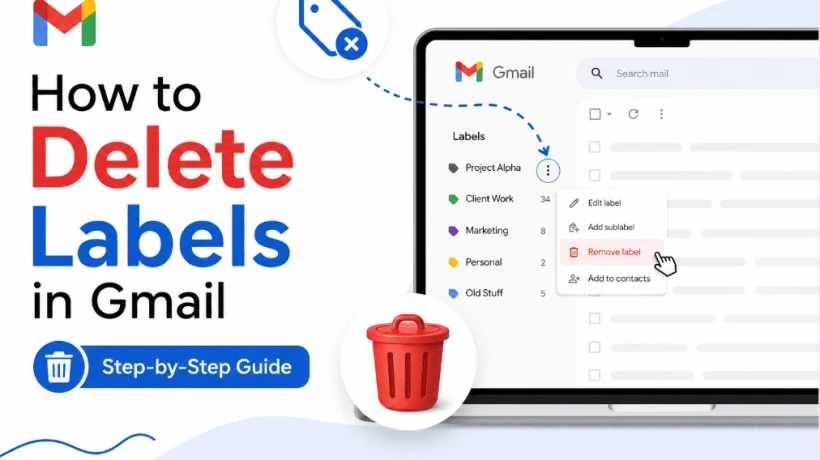
Learn how to delete labels in Gmail on desktop, Android, and iPhone. Follow simple steps, understand delete vs remove, hide system labels, and organize your Gmail inbox without losing emails.
Scroll through your Gmail sidebar and count the labels you actually use. If half of them feel like leftovers from a project you finished ages ago, it's time for a cleanup.
The fix is quick, and it never puts your emails at risk.
Quick Answer: Hover over any label in your sidebar, click the three-dot menu, choose Remove label, then confirm Delete. The label disappears instantly everything else stays untouched.
One thing worth knowing upfront: a label isn't a folder. Gmail lets one email carry several labels at once, which is why deleting them can feel trickier than it should. This complete guide to How to Delete Labels in Gmail walks through it clearly, device by device.
Delete vs. Remove: Know the Difference First
These two words sound alike, but they do very different things.
Delete wipes the label out completely — gone from your sidebar, your settings, and every email it was ever attached to.
Remove only strips the label off one email. The label itself keeps living in your account, ready to be used again.
At a Glance
-
Delete → Gone everywhere, permanently. Label survives? No.
-
Remove → Off one email only. Label survives? Yes.
If you searched for a full cleanup, deleting is what you want. Just unlabeling one message? That's covered later in the FAQ.
How to Delete a Label in Gmail on Desktop (Sidebar Method)
Quickest option when you can already see the label on screen:
-
Open Gmail in a browser.
-
Locate the label in the sidebar.
-
Hover — a three-dot icon shows up.
-
Click it, pick Remove label.
-
Confirm with Delete.
Done in seconds, no refresh required.
How to Delete a Label in Gmail on Desktop (Settings Method)
Better suited for reviewing your entire label list at once:
-
Click the gear icon → See all settings.
-
Go to the Labels tab.
-
Find the one you want gone.
-
Click Remove, confirm Delete.
Slightly more clicks than the sidebar route, but nothing gets missed — every label, custom or default, is listed in one spot.
How to Delete Gmail Labels on Android (Including Samsung)
Worth knowing before you go hunting: the Gmail Android app doesn't support label deletion directly. It's a gap in the app, not something you're doing wrong.
Here's the workaround:
-
Open a browser on your phone (Chrome works fine).
-
Visit mail.google.com and log in.
-
Tap the three dots, enable Desktop site.
-
Repeat the Settings steps from above.
⚠️ Note Same rule for every Android device — Samsung, Pixel, tablets, all of them. The app itself doesn't change between brands.
How to Delete Gmail Labels on iPhone and iPad
iOS is more straightforward — no browser detour needed:
-
Launch the Gmail app.
-
Tap the top-left menu → Settings.
-
Choose your account, then Inbox customizations.
-
Tap Labels, select the one to delete.
-
Tap Delete, confirm.
Same steps apply on iPad, no adjustments required.
Deleting Several Labels at Once
Gmail doesn't offer a bulk-select checkbox for labels, so clearing many at once means repeating the same motion:
-
Open Settings → Labels.
-
Leave the page open.
-
Click Remove → Delete for each label in turn.
📌 Did You Know? At roughly 2–3 seconds per label, clearing out 20 old ones takes under two minutes total.
Why Won't Gmail Let Me Delete a Label?
Nine times out of ten, the label you're stuck on is a system label — built into Gmail itself, not something you created.
⚠️ Note Inbox, Sent, Drafts, Spam, Starred, and Important can never be deleted. Only labels you made yourself are removable.
Instead of deleting, hide it:
-
Go to Settings → Labels.
-
Locate the system label.
-
Click Hide.
It disappears from view but keeps functioning normally behind the scenes.
Custom label still not deleting? Try refreshing Gmail, clearing your cache, or turning off browser extensions one at a time.
Back Up Before You Delete
Deletion is final — there's no recovery option once a label is gone.
⚠️ Note Your emails are always safe. But the label itself can't be restored once removed — you'd have to rebuild it and reapply it manually, email by email.
If a label holds anything important — client records, invoices, project history — export it first. The SysTools Gmail Backup Tool saves labels locally in formats like PDF or EML, so nothing is lost for good
The Result
Once the clutter's gone, your sidebar becomes something you can actually scan in a glance, and search results load faster with fewer labels to sift through.
🏆 All set. Your Gmail is lighter and easier to navigate.
Frequently Asked Questions
Will deleting a label remove my emails too?
No. Only the tag disappears. Every email remains exactly where it was, searchable under All Mail or any other label attached to it.
Can a deleted label be brought back?
No — it's permanent. You can build a new label with the same name, but it starts fresh, with no past emails linked automatically.
How do I take a label off one email only?
Open the email and click the small x beside the label name. That one message loses the tag; the label stays available elsewhere.
Can I delete default labels like Sent or Inbox?
No, those are permanent system labels. You can hide them from Settings → Labels instead.
How many labels can a Gmail account hold?
Up to 10,000, including sub-labels — far more than most people will ever need.
Is there a way to delete many labels in one action?
Not natively. Working through Settings → Labels one at a time is the fastest available method.
Why doesn't the Android app let me delete labels?
It's a current app limitation. Switching to Desktop site mode in your phone's browser resolves it.
Do label changes appear on all my devices?
Yes, almost immediately — desktop, Android, and iPhone all stay in sync.
What's different about hiding a label versus deleting it?
Hiding keeps it working, just out of view. Deleting removes it entirely and permanently.
If I delete a label, what happens to filters tied to it?
The filter keeps running but can no longer apply a label that no longer exists. Update the filter separately to avoid errors.


Comments
Login to Comment