Email Templates: Save Time Without Sounding Like a Robot
09 Nov, 2026
9 Views 0 Like(s)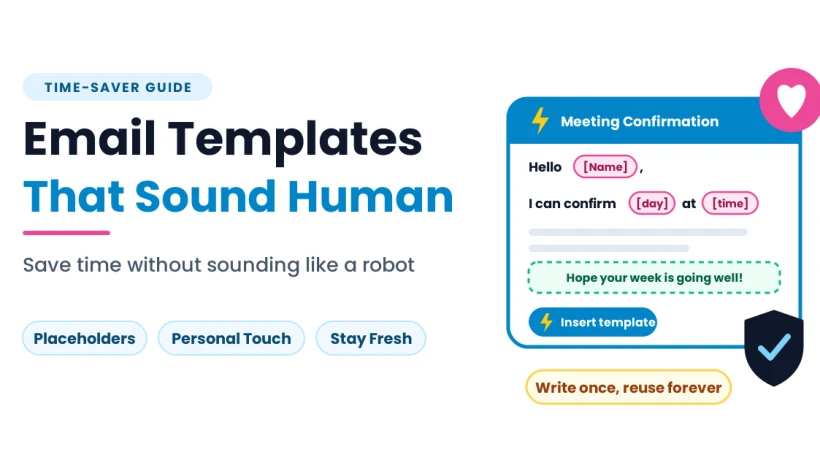
Save hours with email templates: pick your most repeated messages, add placeholders, personalize the first and last lines, check before sending, keep them fresh
Think about the emails you wrote this week. How many were nearly identical to ones you have sent before? A reply confirming a meeting, a polite request for a document, a thank-you note, a reminder about a deadline. Most of us write the same handful of messages again and again, each time starting from a blank screen.
Templates fix that. Used well, they save hours, keep your tone consistent and reduce mistakes. Used badly, they produce stiff, impersonal messages that people can spot from a mile away. This guide shows how to build a small library of templates that still sounds like you.
Why Templates Are Worth Building
Writing from scratch takes more energy than editing. Every blank message asks you to choose a greeting, find the right words and remember every detail. A good template does most of that thinking in advance.
The benefits add up quickly:
-
Time saved: A message that took five minutes takes one.
-
Consistency: People get the same clear, polite structure every time.
-
Fewer errors: Important details, such as dates, links and instructions, are already in place.
-
Less decision fatigue: You spend your energy on the messages that truly need thought.
Which Messages Make Good Templates
Not every email deserves a template. The best candidates are messages you send often, with a predictable purpose.
-
Confirmations: Meetings, appointments, orders and bookings.
-
Requests for information: Asking for a document, a detail or a decision.
-
Polite reminders: Gentle nudges about deadlines and unanswered questions.
-
Thank-you notes: After a meeting, a favor or a purchase.
-
Common answers: Replies to questions you receive repeatedly.
-
Introductions and handovers: Connecting two people or passing on a task.
-
Declining politely: Saying no kindly and clearly.
Keep a simple list of the messages you find yourself retyping. After a week, the patterns become obvious.
How to Write a Template That Sounds Human
The difference between a useful template and an annoying one is personalization. A few habits keep your messages warm.
Build in Easy Placeholders
Mark the parts that change, such as the name, date or topic, with obvious brackets or capital letters, so you never forget to update them. Nothing damages trust faster than a message that opens with the wrong name or leaves a placeholder behind.
Start and End With a Personal Touch
Write the first line and the last line fresh each time. A short, genuine opening such as “Hope the week is going well” or a specific reference to the last conversation makes the whole message feel handwritten.
Keep the Core Short
Long templates feel like form letters. Aim for the shortest version that still does the job, and trim anything you would not say aloud.
Match the Tone to the Relationship
A reply to a close colleague can be relaxed. A first message to a stranger deserves more polish. Consider keeping two versions of important templates, one formal and one casual.
A Few Examples to Adapt
Here are simple patterns you can borrow and adjust.
Confirming a meeting:
Hello [Name], thanks for setting this up. I can confirm [day] at [time] at [place or link]. Please let me know if anything changes.
Requesting a document:
Hi [Name], could you send me [document] by [date]? It will help me [reason]. Thank you for your help.
Gentle reminder:
Hello [Name], I wanted to follow up on my message from [day] about [topic]. A quick reply by [date] would be very helpful. Thank you.
Polite decline:
Hi [Name], thank you for thinking of me. Unfortunately I won’t be able to [request] this time, but I appreciate the invitation.
Notice how each one is short, clear and kind, with room for a personal line before it.
Where to Store Your Templates
A template is only useful if you can find it in seconds. You have a few options.
-
Built-in templates: Many email services include a templates or canned responses feature that inserts saved text with a click.
-
Saved drafts: Keep a draft for each template and copy it into a new message.
-
A notes document: Store them in a simple file organized by purpose, such as “Confirmations” and “Reminders.”
-
Text shortcuts: Some devices let you type a short code that expands into a full paragraph.
Choose the method you will actually use, and name each template clearly so you can find it quickly.
Pair Templates With Saved Recipient Lists
Templates handle the words. Saved lists handle the addresses. If you regularly send the same message to the same people, such as a weekly update to a club, a project team or relatives, combining the two removes almost all the effort. A short guide on how to create a group in Gmail shows how to bundle contacts under one label, so you can open a template, type one name in the To field and send.
Give each group a clear name, such as “Book Club” or “Project Team,” and review the lists now and then so outdated addresses do not linger. When writing to a large audience who do not know each other, use Bcc so addresses stay private.
Check Every Template Before You Send
Speed is only helpful if the message is right. Before sending, take ten seconds to run through a short checklist:
-
Is the name correct? Check the greeting and the sign-off.
-
Are all placeholders replaced? Scan for brackets or leftover capital letters.
-
Are the details current? Dates, links, prices and instructions change.
-
Does the message fit this situation? A template written for one case can sound wrong in another.
-
Are the right people in the right fields? Check To, Cc and Bcc.
A quick review catches almost every template slip.
Keep Your Templates Fresh
Templates age. Phone numbers change, policies change and phrases that once sounded friendly start to sound stale. Set a reminder to review your library every few months.
-
Update details: Replace outdated information.
-
Remove what you no longer use: A small, sharp library beats a large, forgotten one.
-
Refresh the wording: Read each template aloud and change anything that sounds stiff.
-
Add new ones: Whenever you catch yourself retyping a message for the third time, save it.
Protect Your Templates and Your Records
A good template library represents hours of refinement, and the conversations built on it often hold agreements, approvals and important details. Yet accounts can be hacked, locked or suspended, and messages can disappear through accidental deletion.
An independent copy gives you a safety net that does not depend on a single login. A solution such as the SysTools Gmail Email Backup Tool can save your emails, attachments and related account data offline, so saved drafts, sent messages and important conversations remain available even if something goes wrong with the original account. If you keep templates in a separate document, back that up too.
A few habits make any backup routine more dependable:
-
Back up on a schedule: Regular backups beat occasional good intentions.
-
Include attachments and contacts: The files and the people matter as much as the text.
-
Test your copy: Open a few saved items to confirm they work.
-
Store it separately: Keep a copy somewhere other than your main device.
Stay Safe While You Move Fast
Speed can make you careless, and scammers know it. Whenever you reply quickly, a few habits protect you.
-
Check the sender’s real address, not just the display name.
-
Be wary of urgent requests, especially those asking for money, passwords or personal details.
-
Avoid clicking links in unexpected messages. Visit official websites directly.
-
Never share verification codes by email.
-
Turn on two-step verification and use a strong, unique password.
A Simple Template Routine
Small, regular habits keep your library useful:
-
Daily: Use a template whenever a message matches one, and personalize the first and last lines.
-
Weekly: Note any message you retyped, and save it as a new template if it recurs.
-
Monthly: Review your saved lists and confirm your latest backup ran properly.
-
Quarterly: Update details, remove unused templates and refresh the wording.
Common Template Mistakes
-
Sending a message with a leftover placeholder or the wrong name
-
Writing templates so long that they feel like form letters
-
Using the same formal tone for every recipient
-
Forgetting to update dates, prices and links
-
Skipping the personal opening and closing lines
-
Keeping templates only inside one online account with no separate copy
Final Thoughts
Templates are not about sounding automatic. They are about removing the repetitive work so you can focus on the parts of each message that deserve your attention. Build a short library of the messages you send most, add placeholders and a personal touch, check each one before sending, keep the library fresh and protect your records with an independent copy.
You do not need to build everything today. Start with the one message you retype most often, turn it into a template and use it this week. Add another next week. Before long, your inbox will take less of your time, and your messages will be clearer, kinder and more consistent.


Comments
Login to Comment