How to Reset Your Mac Password (Step-by-Step Guide)
30 Mar, 2026
3558 Views 0 Like(s)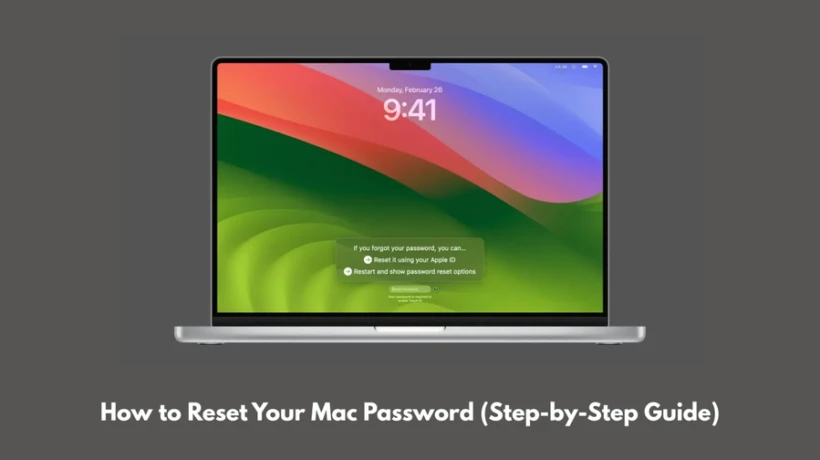
Learn how to reset a MacBook password using Apple ID, Recovery Mode, password hints, or FileVault. Follow simple, secure steps to regain access quickly.
Have you ever been a victim of losing your Mac password, especially when you need it the most? This can be really frustrating at times when you want to access your files quickly. Well, then, do not worry because macOS provides different built-in ways that make the password reset process simple and secure. It does not matter whether you remember your Apple ID or not; this guide will tell you the exact steps about how to reset a password on a MacBook.
1. Try the Password Hint or Reset Option
The first thing a person should check is whether their Mac provides a password hint or reset message on the login screen. This hint or reset option can appear after repeatedly entering the wrong password. The hint can help you recall your password only if you had added a hint while setting up your account.
Usually, the system shows messages like “Restart and show password reset options” or “Reset it using your Apple ID”. In this case, you can simply click on the reset option and follow the instructions appearing on your screen to set a new password. For this, you need to add a verification code that will come on another device only when you have logged in with your Apple ID.
2. Reset Your Mac Password Using Apple ID
This is the simplest answer to the question, “How to reset a password on a MacBook?” The process becomes simpler when your account is linked to your Apple ID. After entering the wrong password multiple times, the screen will show the option of resetting the password using your Apple ID. You need to click on that reset option. After this, sign in using your Apple ID and password. Follow the given instructions to password reset MacBook.
3. Reset Password Using macOS Recovery
Another way to reset the password is through macOS Recovery Mode. For this, you need to follow the given steps -
-
Begin by restarting your Mac.
-
Boot into macOS Recovery.
-
If the “Forgot all Passwords?” option appears, click on it after selecting a user account.
-
Follow the instructions on the screen to password reset MacBook.
For other case scenarios when the reset option does not appear, use the terminal tool of the Recovery Mode. Go to Utilities and then Terminal. Type “Reset Password” and click on Return. The password reset assistant will be visible to you. Select the account and set a new password.
4. Use a FileVault Recovery Key (If Enabled)
Another way to reset the password is through FileVault encryption if that is enabled on your MacBook. If it is enables you will have a recovery key through which you can unlock your account. After unlocking it, create a new password.
Conclusion
Forgetting passwords is a really frustrating experience; however, the several recovery options made available by macOS have made the task of resetting the password easier, ensuring privacy at the same time. If you are interested in knowing more about data recovery methods, then visit the website Datarecovee.



Comments
Login to Comment