Guide to Clone Salesforce Flows By Using migSO
10 Sep, 2026
4 Views 0 Like(s)Salesforce flow cloning helps users streamline processes and maximize their efficiency. Read our blog to learn how migSO eases this task with its new feature.
Salesforce Flow is a critical component of an org that empowers admins to develop and execute automated processes seamlessly without writing code. Salesforce flow cloning helps users streamline processes and enhance efficiency while eliminating manual tasks and the probability of errors.
However, following the manual process of cloning flows can be time-consuming and may result in errors and inconsistencies. So, how do you clone Salesforce Flows between orgs? This is where migSO comes to the rescue.
With its impressive Clone Salesforce Flow feature, migSO simplifies and expedites the whole process, enabling admins to save time while ensuring accuracy. This guide explains the importance of clone flows and how migSO streamlines this tedious process.
Why Clone Salesforce Flows Between Your Orgs?
Cloning Salesforce flows enables admins to reuse existing automation according to their requirements, saving significant manual effort and time. It allows organizations to migrate automation from a sandbox to a production org while maintaining a consistent process structure.
Salesforce Flow cloning can also be useful when teams need to create a backup or template of a well-functioning flow. Instead of rebuilding the automation from scratch, admins can use an existing flow as a foundation and make the necessary changes for a particular business requirement.
Further, cloning can help organizations managing multiple Salesforce orgs or business units that require similar process automation. By reusing existing automation, admins can reduce repetitive configuration work and maintain a more consistent approach to business processes across environments.
Benefits of Cloning Salesforce Flows
Cloning an existing flow can provide several advantages for Salesforce administrators and teams.
Save Time and Effort: Recreating complex automation manually can require considerable administrative effort. Cloning allows admins to reuse an existing flow rather than building every element again.
Maintain Process Consistency: Organizations often need similar automation across development, testing, and production environments. Reusing an existing flow can help maintain consistency between these environments.
Reduce Manual Errors: Manually recreating flow elements can result in missing configurations or incorrect settings. A streamlined cloning process can help minimize these risks.
Simplify Repetitive Tasks: When similar automation is required for multiple Salesforce orgs or business units, cloning provides a more efficient starting point.
Step-by-Step Guide to Clone Salesforce Flows Using migSO
Follow these steps to clone Salesforce Flows using migSO:
Step 1. Open migSO via App Launcher
Open Salesforce and click App Launcher. Search for migSO and select the application to access its metadata management functionality.
Step 2. Select Clone Wizard
Once you are inside migSO, navigate to the Clone Wizard tab. The wizard provides a streamlined workflow for selecting and deploying the required metadata.
Step 3. Select Clone Flows
Select Flow as the metadata item you want to clone. You can then access the flows available for migration.
Step 4. Select Source Org
Choose the source Salesforce org containing the flow you want to clone. If the required org is not already connected, you can add it using the available connection option.
Step 5. Choose Flows & Deploy
Select the flow or flows you want to migrate from the available list. After making your selection, click Clone Flow to begin the deployment process.
Step 6. Review Deployment Status
Once the cloning process starts, review the deployment status to monitor the operation and verify whether the selected flows have been successfully deployed.
Step 7. Download Report
After deployment is complete, review the results and download the deployment report if required. You can also restart the Clone Wizard to perform another metadata operation.
That's it! You have successfully deployed cloned flows from one Salesforce org to another using migSO.
Going through the Migration Wizard Logs
-
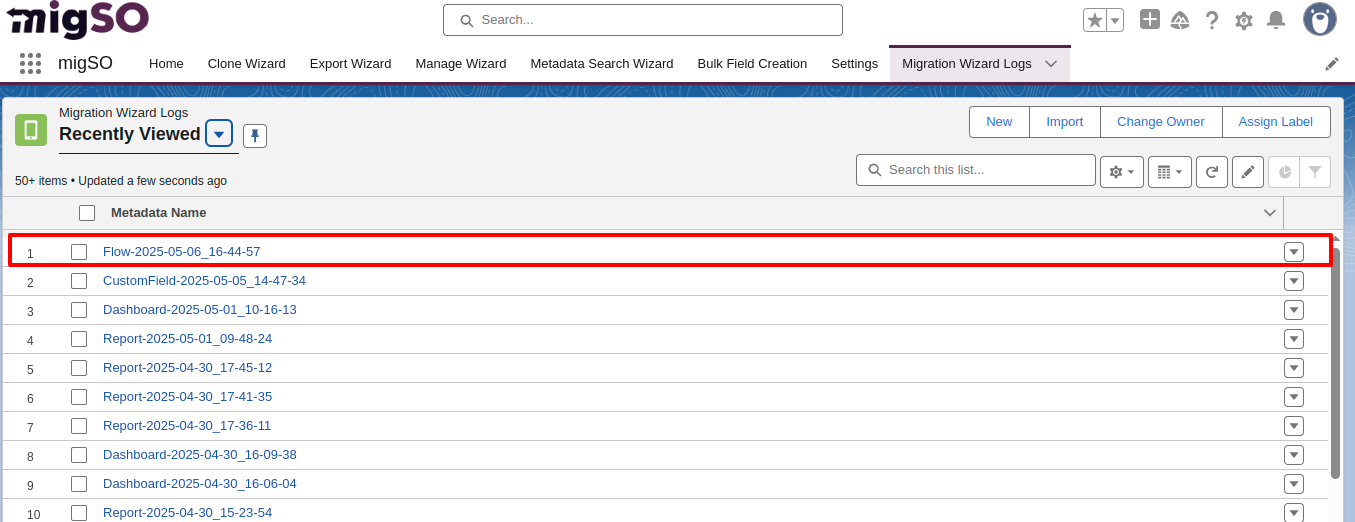
You can access the deployment history by moving to Migration Wizard Logs. You’ll find a list of all metadata operations executed on your org with specified dates.
-
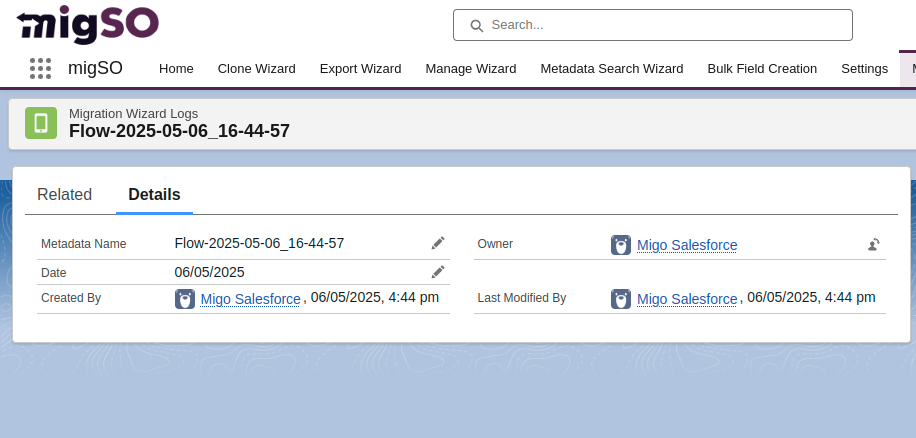
Click on the recently deployed Salesforce flow here.
-
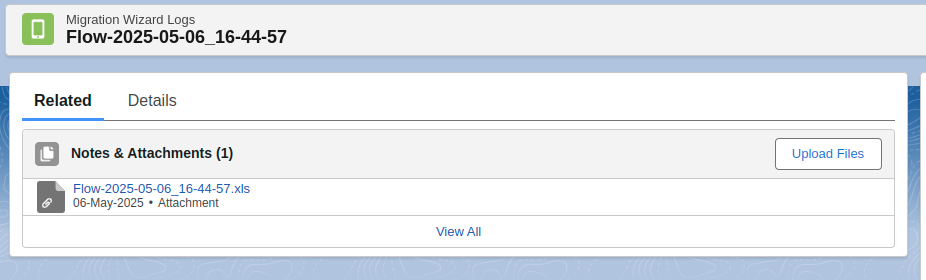
Here, you’ll get the details of the cloned flow.
Conclusion
It’s time to completely revolutionize the manual, tedious process of clone flow with migSO! It empowers Salesforce admins to seamlessly clone flows between their orgs, saving them time and manual efforts. It also ensures maximum accuracy and lets you maintain process consistency across orgs. Modernize your metadata operations and maximize your productivity with migSO!
Who Are We?
Tech9logy Creators is a Registered ISV Partner Company with over 11 years of experience. We have a certified team of developers with extensive knowledge about Salesforce AppExchange and provide you with the best-in-class personalized apps. Our dedicated Salesforce experts help you bring the best out of your CRM and ensure your business operates at its highest potential.
Contact us for more information.
Comments
Login to Comment