Email Headers Explained: What Your Inbox Isn't Telling You
06 Oct, 2026
6 Views 0 Like(s)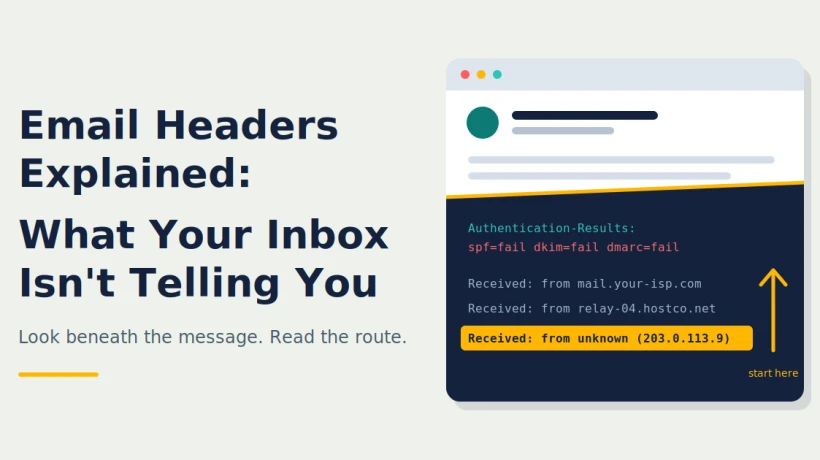
Learn how to read email headers in Outlook, from Received lines to SPF, DKIM and DMARC results, and use them to spot spoofed or phishing emails, while understanding the limits of IP address tracing.
Most people judge an email by what they can see: the sender's name, the subject line, the logo and the tone of the message. Cybercriminals know this, which is why so many fraudulent emails are designed to look perfect on the surface. The real story, however, sits in a part of the message that almost nobody opens, the email header.
This guide explains what the header contains, how to read it without technical training, and how to use it to separate genuine messages from forged ones.
What Is an Email Header?
An email header is a block of technical information attached to every message. While the body holds the text you read, the header records the delivery details: who sent the message, which servers handled it, when each step occurred, and whether the message passed security checks.
A helpful comparison is a parcel. The label on the box shows the sender and the address, but the tracking history shows which depots the parcel actually passed through. If the label says the parcel came from a well-known store but the tracking shows it started in an unrelated warehouse, you would be suspicious. The header works the same way for email.
Why Headers Matter More Than Ever
Phishing and impersonation attacks have become far more convincing. Attackers copy brand designs, mimic writing styles and even reference real projects they have learned about from public sources. Spotting such messages by appearance alone is no longer reliable.
Headers matter because they are produced largely by mail systems rather than typed by the sender. While some fields can be forged, the entries added by trusted servers, such as your own mail provider, are much harder to fake. That makes the header one of the most dependable sources of evidence available to an ordinary user.
Opening the Header in Outlook
The exact steps depend on your version, but the process is simple. In Outlook on the web and the new Outlook, open the message, select the three-dot menu, choose View, and then pick View message source. In classic desktop Outlook, the same information is found in the message properties window.
The header can look intimidating at first, with dozens of lines of text. A good habit is to paste it into a plain text editor so you can search and highlight lines. You do not need to understand every line. A handful of fields do most of the work.
The Key Fields to Look At
From. This is the address shown as the sender. It is easy to forge, so never treat it as proof on its own.
Return-Path. This shows where delivery errors would be sent. If it points to a domain unrelated to the From address, it deserves a closer look, although some legitimate services use separate domains for technical reasons.
Reply-To. This tells your mail program where a reply will go. A common trick is to show a trusted From address while quietly setting Reply-To to a mailbox controlled by the attacker.
Message-ID. Each message receives a unique identifier, usually containing the domain of the system that created it. If the domain in the Message-ID has nothing to do with the sender's claimed organization, that can be a clue.
Received. This is the most informative field. Every server that handles the message adds its own Received line at the top. That means the oldest entry is at the bottom, and the newest is at the top. To follow the journey, read from the bottom up.
Authentication-Results. This summarizes whether the message passed SPF, DKIM and DMARC checks.
Following the Delivery Path
When you read the Received lines, you are reconstructing a timeline. Each line normally records the server that sent the message, the server that accepted it, and a timestamp. You will often see hostnames and IP addresses as part of these entries.
Ask a few simple questions as you read. Do the hostnames make sense for the organization named in the From address? Do the timestamps flow logically, or is there an odd jump? Is there a hop through a country or a hosting provider that you would not expect?
A message that claims to come from your bank but first appears on a server belonging to an unrelated hosting company is a classic sign of trouble. On the other hand, a message that passes through infrastructure you would expect, such as a known provider, is usually less concerning.
The Three Checks Behind the Scenes
Modern email relies on three authentication standards, and understanding them in plain language makes the header far easier to read.
SPF is a list published by a domain owner naming the servers allowed to send mail for that domain. The receiving server compares the sending server against that list.
DKIM adds a digital signature to the message. When the signature validates, it indicates that the signing domain authorized the message and that its content was not changed along the way.
DMARC links the other two checks to the visible From domain and sets a policy for failures, such as quarantining or rejecting the message.
If a message that claims to come from a major company fails all three, treat it as highly suspicious. If it passes, do not relax completely. An attacker can register a lookalike domain and configure all three correctly for it. Authentication confirms where a message came from, not whether the sender is honest.
What About the IP Address?
Sooner or later, most people ask whether the header can reveal exactly who sent a message. The honest answer is that it usually reveals a server, not a person. Large providers insert their own infrastructure between the sender and the recipient, so the address in the header often belongs to a relay or gateway.
There are other limits. VPNs and proxies make a sender appear to be located elsewhere. Shared networks, such as those in cafes or offices, identify a place, not an individual. Location lookup tools are often accurate at the country level but unreliable for towns and cities.
Even so, IP addresses add useful context when combined with other evidence. If you want a step-by-step walkthrough of finding and interpreting these details, this guide on How to Trace Email Sender IP Address in Outlook explains the process clearly. The important point is to treat any address as a lead that supports your conclusion, not as proof on its own.
Common Mistakes to Avoid
Trusting the display name. Anyone can set a display name to anything. Always check the actual address.
Reading the Received lines from the top. Remember that the earliest hop is at the bottom.
Treating one clue as a verdict. A single odd field might have an innocent explanation. Look for several warning signs together.
Ignoring the rest of the message. A header review works best alongside common sense. Urgent demands, unusual requests and links that do not match their labels are still major red flags.
Deleting the evidence. Once you suspect fraud, keep the original message. Deleting it removes the header that investigators may need.
A Simple Checklist
When a message feels wrong, follow this short routine.
-
Do not click links or open attachments.
-
Check the full sender address for subtle misspellings.
-
Open the full header and copy it into a text editor.
-
Compare From, Return-Path and Reply-To.
-
Read the Received lines from bottom to top.
-
Review the SPF, DKIM and DMARC results.
-
Verify any unusual request through a different channel, such as a phone call.
-
Report the message to your IT or security team and keep the original.
When Manual Reading Is Not Enough
Checking one message by hand is realistic. Checking hundreds, or investigating an incident that spans many mailboxes, is not. Security teams, legal departments and investigators often need to search large volumes of mail, compare routing patterns, detect forged headers and produce reports that others can rely on.
For work at that scale, dedicated Email Forensic software can parse headers automatically, support many mail formats, highlight suspicious addresses and export results in an organized way. Using a controlled tool also keeps confidential messages from being pasted into random online services, which is a privacy risk in its own right.
Final Thoughts
An email header is like the flight recorder of a message. It will not tell you everything, and it can be partly manipulated, but it holds far more truth than the polished text in the body. Learning to read just a few fields, From, Return-Path, Received and the authentication results, gives you a practical advantage against impersonation and phishing.
Build the habit of pausing before you trust an unexpected message, look at the evidence, and weigh it as a whole. A minute spent reading a header can spare you from a very expensive mistake.

Comments
Login to Comment