When One Contact Has Many Details: Understanding Complex CSV to VCF Conversion
01 Oct, 2026
11 Views 0 Like(s)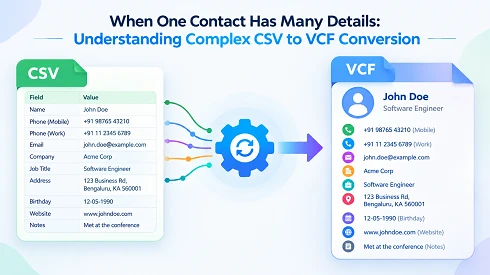
Learn how to handle complex CSV contact records with multiple details and convert them to VCF while maintaining proper contact field structure.
Introduction
Contact lists are not usually just a name and number. Some CSV records can contain more than one phone number, email, company, position, postal address, website, note, and other information. When you need to migrate such a spreadsheet into a contact application, converting CSV to VCF can offer a more appropriate framework for storing individual contact records.
The problem is that CSV stores contact information in rows and columns, while VCF uses structured vCard properties. Therefore, complex contact lists need more than just a change of file extension. Proper field structure, data mapping, and output verification can help preserve information during migration.
Why Complex Contact Records Need Careful Conversion
A CSV file can contain several types of data in the same row. For example, one contact may have a personal mobile number, office phone number, work email address, firm name, department, and business address.
There are several things involved in the conversion of CSV to VCF:
· Multiple phone numbers can have to be placed in separate contact fields.
· One person could have more than one email address.
· First name and last name can be stored separately or together.
· Business and personal addresses can have to be treated differently.
· Additional information such as URLs, job titles, and notes can need matching vCard fields.
· Different CSV documents can have different column names for the same content.
VCF is based on the idea of structured contact attributes, so field organization becomes an important part of the conversion.
What Happens When One CSV Row Contains Many Contact Details?
A CSV row has contact information in a table; a vCard arranges it into recognizable characteristics like name, telephone, email, organization, and address.
For example, a spreadsheet can include mobile and office numbers in different columns, but a vCard can differentiate between them by their contact type. This becomes especially important when converting business directories and older address books.
So before you convert, it’s worth checking that each column represents a unique contact property and that cells don’t contain numerous values that need to be split.
Preparing a Detailed CSV Contact List
There are a few preparation measures that can make the conversion more consistent:
· Check the column headings — Make sure that names, phone numbers, emails, addresses, and other information are properly defined.
· Check for missing data — Find contacts that are missing important data, such as a name, email address, or phone number.
· Different types of contact — Where feasible, keep mobile, home, and business numbers in recognizable columns.
· Check cells with multiple values — Look for cells with numerous phone numbers or email addresses.
· Check international contact information — Double-check country codes, special characters, and foreign names.
· Delete unnecessary rows — Totals, notes, blank rows, or other spreadsheet information that isn't relevant shouldn't become contact records.
· Create a backup copy — Keep a copy of the original CSV document before you make any structural modifications.
Different Methods to Convert CSV Files into VCF Format
Method 1: Convert CSV to VCF Manually
Users with smaller contact sets can use an indirect Windows Contacts approach. The general process consists of:
1. Open the Contacts software that is included with the Windows environment.
2. Choose Import to import contact information from the CSV format.
3. Choose CSV as your source format and locate the desired contact file.
4. Finish the CSV import and examine the imported contact records.
5. Click on the Export option in the Contacts interface.
6. Select the vCard/VCF export format, if available.
7. Choose an output folder to save the created vCard files.
8. Finish the export and review the resulting VCF files.
This basically employs an intermediary contact management stage instead of just converting the CSV to VCF. The import-then-export approach is a familiar Windows procedure.
When the Manual Approach Becomes Difficult
The manual method works for restricted contact collections. But when the CSV contains complex or numerous records, it becomes less convenient.
· Indirect process: Contacts must go through an intermediate application.
· More manual checks: Importing and exporting detailed records require more verification.
· Separate VCF files: The old Windows workflow can produce a single vCard file for each contact, making it more difficult to organize large collections.
· Field inconsistencies: Depending on the CSV structure, you can have to do a little more tweaking before the contact information appears appropriately.
· Large contact lists: When the quantity of records grows, handling them over and over again gets more and more cumbersome.
· Complex contact values: Multiple numbers, email addresses, or other details can need special care to make sure they are represented appropriately.
For a small address book, these limitations are probably acceptable. For more extensive data sets, a direct conversion method can reduce the repetitive handling.
Method 2: Using Dedicated CSV to VCF Conversion Software
Professional conversion software can treat the CSV as a block of contacts, rather than forcing the user to manually import and export the entries through an intermediary address book application.
Softaken CSV to VCF Converter has CSV field mapping, batch processing, delimiter detection, duplicate handling, and output in vCard 2.1, 3.0, and 4.0. It can also output a consolidated VCF file or individual vCard files.
Key Features of This Tool
· With the CSV-to-VCF field mapping feature, you can map the spreadsheet columns to the correct vCard fields.
· Multiple vCard versions are available to accommodate different destination requirements.
· Unicode support (UTF-8) preserves multilingual names and contact details.
· It supports automatic delimiter recognition for CSV documents with comma, tab, and semicolon delimiters.
· Duplicate handling can assist in reducing duplicate contact entries.
· Batch conversion is beneficial for larger sets of contacts.
· You can save contacts in a single VCF file or separate files with multiple output options.
· The data cleaning features help remove excessive spaces and handle invalid characters during export.
Steps to Convert CSV Contacts into VCF With This Software
1. Launch the converter on a supported Windows platform.
2. Browse and upload the CSV file with the contact records.
3. Check the contact details shown in the preview area.
4. Map the CSV columns to VCF fields to make sure names, email addresses, telephone numbers, addresses, and other details are mapped correctly.
5. Choose the desired vCard version and layout.
6. Select the folder where the created VCF files will be stored.
7. Begin the conversion and let the application generate the vCard output.
8. Make sure the contacts are correct before you import them to the target address book or device.
Verify the VCF Collection Before Importing
Conversion should not be viewed as the ultimate stage. Open or review a sample of the produced contact records and validate names, phone numbers, emails, corporate information, addresses, and other fields.
By looking at some sample data from various sections of the CSV, you can see if a column was mapped incorrectly during a large migration. Once the sample contacts seem correct, the entire VCF collection can be uploaded to the contact-management platform of your choice.
Conclusion
Handling large CSV contact lists is not as straightforward as changing the format, because a row in a spreadsheet can include several distinct forms of contact information. Review the source data, understand the links between fields, and check the converted records to prevent incomplete or poorly structured contacts.
While you might be able to get away with manual import and export for smaller data sets, a structured workflow that includes field mapping, Unicode support, batch processing, and customizable vCard output can be more advantageous for more extensive collections of contacts.
Frequently Asked Questions
Q1. How can I convert CSV to VCF without losing multilingual contacts?
Ans. You can use professional software, as Unicode-enabled conversion can help preserve names and other contact details written in different languages.
Q2. Is it possible to include both personal and corporate contacts in one CSV file?
Ans. Yes. A CSV can contain mixed contact information, but reviewing the columns before conversion can help organize these details correctly after conversion.
Q3. Do I need to check the converted VCF files before importing them?
Ans. Yes. You can check a sample of the converted contacts to identify inaccurate field mapping or missing information before importing the entire collection.


Comments
Login to Comment