PST Password Recovery: A Step-by-Step Guide to Unlocking Password-Protected PST Files
02 Apr, 2026
3287 Views 0 Like(s)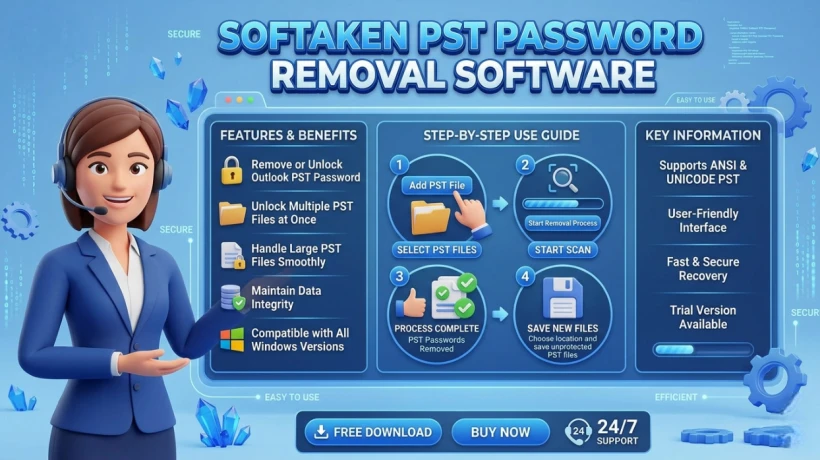
Softaken PST Password Removal Software is a professional tool designed to recover or remove passwords from Outlook PST files.
Beginner’s Guide to Reset or Recover Outlook PST Password Instantly
In today's digital age, email data is of paramount importance. For Microsoft Outlook users, the PST (Personal Storage Table) file is a crucial component that stores emails, contacts, calendar entries, & other data. We often password-protect our PST files to ensure their security; however, forgetting that very password can lead to a significant problem.
In this blog, we will provide a detailed explanation of both the manual method (via Outlook) and third-party tools for PST password recovery.
What is a PST file?
A PST file is a data file used by Outlook. It stores your emails, attachments, contacts, and other personal data.
What to Do If You Forget Your PST Password?
If you have forgotten the password for your PST file, there is no need to panic. You can attempt to recover or remove it by following the methods outlined below.
Method 1: Manual Method via Outlook
This method works only if you know the current password and wish to remove or change it.
Steps:
- Open Outlook.
- Click on the File tab.
- Select Account Settings > Account Settings.
- Go to the Data Files tab.
- Select your PST file and click on Settings.
- Now, click on the Change Password option.
- Enter the old password and set a new password, or leave it blank to remove it.
- Click OK.
Note: If you do not know the old password, this method will not work.
Method 2: Using Third-Party Tools
When the manual method does not work, third-party tools can come to your aid. These tools are capable of removing or recovering PST file passwords.
Softaken PST Password Removal Software is a professional tool designed to recover or remove passwords from Outlook PST files. This tool is extremely useful for users who have forgotten their passwords or are unable to access a locked PST file.
Key Features
Instant Password Recovery
This software quickly recovers or removes passwords from PST files, allowing you to access your files instantly.
Support for All PST Files
It supports both ANSI and Unicode types of PST files.
Data Security
During the recovery process, your file data remains completely secure and unaltered.
Easy User Interface
This tool features an extremely simple interface, enabling any user to utilize it without requiring technical expertise.
Broad Compatibility
This software works seamlessly with various versions of the Windows OS and Outlook.
How to Use the PST Password Recovery Software?
Using this tool is very simple.
Follow the steps given below:
- First, download and install the software.
- Open the program.

- Select your PST file by clicking the "Browse" button.

- Choose either the "Recover Password" or "Remove Password" option.

- Click the "Process" button.
- Once the process is complete, your PST file will be accessible without a password.
FAQs (Frequently Asked Questions)
Q1. Can I open a PST file without a password?
No, if the PST file is password-protected, you will need either the password or a recovery tool.
Q2. Is there an option to recover passwords within Outlook?
No, Outlook does not have a direct feature for recovering passwords.
Q3. Are third-party tools safe?
Yes, but you should use only reliable and certified tools.
Q4. Can removing a password lead to data deletion?
Generally, no; however, using an incorrect tool or process could result in data loss.
Conclusion
Forgetting a PST file password is a common issue, but with the right information and tools, it can be easily resolved. If you know the password, opt for the manual method within Outlook; otherwise, turn to third-party tools.
Always store your passwords in a secure location to prevent such issues in the future.
If you found this guide helpful, please share it to help others as well.



Comments
Login to Comment