PDF vs CHM for Software Documentation Storage: Which Is Better?
27 Aug, 2026
514 Views 0 Like(s)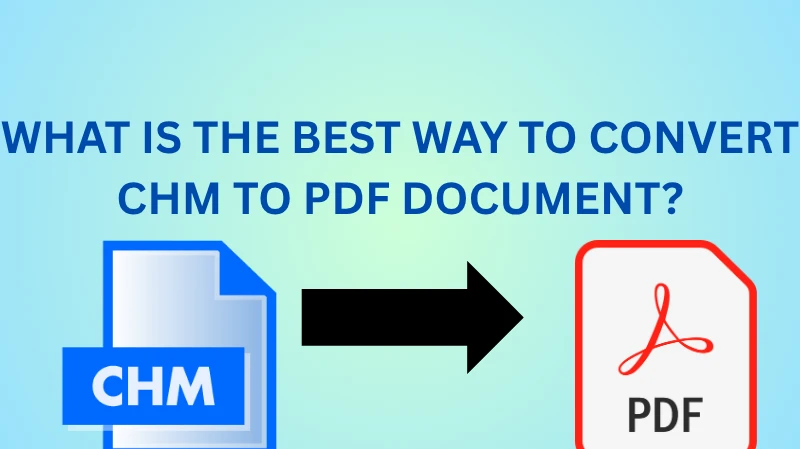
Compare PDF vs CHM for software documentation storage, including compatibility, accessibility, limitations, and practical ways to convert CHM files to PDF.
Software documentation needs to be accessible, searchable, portable, and easy to preserve for the long term. Two formats that have historically been used for storing technical documentation are PDF and CHM (Compiled HTML Help). While CHM was designed specifically for Windows-based help systems, PDF has become a more universal choice for distributing and archiving documentation.
If you are deciding between the two, understanding pdf vs chm for software documentation storage can help you choose a format based on accessibility, compatibility, navigation, security, and long-term usability.
PDF vs CHM for Software Documentation Storage: Quick Comparison
Before choosing a format, here is a quick comparison of their major characteristics:
| Factor | CHM | |
|---|---|---|
| Platform compatibility | Excellent | Primarily Windows-oriented |
| Offline access | Yes | Yes |
| Search capability | Strong | Strong within CHM viewer |
| Navigation | Bookmarks, links, TOC | Built-in TOC and index |
| Printing | Excellent | Possible, but less convenient |
| Long-term accessibility | High | Can be affected by legacy support |
| Sharing | Very easy | Less convenient |
| Security options | Passwords and permissions available | Limited |
| Archiving | Widely preferred | Less suitable for modern archives |
| Conversion options | Extensive | Often requires conversion |
For most modern documentation repositories, PDF is generally the more practical option because it is widely supported across operating systems, browsers, mobile devices, and document-management platforms.
Why PDF Is Often Better for Software Documentation
When evaluating pdf vs chm for software documentation storage, PDF has a major advantage: universal accessibility.
PDF files can be opened using browsers and dedicated PDF readers on Windows, macOS, Linux, Android, and iOS. This makes the format useful when documentation needs to be shared with customers, developers, IT teams, or employees using different devices.
PDF also preserves the visual appearance of a document. Fonts, images, page layouts, tables, and other elements can remain consistent between systems. This is particularly useful for installation manuals, technical guides, product documentation, compliance records, and archived manuals.
Another advantage is printing. A PDF can be printed as a complete document or selected pages, while CHM was primarily designed as an interactive Windows help format rather than a universal printable document.
PDF also works well for long-term storage because it is an established document format supported by a wide range of software.
Where CHM Still Has Advantages
CHM should not be dismissed completely when discussing pdf vs chm for software documentation storage.
Compiled HTML Help files were designed to provide interactive Windows-based help documentation. A CHM file can contain multiple HTML pages, a table of contents, an index, hyperlinks, images, and search functionality within a single package.
For legacy Windows applications, this can be convenient. Instead of distributing dozens of separate HTML pages, developers can package documentation into one CHM file.
CHM can also provide a compact offline help experience. However, its biggest weakness today is platform dependency. Modern users increasingly work across Windows, macOS, mobile devices, browsers, and cloud-based systems. A format that depends heavily on a particular help viewer is therefore less flexible.
This is one reason the pdf vs chm for software documentation storage decision often favors PDF when documentation needs to remain accessible for years.
Method 1: Print CHM Topics Directly to PDF
One simple approach for how to convert a chm file into pdf is to open the CHM file using a compatible Windows help viewer and print its contents through a PDF printer.
Steps
- Locate the CHM file on your Windows computer.
- Double-click the file to open it in the CHM viewer.
- Navigate to the documentation topic you want to preserve.
- Select the Print option.
- Choose a PDF printer, such as Microsoft Print to PDF.
- Select the required pages or topic.
- Choose a destination folder.
- Save the resulting PDF.
- Open the PDF and verify its formatting, images, links, and page structure.
Limitations
The biggest problem with this approach is that it may only convert the currently selected topic instead of the complete CHM documentation.
If a CHM file contains hundreds of topics, manually opening and printing each section can become extremely time-consuming. Navigation structures, indexes, and internal relationships may also require additional cleanup.
Therefore, this method is practical for a small CHM file or a few selected pages, but it is not ideal for bulk conversion.
Method 2: Extract CHM Content and Convert the HTML Files
Another manual approach is to extract the HTML content from the CHM file and then convert those HTML pages into PDF.
Windows provides tools that can extract CHM contents. Once the HTML files are available, you can open the relevant pages in a browser and use the browser's Print > Save as PDF function.
Steps
- Create a new folder for the extracted documentation.
- Extract the CHM contents into that folder using an appropriate CHM extraction utility.
- Identify the main HTML page or table-of-contents file.
- Open the HTML documentation in a browser.
- Review the extracted pages for broken images or links.
- Use the browser's Print option.
- Select Save as PDF.
- Configure page size, margins, orientation, and other available settings.
- Save the PDF.
- Repeat the process for additional pages or sections.
Limitations
This approach involves several manual steps and may not produce one consolidated PDF automatically. Internal links can also behave differently after extraction, while CSS formatting, frames, scripts, images, and navigation elements may require adjustment.
For large technical documentation sets, manually processing multiple HTML pages is inefficient.
Method 3: Use an Online CHM-to-PDF Converter
Online conversion services provide another way to handle how to convert a chm file into pdf without installing desktop software.
Generally, you upload the CHM file, select PDF as the output format, start the conversion, and download the resulting file.
Limitations
Online services can be unsuitable for confidential software documentation, proprietary manuals, internal development information, or files containing sensitive data. Uploading files to a third-party server may also conflict with organizational security policies.
File-size restrictions, conversion limits, advertisements, waiting times, and inconsistent formatting can create additional problems.
For these reasons, online conversion is best reserved for non-sensitive and relatively small files.
Which Format Wins for Long-Term Documentation Storage?
The pdf vs chm for software documentation storage decision becomes easier when you consider the intended audience.
Choose CHM when:
- Documentation is exclusively intended for legacy Windows applications.
- You need a packaged offline help system.
- Your existing application already depends on CHM navigation.
- Windows compatibility is the primary requirement.
Choose PDF when:
- Documentation needs to work across multiple operating systems.
- Files need to be printed or archived.
- Documentation will be shared with external users.
- You need consistent page formatting.
- The documentation needs to remain accessible through common readers.
- You want a more convenient format for long-term storage.
For most modern documentation workflows, PDF provides greater flexibility and accessibility.
The Most Practical Way to Convert CHM Documentation to PDF
When there are many CHM files to process, manual conversion quickly becomes difficult. Printing individual topics takes time, extracting HTML introduces additional steps, and online services can create privacy and file-size concerns.
This is where SysTools Document Converter Software can simplify the workflow. According to its product documentation, the desktop application supports CHM as an input format and can export documents to PDF and other formats. It also supports batch processing, allowing users to add multiple files or an entire folder rather than processing every file individually.
Steps to Convert CHM to PDF Using the Automated Tool
- Download and install the application on your supported computer.
- Launch the converter.
- Select the Add File(s) option to add individual CHM files or choose Add Folder(s) for bulk processing.
- Preview the added documents before conversion.
- Select PDF as the output format.
- Configure available PDF settings, such as page size, orientation, and margins.
- Select the destination location.
- Start the conversion process.
- Review the conversion summary to identify successfully converted and failed files.
- Open the generated PDF files and verify the documentation.
The software page also states that the application supports batch conversion, document preview, customizable PDF settings, and preservation of document properties such as formatting and navigational elements.
Final Verdict
The pdf vs chm for software documentation storage comparison ultimately depends on your documentation environment. CHM remains useful for legacy Windows applications and packaged offline help systems, but PDF is generally more flexible for modern distribution, sharing, printing, and archiving.
If you only need to convert one small CHM file, printing or extracting its HTML content may be sufficient. However, those approaches become inconvenient when you have multiple files, large documentation sets, or strict formatting requirements.
For users who need a repeatable and automated workflow, a dedicated desktop conversion solution is the more practical approach. It reduces manual processing, supports bulk conversion, and provides more control over the resulting PDF files.
In short, pdf vs chm for software documentation storage is less about which format is universally superior and more about future accessibility. For modern, cross-platform documentation storage, PDF is usually the safer long-term choice.
Frequently Asked Questions
Is PDF better than CHM for software documentation?
Generally, yes, when documentation needs to be shared across different platforms, printed, archived, or accessed outside a Windows environment. CHM remains useful for legacy Windows help systems.
Can I convert an entire CHM file to PDF?
Yes, but the approach matters. Manual printing may require processing individual topics, while extracting HTML can involve multiple additional steps. An automated converter is more suitable for larger documentation collections.
What is the easiest way to convert CHM to PDF?
For a small file, printing the CHM content to PDF can work. For multiple or larger files, an automated desktop conversion workflow is generally more efficient.
Does converting CHM to PDF preserve the original formatting?
The result depends on the conversion method and complexity of the CHM content. Basic text may convert easily, while navigation structures, images, CSS, frames, and hyperlinks can require additional verification.
Should I keep CHM files after converting them to PDF?
If the CHM files are important source documentation, retaining the originals is recommended. Keep the converted PDFs as distribution or archival copies rather than treating conversion as a replacement for the original source files.


Comments
Login to Comment