How to Import OLM Files to Office 365 in Bulk (Proven Methods)
27 Aug, 2026
513 Views 0 Like(s)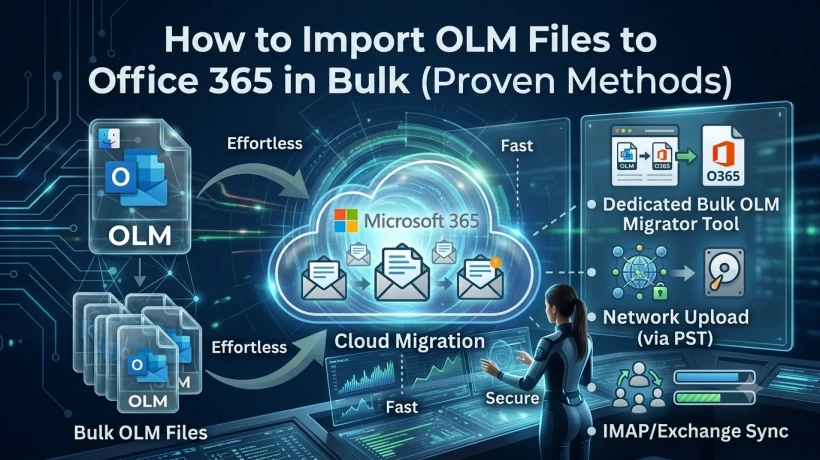
Learn how to import OLM files to Office 365 in bulk. Compare manual Outlook import vs. dedicated tools for fast, error-free bulk migration.
Switching from Outlook for Mac to Office 365 usually means dealing with OLM archive files — and if you've got more than one of them, the process can quickly turn into a headache. OLM files store your mailbox, contacts, calendar, and notes, but they aren't natively compatible with Office 365's cloud environment. That means a direct upload isn't possible; the data has to be converted and imported properly.
This guide walks through why people make the switch, what your options are for importing OLM files into Office 365, and which approach actually works when you're dealing with bulk data.
Why Move From OLM to Office 365?
Before getting into the "how," it helps to understand the "why." Common reasons users migrate include:
- Anywhere access — Office 365 is cloud-hosted, so mail, contacts, and calendars stay available across devices without depending on a local Mac install.
- Storage relief — OLM archives can balloon in size over time; migrating frees up local disk space.
- Built-in data protection — Office 365 includes automatic cloud backups, reducing the risk of losing data to a corrupted file or a hardware failure.
- Access to the wider Microsoft ecosystem — once your data is in O365, you also get Teams, SharePoint, and OneDrive without extra setup.
Method 1: Import OLM to Office 365 Manually via Outlook
If you're only dealing with a single, small OLM file, Outlook's built-in import function can technically get the job done:
- Open Microsoft Outlook.
- Go to File → Open & Export.
- Select Import/Export.
- Choose Import from another program or file.
- Pick Outlook for Mac Data File (.olm).
- Click Continue, then select the OLM file you want to import.
- Choose a destination and complete the import.
Where This Approach Falls Short
The manual route works in theory, but it has real limitations once your data grows:
- One file at a time — there's no built-in way to batch-import multiple OLM files, so migrating several mailboxes becomes extremely repetitive.
- No selective import — you can't filter by date range or item type; it's all-or-nothing.
- Higher error risk — large or slightly corrupted OLM files can fail mid-import, and there's little in the way of error recovery or a preview step to catch problems beforehand.
- Technical familiarity required — one wrong click in the Import/Export wizard can lead to duplicate items or incomplete transfers.
For a single personal mailbox, this might be tolerable. For a business migrating dozens of accounts, it isn't practical.
Method 2: Use a Dedicated OLM Migration Tool for Bulk Import
For anyone dealing with multiple OLM files — say, migrating an entire team or organization to Office 365 — a purpose-built migration utility is the more reliable route. These tools are designed specifically to batch-process OLM archives and map them directly to Office 365 accounts, without the file-by-file grind of the manual method.
A solid OLM-to-Office-365 tool typically offers:
- Bulk conversion of multiple OLM files in a single run, instead of one at a time.
- Preview before conversion, so you can verify mailbox contents and catch issues before committing to the migration.
- Folder hierarchy preservation, keeping your existing folder structure intact after the move.
- Multiple output formats (PST, CSV, and more) in addition to direct Office 365 import, for flexibility if your end goal changes.
- Date-range and item-type filters, so you can migrate only what's relevant instead of everything in the archive.
- Duplicate detection, typically based on fields like sender, recipient, and subject, to keep the destination mailbox clean.
General Workflow for a Bulk OLM Import Tool
While specifics vary by vendor, the typical process looks like this:
- Launch the migration tool (running as administrator is usually recommended for smoother folder access).
- Add the OLM file(s) or the folder containing them.
- Preview the mailbox contents to confirm everything looks correct.
- Select Office 365 as the destination/output format.
- Apply any optional filters — date range, duplicate removal, selective folders.
- Enter your Office 365 credentials or destination path.
- Start the conversion and let the tool handle the bulk transfer.
This approach removes most of the manual risk: no repetitive per-file imports, a preview step to sanity-check the data first, and filtering options that let you control exactly what gets migrated.
Manual vs. Tool-Based: Which Should You Use?
| Factor | Manual (Outlook) | Dedicated Tool |
|---|---|---|
| Multiple files at once | No | Yes |
| Preview before import | No | Yes |
| Date/folder filtering | No | Yes |
| Duplicate handling | No | Yes |
| Technical effort | Higher | Lower |
| Best for | A single small file | Bulk or business migrations |
If you're an individual with one modest-sized OLM file, the manual method is free and works fine. But once you're migrating multiple mailboxes, larger archives, or anything for an organization, a dedicated bulk tool saves significant time and reduces the risk of data loss or corruption along the way.
Frequently Asked Questions
Can I import more than one OLM file into Office 365 at the same time? Not through Outlook's built-in import feature — it only processes one file per import session. To migrate multiple OLM files together, you'll need a dedicated bulk migration tool that supports batch processing.
Will attachments carry over during the migration? Attachments should transfer along with their associated emails as long as the migration method (manual or tool-based) fully processes each item rather than just headers or metadata. It's worth spot-checking a few migrated emails afterward to confirm attachments came through intact.
Does converting OLM to Office 365 preserve my folder structure? With the manual method, folder structure is generally preserved for the single file being imported. Dedicated migration tools typically preserve structure as well, but it's a feature worth confirming before relying on it for a large migration.
Is it safe to delete the original OLM file after migration? Only after you've verified the migrated data in Office 365 — checking folder counts, spot-checking a sample of emails, and confirming contacts/calendar items transferred correctly. Keep a backup copy of the OLM file until you're fully confident the migration succeeded.


Comments
Login to Comment