How to Convert MBOX to EML Files: Complete Step-by-Step Guide
06 Jun, 2026
1504 Views 0 Like(s)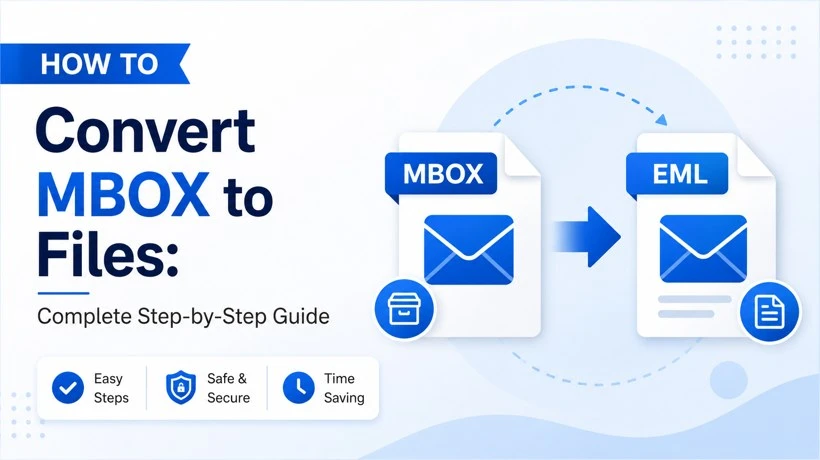
Learn how to convert MBOX files to EML format using manual and professional methods. This guide covers the benefits of EML, step-by-step conversion techniques, and the best solution for secure, accurate, and hassle-free email migration.
"Regional Medical Center has been using Thunderbird as its primary email client for the past eight years. They are storing all patient communications, medical reports and administrative correspondence in MBOX format. Due to a recent system upgrade the organization is transitioning to Zimbra Collaboration Suite. Therefore, it requires emails to be in EML format for a smooth migration and to ensure data integrity. As a result they must convert MBOX to EML files to ensure compatibility with the new platform."
This is one of the cases where a user needs to save their Thunderbird files as EML.
Thus, in this blog, we will discuss the most effective methods for converting MBOX files to EML. So that users can achieve high accuracy and optimize uptime while converting to EML.
Before that, we will explore other causes to save the files in EML format.
Why Are Businesses Migrating Thunderbird MBOX to EML?
In this digital era one of the emerging trends among organizations using Mozilla Thunderbird is to export MBOX to EML.
While both file types serve the purpose of storing email messages. But let’s understand why businesses are moving towards EML.
1. Compatibility with Modern Email Platforms
- MBOX is proprietary to Thunderbird, which limits consistent migration to other email clients or cloud-based systems.
- As EML is a universal standard, supported by platforms like Zimbra, Office 365, and Gmail.
2. Better Email Management & Organization
- MBOX stores all emails in a single file. It becomes difficult to extract, search or backup single messages.
- EML saves each email as a separate file simplifying archiving, retrieval and legal/compliance audits.
3. Easier Cloud & Server Migration
- Many businesses are adopting cloud-based email solutions (e.g., Exchange Online, G Suite, Zimbra Cloud).
- EML files are easier to upload in bulk compared to MBOX, reducing migration time and errors.
4. Regulatory Compliance & Data Security
- Industries like healthcare (HIPAA), finance (FINRA), and legal (eDiscovery) require granular email retention.
- EML’s per-message storage allows for selective backup, encryption and compliance with data protection laws.
5. Business Mergers & IT Standardization
- Companies undergoing mergers, acquisitions or IT consolidation often need to unify email systems.
- Converting MBOX to EML gives seamless integration with the new organizations email infrastructure.
Along with this, there might be other reasons for businesses to export MBOX to EML.
Now, we will go over the top methods for converting MBOX files into EML format.
Techniques to Convert MBOX to EML for Enterprises
For businesses migrating from Thunderbird MBOX to EML selecting the right conversion method is important for data integrity, security and efficiency.
Below are the top solutions.
Method 01: Manual Thunderbird Add-ons with ImportExportTools
The ImportExportTools NG Thunderbird add-on provides a free, manual method to convert MBOX emails to EML format.
This approach is best suited for small migrations.
Install Add-on
- Open Thunderbird → Menu (☰) > Add-ons → Search for “ImportExportTools NG” → Install & restart.
Export Emails
- Right-click emails/folder → ImportExportTools NG > Export Messages > EML Format.
- Then, choose Export Selected (single emails) or Export All (entire folder).
Save & Organize
- Pick a save location → EML files export automatically.
- Manually sort into folders if needed.
Now you have your MBOX converted files into EML.
Although this method converts MBOX to EML freely, it is time-consuming for large mailboxes (must export folders one by one).
Moreover, this does not do batch automated conversion.
Method 02: Command-Line & Scripting Technique to Export MBOX to EML
For IT teams and developers command-line tools and scripts provide a cost-free way to convert MBOX files to EML.
This method is best for enterprises that need custom automation, bulk processing or integration with existing workflows.
Let’s learn how it works.
1. Python Script (Using Mailbox Library)
import mailbox
for message in mailbox.mbox('inbox.mbox'):
    with open(f'{message["subject"]}.eml', 'w') as eml_file:
        eml_file.write(message.as_string())
Steps:
- Save the script as mbox_to_eml.py.
- Run it via terminal: python3 mbox_to_eml.py.
- Converts inbox.mbox into individual .eml files.
2. Linux mb2eml Utility (Bash)
- Requires tools like munpack or formail.
Example command:
munpack -t -C output_dir/ inbox.mbox3. PowerShell (Windows Servers)
- Uses .NET libraries for MIME parsing.
- Best for Exchange or Office 365 migrations.
By following the Python code, you can convert the MBOX files.
But it requires a lot of technical and coding expertise.
It is a free and open-source tool, it needs Manual debugging for corrupt files.
Moreover, it is harder to verify the output visually.
Method 03: Professional MBOX to EML Conversion
When it comes to handling mission-critical email data especially in sensitive sectors like healthcare, finance and law, organizations can’t afford risks like data loss or non-compliance. That’s where Softaken MBOX to EML Converter comes into play offering secure, compliant, and high-performance MBOX to EML conversion tailored for enterprise use. It gives zero data loss, preserved folder structure and minimal downtime.
Their dedicated support and audit-friendly logs make it an ideal choice for large-scale, error-free email migrations.
Ending Notes
Migrating from Thunderbird (MBOX) to EML is essential for businesses adopting modern email platforms like Zimbra, Exchange or cloud-based solutions.
The right conversion method depends on your organizations scale, budget and technical knowledge.



Comments
Login to Comment