Find Any Email in Seconds: A Practical Guide to Searching Your Inbox
30 Oct, 2026
12 Views 0 Like(s)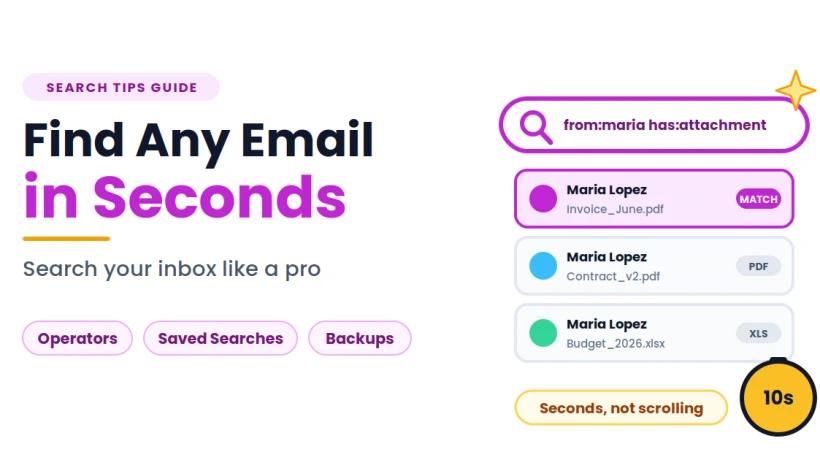
Stop scrolling. Find any email in seconds with exact phrases, search operators like from: and has:attachment, simple labels, saved searches, and an offline backup to protect your archive.
You know the message exists. Someone sent you the address, the booking number or the quote months ago, and now you need it. You scroll, you try a few random words, you scroll some more. Ten minutes later, you are still hunting, and the thing you were supposed to be doing has been forgotten.
Searching is one of the most powerful features of any email service, yet most people use only a fraction of it. A handful of simple techniques can turn a frustrating hunt into a ten-second task. This guide shows you how to search smarter, set up your inbox so messages are easy to find and protect the archive you are searching through.
Why Search Beats Scrolling
Scrolling works when you have a few dozen messages. It fails when you have thousands. Even a carefully sorted folder system takes effort to maintain, and it only helps if you remember where you put things.
Search does not depend on your memory of where something lives. It depends on remembering one small detail: a sender, a word, a rough date or the fact that a file was attached. Once you learn to combine those details, you can narrow a mountain of mail to a short list in moments.
Start With the Basics
Before using advanced tricks, get the fundamentals right.
Use Specific Words
Instead of typing “meeting,” try the project name, the person’s name or a unique phrase you remember. The more distinctive the word, the smaller the list of results.
Search for Exact Phrases
Putting words in quotation marks tells the search to look for that exact phrase. If you remember someone writing “parking pass for Saturday,” searching with quotes will find it far faster than the same words typed loosely.
Remember That Names Work Too
You can search for a person’s name or email address to see everything connected to them. If you only remember the company, try searching for its name or its website address.
Use Search Operators to Narrow Results
Most email services, including Gmail, support short commands called search operators. They look technical, but they are easy to learn, and a few cover most needs.
-
from: finds messages sent by a particular person, such as from:maria.
-
to: finds messages you sent to someone.
-
subject: searches only within subject lines.
-
has:attachment shows only messages that include files.
-
filename: looks for a file by name or type, such as filename:pdf.
-
before: and after: limit results to a date range, such as after:2025/01/01.
-
older_than: and newer_than: use relative time, such as newer_than:6m for the last six months.
-
is:unread or is:starred filters by status.
-
label: searches within a specific label.
-
OR broadens a search, and a minus sign (-) excludes a word.
Combining them is where the real power lies. A search like from:maria has:attachment after:2025/06/01 filters to messages from one person, with files, from a specific date onward. What might have taken fifteen minutes of scrolling now takes seconds.
Build Your Inbox for Easy Finding
Good search starts before you ever type a query. A little structure when messages arrive pays off later.
Write Subject Lines That Can Be Found
Whether you are writing or replying, a descriptive subject line is a gift to your future self. “Invoice 0142: June design work” is far easier to find than “Hello.” If a thread has drifted from its original topic, start a new message with a fresh subject.
Keep Labels Simple
A few clear labels, such as “Receipts,” “Travel,” “Contracts” and “Reference,” work better than a deep tree of folders. Because a message can carry several labels, you can search within one using the label: command and narrow further with other terms. Archive finished conversations instead of deleting them, so they stay searchable without cluttering your main view.
Save Names and Groups for People You Write To Often
Searching also gets easier when your contacts are organized. If you regularly write to the same circle, such as relatives, a hobby club or a team, saving them under one label makes both sending and searching simpler. Learning how to create a group in Gmail lets you address everyone by typing a single name, and it keeps your correspondence with each circle consistent and easy to trace later.
When writing to a large audience who do not know each other, use Bcc so addresses stay private. Reserve To and Cc for people who share the same conversation.
Find Attachments Without Opening Every Message
Files are some of the most commonly searched-for items, and some of the easiest to lose. A few shortcuts help:
-
Search by type: Use filename:pdf or filename:xlsx to see only documents of that kind.
-
Combine with a sender: from:maria filename:pdf narrows to her documents.
-
Add a date range: Pair it with after: or before: to skip older versions.
-
Use the size filter: Searching larger:10M shows messages with big files, which helps when you need to free up storage.
Clear file names make this even more effective. “Event_Schedule_v2_June.pdf” is far easier to track down than “Document1.”
Turn Searches Into Shortcuts
If you run the same search often, do not retype it every time. Most email services let you save a search as a filter or label, so your most common queries become one-click shortcuts.
Useful examples include:
-
Unread messages from your top contacts
-
All receipts from the past three months
-
Messages with attachments from a particular project
-
Anything flagged but not yet answered
A few minutes of setup can save hours across a year.
When Search Comes Up Empty
Sometimes you search and find nothing. Before assuming the message is gone, try these steps:
-
Check the spelling and try variations: A name might be spelled differently than you remember.
-
Widen your filters: Remove date limits or labels that might exclude the message.
-
Look in spam and trash: Search often ignores these folders by default.
-
Try the other person’s address: The message may have come from an unexpected account.
-
Check other accounts: If you use more than one address, the message may be in another inbox.
If a message truly seems to be missing, it may have been deleted or the account may have lost data. That is where a separate copy becomes valuable.
Protect the Archive You Search
Search is only useful when the messages are still there. Accounts can be hacked, locked or suspended, and messages can disappear through accidental bulk deletion or automatic cleanup. A single incident can erase years of receipts, contracts, confirmations and personal conversations, and no search will bring them back.
An independent copy keeps your archive safe and searchable even if something happens to the original account. A solution such as the SysTools Gmail Email Backup Tool can save your emails and related account data offline, so your important information remains available whatever happens online. It works like photocopying important papers before putting the originals in a drawer.
A few habits make any backup routine more reliable:
-
Back up on a schedule: Regular backups beat occasional good intentions.
-
Include attachments and contacts: The files and the people matter as much as the text.
-
Test your copy: Open a few saved items to confirm they work.
-
Store it separately: Keep a copy somewhere other than your main device.
Keep Search Safe and Private
Because search can reveal almost anything in your mailbox, it is worth protecting the account that holds it. Turn on two-step verification, use a strong and unique password, and review which devices and apps have access. If someone gains entry to your inbox, search makes it easy for them to find sensitive information quickly.
Be careful with shared computers as well. Log out when you finish, and avoid saving passwords on devices that others use.
A Simple Search Routine
You do not need to memorize every command. A light routine keeps your skills sharp:
-
Daily: Use search instead of scrolling whenever you need an old message.
-
Weekly: Archive finished threads and add a label to anything you expect to need again.
-
Monthly: Review your saved searches and filters, and confirm your latest backup ran properly.
-
Quarterly: Clear out old attachments you no longer need and update your security settings.
Common Search Mistakes to Avoid
-
Scrolling through pages of results instead of narrowing the query
-
Using common words that return thousands of matches
-
Forgetting that spam and trash are often excluded from results
-
Deleting messages you might need again instead of archiving them
-
Using vague subject lines that make future searching harder
-
Relying on a single online account with no separate copy of its contents
Final Thoughts
Finding what you need in your inbox is a skill, and it is easy to learn. Search for specific words and exact phrases, use a few key operators, write subject lines that can be found, keep labels simple, save your common searches and protect the archive behind them.
You do not have to learn everything at once. Pick one technique, such as using from: and has:attachment together, and try it the next time you need an old message. Add another next week. Before long, you will find almost anything in seconds, and the frantic scrolling will be a thing of the past.



Comments
Login to Comment