Facing TGZ to PST Conversion Problems? Follow This Troubleshooting Checklist
18 Sep, 2026
11 Views 0 Like(s)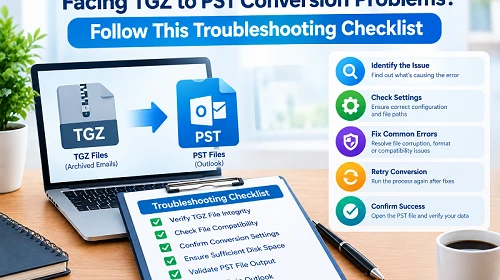
Facing TGZ to PST conversion problems? Follow this troubleshooting checklist to identify common issues and ensure a smoother TGZ mailbox migration to Outlook.
Introduction
TGZ files can have complete mailbox data; however, if the needed mailbox format is PST, it can be challenging to get that data into Outlook. Users can face problems like unsupported file handling, missing folders, incomplete conversion, attachment issues, or trouble maintaining the original mailbox structure during migration. It is better to pinpoint the likely cause at each stage rather than treat each problem as a conversion failure.
Here is a troubleshooting checklist to take care of the most essential points before, during, and after the TGZ to PST conversion.
1. Check Your TGZ File Before Conversion
☐ Check that the TGZ file is available and accessible in its present location.
☐ If the file was copied from another computer, server, or backup location, verify that the file was duplicated correctly.
☐ Don't alter the original TGZ file before beginning the conversion.
☐ If there are numerous TGZ files, identify the correct mailbox files before proceeding.
Troubleshooting tip: Even when the conversion software is functioning properly, conversion problems can arise if the source file is incomplete or inaccessible.
2. Is Outlook Compatibility the Real Problem?
☐ Verify that PST is needed in the target environment instead of another mailbox format.
☐ Verify whether the converted data has to be opened in MS Outlook.
☐ Verify that the Outlook version you want to use is compatible with the produced PST file.
☐ Don’t expect magic. Changing the file extension does not make TGZ data compatible with Outlook.
Why this is important: TGZ and PST are different kinds of mailbox files. Simply renaming a TGZ file to a PST extension will not alter the mailbox structure contained within.
3. Check Folder Structure Problems
One of the largest concerns during mailbox transfer is whether the emails will be organized after the conversion.
☐ Ensure preservation of mailbox folders, for example, Inbox, Sent Items, Drafts, etc.
☐ Ensure that nested or custom folders are not combined needlessly.
☐ Review the structure of the source mailbox and the resulting PST file after the operation.
☐ Do not delete or move the original TGZ file until you have verified that the necessary folders exist.
Troubleshooting advice: Ensure that a conversion has been successfully completed to create the files and that the mailbox is logically organized.
4. Check for Missing Attachments or Emails
If the PST opens but some content appears to be missing, check the following:
☐ Check multiple folders instead of just the Inbox.
☐ Open emails with attachments to check the presence of attached files.
☐ Where practical, compare message counts.
☐ Check older emails and messages in custom folders.
☐ Confirm that the conversion procedure completed without interruption.
This step is quite handy if you have several years of emails or a significant number of attachments in your mailbox.
5. Check for Large or Multiple TGZ Files
Larger mailbox archives can also have additional management problems.
☐ Verify sufficient storage space is available for the resulting PST files.
☐ Do not interrupt the conversion procedure when processing large mailbox data.
☐ If there are several TGZ files, check each output individually.
☐ Retain the original files until the converted data has been verified.
☐ Make sure the conversion solution selected can cope with the volume of data being handled.
Troubleshooting tip: Don’t assume that a partially created result is a full migration. Handle large datasets systematically.
6. Check the Best Conversion Approach
If you continue to experience issues with unsupported formats, mailbox hierarchy, attachments, or large archives, you might want to reassess how you are converting.
☐ The chosen solution must support TGZ as the source format and PST as the destination format.
☐ Look for choices that support keeping mailbox folders during the conversion.
☐ Ensure the software can work with mailbox data without needless intermediate conversions.
☐ Find an easy way to choose and export TGZ data.
DataVare TGZ to PST Converter Expert Tool is a suitable option for those who need a specific method to convert TGZ mailbox data to PST files that are compatible with Outlook. It makes the migration process specific to the source and destination formats.
7. Perform a Post-Conversion Verification
PST file creation should not be viewed as the completion of the conversion.
☐ Open the created PST in the destination Outlook environment.
☐ Review top folders like Inbox, Sent Items, Drafts, and any custom folders.
☐ Open different message types.
☐ Try out various attachments.
☐ Confirm the presence of important mailbox data.
☐ Compare the converted material to the original TGZ data.
☐ Keep the original TGZ file until the verification is done.
8. Final Troubleshooting Checklist
Before you think the migration is done, check off the following:
☐ The source TGZ file was available and uncorrupted.
☐ The proper destination format was chosen.
☐ The conversion finished without interruption.
☐ Mailbox folders are present in the PST.
☐ Important emails and attachments are accessible.
☐ The created PST opens correctly in Outlook.
☐ The original source has been deleted after the converted data has been verified.
Final Verdict
There are various reasons for TGZ to PST conversion problems, so troubleshooting should be done for the whole migration process, not only for the conversion itself. Checking source-file integrity, Outlook compatibility, folder organization, attachments, storage, and the final PST is a more reliable technique to spot possible problems. A defined checklist also makes it easier to check over the converted mailbox before considering the migration complete.



Comments
Login to Comment