Compact PST: A Step-by-Step Guide to Easily Remove Junk and Unused Space from PST Files
10 Apr, 2026
2497 Views 0 Like(s)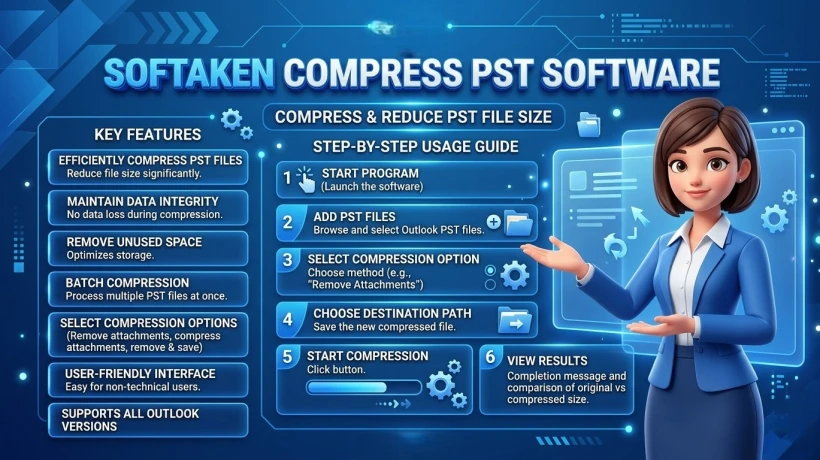
Softaken Compress PST Software is a professional Outlook utility that helps compress PST files.
Remove Junk and Unused Space from PST File: Step by Step Guide
Outlook PST files have the capacity to grow significantly over time. The extra space that junk data, deleted items, emails, & attachments take up in the PST file slows down Outlook & often causes issues.
In this blog, we'll show you how to remove junk and unused space from a PST file, both manually and with third-party tools.
Why does junk and unused space accumulate in a PST file?
Deleted Items
- Large email attachments
- Junk/Spam emails
- Uncompact PST file
- Old and useless folders
Method 1:- Cleaning a PST file manually in Outlook
Outlook has several options for deleting unnecessary content.
Step 1:- Empty the Deleted Items & Junk Folders
- Open Outlook
- Right-click the Deleted Items folder
- Select Empty Folder
- Repeat the same process for the Junk Email folder
Step 2:- Delete Large Emails and Attachments
- Go to Inbox
- View > View Settings > Filter
- Sort emails by size
- Delete unnecessary large emails and attachments
Step 3:- Use the Archive Feature
- File > Tools > Clean Up Old Items
- Select the date of archiving
- Move old emails to a separate PST
Step 4:- Compact the PST File
- File > Account Settings > Account Settings
- Open the Data Files tab
- Select the PST file and click Settings
- Press the Compact Now button
This removes any unused space in the PST file.
Method 2:- A independent program can assist you in easily optimizing a PST file.
Manual approaches are time-consuming & do not always work for huge PST files. In such situations, an independent PST compress program is a better choice.
Softaken Compress PST Software is a professional Outlook utility that helps compress PST files. This tool removes unnecessary space without any data loss and improves Outlook performance.
Key Features of Compress PST Software
- Safely reduces PST file size
- Keeps emails, attachments, & folder structure intact
- Easily compresses large PST files
- Works with or without Outlook installed
- Simple and user-friendly interface
- Supports all major Windows and MS Outlook versions
How does Compress PST Software work?
- Download & install the software.

- Browse and add the Outlook PST file.

- Select the compression option.

- Start the compression process.

- Save the reduced-size PST file.

The entire process is easy & requires no technical knowledge.
Conclusion
Outlook's manual process can work if your PST file is short & includes little data. If the PST file is really large or Outlook is running slowly, an independent PST Compress program can be a more reliable & secure option.
Regularly cleaning your PST file can make Outlook run faster & data management easier.
shrink large Outlook PST file, remove junk and unused space from PST, best PST compactor software, reduce PST file size, Reduce PST File Size Without Outlook, Compact ANSI & Unicode PST Files, optimize large PST files, Professional PST compact utility, Outlook PST compressor, Compact large PST files, Professional PST compact utility, remove attachments while compressing PST. Save attachments separately and compress PST. Keep attachments while compressing PST, compact PST with attachments intact, compact PST without Outlook, Reduce PST file size, PST compactor software



Comments
Login to Comment