Best Ways to Handle Two Gmail Accounts Without Missing Important Emails
23 Jun, 2026
1252 Views 0 Like(s)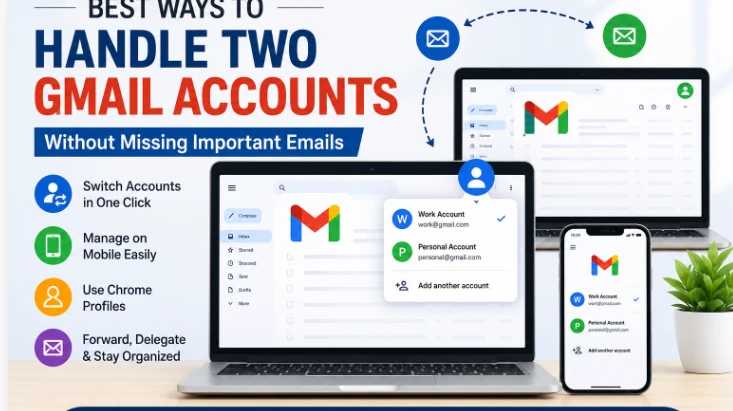
Managing two Gmail accounts? Learn simple ways to switch, organize, forward emails, and stay productive without missing important messages.
Using separate Gmail accounts for work and personal communication is common today. One account may be dedicated to office emails while the other handles subscriptions, family messages, and online purchases. However, managing both can become difficult when notifications pile up and inboxes start competing for attention.
The good news is that Gmail provides several built-in features that make it easier to stay organized. Whether you use Gmail on a computer, smartphone, or browser, there are multiple ways to manage two accounts efficiently.
Quick Answer
To use two Gmail accounts together:
-
Open Gmail.
-
Click your account picture in the top-right corner.
-
Select Add another account.
-
Sign in with your second Gmail account.
-
Both accounts will now be available from the account switcher menu.
Method 1: Add Both Accounts in Gmail
Google allows users to stay signed in to multiple accounts at the same time. This eliminates the need to repeatedly enter passwords or open private browsing windows.
Steps to Add a Second Gmail Account
-
Sign in to Gmail.
-
Click your profile icon.
-
Choose Add another account.
-
Enter the login details for your second Gmail address.
-
Complete the sign-in process.
Once added, you can move between inboxes with a single click.
Why This Method Works
-
No repeated logins.
-
Quick access to both inboxes.
-
Separate settings remain intact.
-
Works on all modern browsers.
Method 2: Manage Multiple Gmail Accounts on Mobile
Many users check email primarily from their phones. Fortunately, the Gmail mobile app supports multiple Google accounts.
Add Another Account on Android or iPhone
-
Open the Gmail app.
-
Tap your profile picture.
-
Select Add another account.
-
Choose Google.
-
Sign in with the second Gmail account.
After setup, both accounts appear in the account menu for instant access.
View All Emails Together
The Gmail app includes an All Inboxes option that combines emails from all connected accounts.
To access it:
-
Tap the menu icon.
-
Select All Inboxes.
This view helps users monitor every incoming email without manually switching accounts.
Method 3: Create Separate Chrome Profiles
Some people prefer keeping personal and professional activities completely isolated. Chrome Profiles offer a practical solution.
Setting Up Chrome Profiles
-
Open Google Chrome.
-
Click the profile icon.
-
Select Add.
-
Sign in with one Gmail account.
-
Repeat the process for the second account.
Each profile functions independently.
Benefits of Chrome Profiles
-
Separate browsing histories.
-
Different bookmarks.
-
Individual saved passwords.
-
Dedicated Gmail sessions.
This setup is ideal for remote workers, freelancers, and business professionals.
Gmail Account Switching vs Chrome Profiles
|
Feature |
Gmail Account Switching |
Chrome Profiles |
|
Ease of Setup |
Very Easy |
Easy |
|
Account Separation |
Moderate |
Complete |
|
Shared Browser Data |
Yes |
No |
|
Recommended For |
Casual Users |
Business Users |
Users who frequently move between work and personal tasks often prefer Chrome Profiles because they reduce confusion and improve productivity.
Method 4: Forward Emails to One Gmail Account
If checking two inboxes feels unnecessary, forwarding can simplify email management.
How to Enable Email Forwarding
-
Open the secondary Gmail account.
-
Navigate to Settings.
-
Open Forwarding and POP/IMAP.
-
Add your primary Gmail address.
-
Verify ownership.
-
Enable forwarding.
Every new email arriving in the secondary account will automatically appear in your primary inbox.
Advantages of Email Forwarding
-
One inbox to monitor.
-
Faster communication.
-
Reduced account switching.
This method is particularly useful for secondary accounts that receive fewer emails.
Method 5: Access Both Accounts Through Gmail Delegation
Gmail Delegation allows another Gmail account to access an inbox without sharing login credentials.
Configure Delegation
-
Open Gmail settings.
-
Select Accounts and Import.
-
Locate Grant access to your account.
-
Click Add another account.
-
Enter the Gmail address that should receive access.
-
Accept the invitation from the delegated account.
Once approved, both inboxes can be managed more conveniently.
When Delegation Makes Sense
-
Team collaboration.
-
Executive assistants.
-
Shared departmental mailboxes.
-
Personal management of multiple accounts.
Tips to Stay Organized Across Multiple Gmail Accounts
Successfully managing two Gmail accounts requires more than simply adding them.
Use Labels
Labels help categorize messages by:
-
Projects
-
Clients
-
Personal tasks
-
Financial records
Create Smart Filters
Filters automatically sort emails based on sender, keywords, or subject lines.
This reduces inbox clutter and saves time.
Set Unique Signatures
Different signatures prevent mistakes when sending emails from multiple accounts.
For example:
-
Professional signature for work.
-
Simple signature for personal communication.
Protect Your Emails Before Making Changes
Before enabling forwarding, delegation, or large-scale inbox organization, it is important to create a backup of important email data.
The SysTools Gmail Backup Tool provides a convenient way to download Gmail emails to local storage in formats such as PST, MBOX, PDF, MSG, and EML. A backup ensures that valuable information remains available even if emails are accidentally deleted or account settings are changed incorrectly.
Conclusion
Running two Gmail accounts doesn't have to create confusion. By using Gmail's account switcher, mobile features, Chrome Profiles, forwarding, or delegation, users can manage multiple inboxes with minimal effort.
If you're looking for a complete walkthrough with additional productivity tips, read How to Manage two Gmail Accounts and discover strategies that make handling multiple inboxes far more efficient.
Frequently Asked Questions
Can I stay signed into two Gmail accounts at the same time?
Yes. Gmail supports multiple active sessions, allowing users to switch between accounts without signing out.
How do I see emails from both Gmail accounts together?
Use the All Inboxes feature in the Gmail mobile application to combine messages from all connected accounts.
Is it possible to receive emails from two Gmail accounts in one inbox?
Yes. Gmail forwarding can automatically send emails from one account to another.
Which method is best for professionals?
Chrome Profiles provide the highest level of separation and organization, making them a preferred option for business users.



Comments
Login to Comment