Amazon WorkMail to Microsoft 365 Migration: Do It Before March 31, 2027
31 Oct, 2026
8 Views 0 Like(s)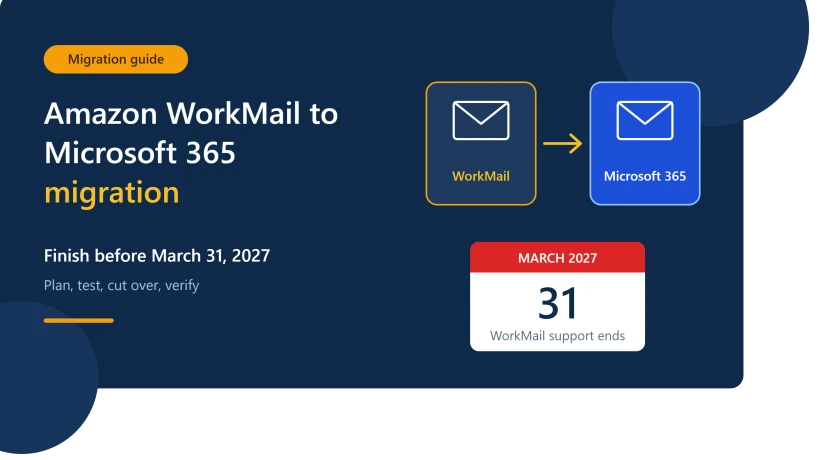
Amazon WorkMail shuts down on March 31, 2027. Learn how to plan your Amazon WorkMail to Microsoft 365 migration, avoid data loss, and finish before the deadline.
If your company still runs email on Amazon WorkMail, the clock is already ticking. AWS has confirmed it will end support for the service on March 31, 2027, and after that date you will not be able to reach the console or any WorkMail resources. New sign-ups were closed from April 30, 2026, so there is no path back to a long-term WorkMail setup. The only real question is where your mailboxes will live next.
For many organizations, the answer is Microsoft 365. This guide explains why, how to plan an Amazon WorkMail to Microsoft 365 migration, and how to avoid the mistakes that tend to show up when teams leave it until the last month.
Why You Should Not Wait Until March 2027
Email feels simple until you have to move it. A mailbox holds years of conversations, contracts, invoices, calendar history, and contacts. Moving all of that for dozens or hundreds of users takes more than a weekend.
Starting early gives you room to handle the unexpected. A few examples: a user with a 40 GB mailbox that takes days to transfer, a shared calendar that does not map cleanly, or a DNS change that needs approval from a person who is on leave. Each of these is a small problem in November and a crisis in March.
There is also the risk side. Once support ends, you lose access to the service entirely. Any data you have not exported or migrated by then may be gone for good. Treat March 31, 2027 as a hard stop, not a soft target.
Why Microsoft 365 Is a Natural Destination
AWS pointed customers toward a few third-party mail platforms, but many businesses want more than a mailbox. Microsoft 365 bundles Exchange Online, Teams, SharePoint, OneDrive, and the desktop Office apps under one subscription and one admin center.
WorkMail users already work with Outlook in many cases, so the day-to-day experience will feel familiar. Exchange Online also offers mature security controls, retention policies, and compliance tools that smaller mail services often lack. If your company is growing, one platform for mail, chat, meetings, and files reduces the number of vendors you manage.
Step-by-Step Plan for Your Amazon WorkMail to Microsoft 365 Migration
A calm, ordered approach works better than a rushed one. Here is a practical sequence.
1. Take stock of what you have. List every mailbox, shared mailbox, resource (rooms and equipment), distribution group, and alias. Note the size of each mailbox and who owns it. This inventory becomes your migration checklist.
2. Pick your Microsoft 365 plan. Match licenses to real needs. Basic users may only need an Exchange Online plan, while others will want the full Microsoft 365 Business or Enterprise suite. Buy licenses before you begin moving data.
3. Prepare the Microsoft 365 tenant. Add and verify your domain, create user accounts, and assign licenses. Do not switch your MX records yet. Mail should keep flowing to WorkMail while you copy data across.
4. Choose your migration method. You can export mailboxes manually, ask users to move their own data, or use a dedicated migration tool. Manual methods work for a handful of users but become slow and error-prone beyond that.
5. Run a pilot. Move two or three mailboxes first, preferably from technical staff who will notice problems. Check that folders, dates, attachments, calendar entries, and contacts all arrive intact.
6. Migrate in batches. Group users by department or mailbox size. Smaller batches make it easier to fix issues without disrupting everyone.
7. Cut over and update DNS. When the bulk of data is copied, update MX, SPF, DKIM, and DMARC records so new mail lands in Microsoft 365. Lower your DNS time-to-live value a few days before so the change spreads quickly.
8. Run a final sync and verify. Capture any mail that arrived during the switch, confirm with users, and keep WorkMail untouched for a short safety window.
Where Shoviv Fits In
Moving mailboxes between two different platforms is where most of the pain lives. This is the situation the Shoviv Amazon WorkMail to Microsoft 365 Migration tool is built for. Rather than asking every employee to export and import their own files, an admin can connect to the source and the destination and transfer mailbox data directly into Exchange Online accounts.
Tools of this kind generally help in a few specific ways:
- They move mailbox content such as emails, calendars, contacts, and tasks without manual copying.
- They let you migrate many users at once instead of one at a time.
- They usually offer filtering options so you can move only certain date ranges or folders when a full copy is not needed.
- They support incremental runs, which is useful for catching new messages right before cutover.
Features differ between versions, so check the current feature list and trial options on the Shoviv website before you commit. Running the trial on a few test mailboxes is a sensible way to confirm that it fits your environment. If you want to avoid manual exports and keep control in the hands of IT, the Shoviv Amazon WorkMail to Microsoft 365 Migration tool is worth evaluating alongside any other option on your shortlist.
Common Mistakes to Avoid
Skipping the inventory. Teams often forget shared mailboxes, room resources, or old aliases, then discover them after cutover when someone reports missing mail.
Changing DNS too early. If MX records move before data is copied, users see an empty inbox and panic. Always copy first, switch second.
Ignoring email clients and devices. Phones and Outlook profiles need to be reconfigured to point at Microsoft 365. Prepare short instructions for staff so your help desk is not flooded with calls.
Forgetting about authentication records. If SPF and DKIM are not updated, your outgoing mail may land in spam folders. Check these records the same day you cut over.
Not communicating with users. A short message explaining the date, what will change, and who to contact removes a lot of stress. People accept a migration much better when they know it is coming.
Deleting WorkMail too soon. Keep the old environment available for a short period after cutover so you can recover anything that was missed. Just make sure that period ends well before March 31, 2027.
A Realistic Timeline
If you start now, you have about five months. A reasonable split for a mid-sized company looks like this: the first few weeks for inventory, planning, and tenant setup; the next few weeks for pilot testing; one to two months for batch migration; and the final stretch for cutover, cleanup, and verification. That still leaves a healthy buffer before the deadline.
Smaller teams can compress this, but the order of steps stays the same.
Final Thoughts
Amazon retiring WorkMail is not something you can negotiate or delay. The date is fixed, and the only variable is how well prepared you are when it arrives. A planned Amazon WorkMail to Microsoft 365 migration protects your data, keeps your team productive, and gives you a modern platform that will be supported for years.
Start with an inventory this week, test a small batch of mailboxes, and choose your migration method with care. Whether you rely on manual exports or a dedicated solution like the Shoviv Amazon WorkMail to Microsoft 365 Migration tool, the key is to begin early. March 31, 2027 will arrive faster than it seems, and the teams that move first are the ones that sleep well.
Microsoft Store: https://marketplace.microsoft.com/en-us/product/shovivsoftwarepvtltd1648288209598.amazon-workmail-to-o365-migration



Comments
Login to Comment