Your Best Cover Might Be Halfway Through the Video
10 Nov, 2026
12Views 0 Like(s)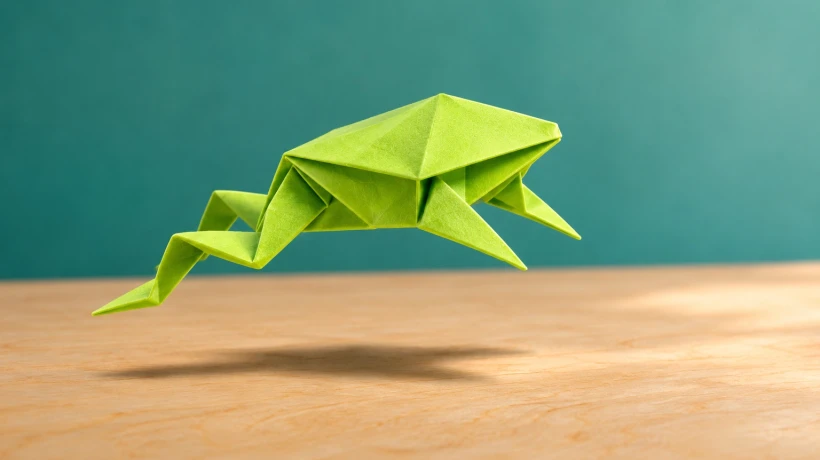
A paper frog looks best mid-jump. Compare three moments in your video and save the strongest frame as a cover with Google Photos or VLC.
Imagine a clip of a paper frog jumping across a table. The suggested cover is the first frame. All you can see at thumbnail size is a fleck of green. A second later the frog lifts off, and the gap above its shadow gives the game away. That’s the frame worth trying as the cover.
You can save a frame from a video you already have. Start by picking three moments to compare. The frog scenes here are AI illustrations of a hypothetical clip. The export steps come from Google’s and VLC’s documentation.
Compare the start, the action, and the end
Play your clip once, then go back for these three moments.
- Start. Pause when the subject first appears clearly. For the frog, this shows the folded paper and where the jump starts.
- Action. Pause when you can see what changes. For the frog, look for space between the paper feet and the tabletop. If the outline smears during the jump, try a nearby frame where the legs look sharp.
- End. Pause once the subject settles. This can be the stronger cover when the payoff is a finished object, such as a folded frog at the end of an origami tutorial.
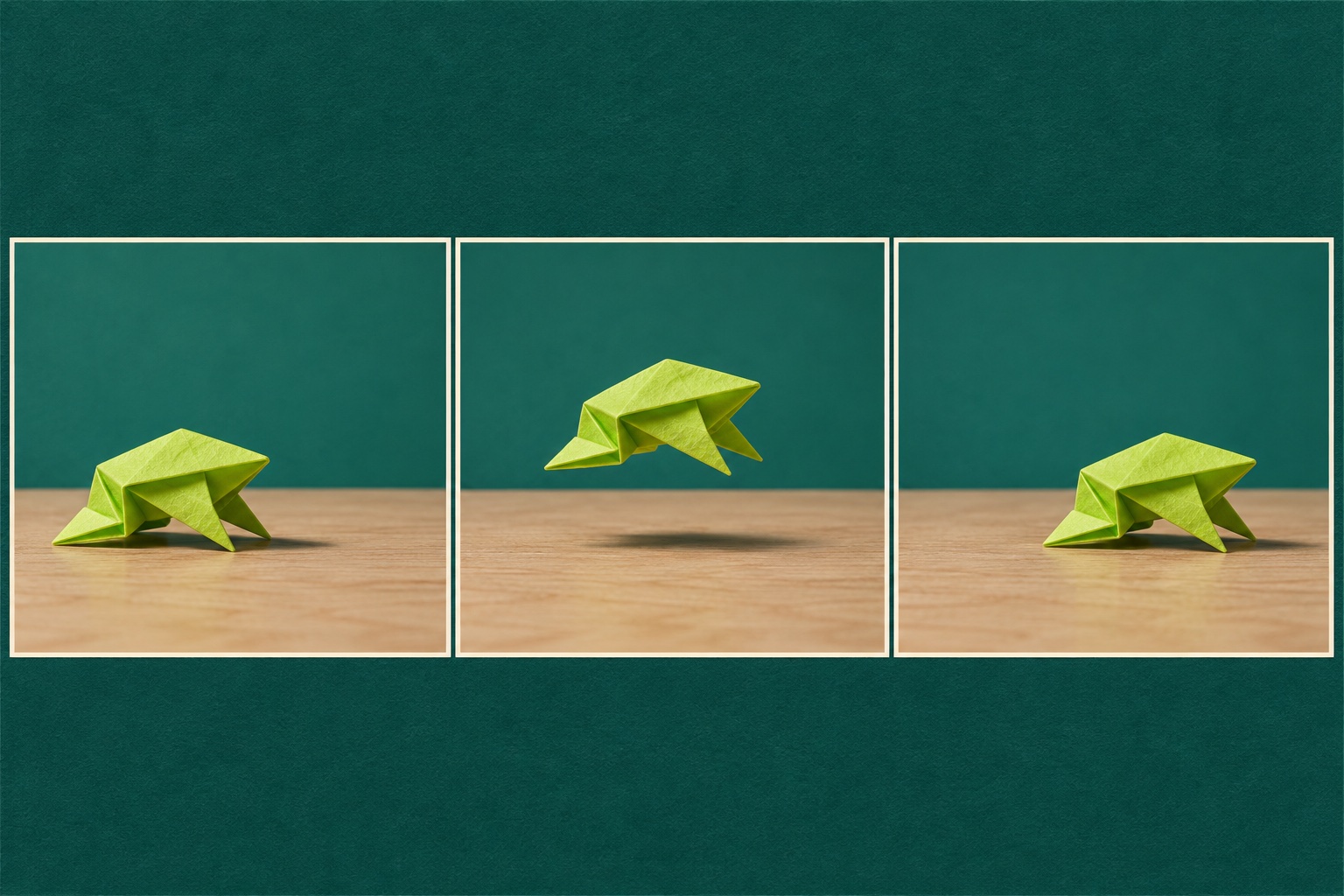
Pick the one that communicates what the viewer will actually see. For a jump clip, that’s likely the airborne frog. For a folding tutorial, a close view of the finished folds could tell the story better. If you’re torn, export the best two and look at them side by side as small images.
Export the still on Android or desktop
Google Photos on Android. Open the video in Google Photos and tap Edit. Find the moment on the video strip, then use Export frame. Open the saved still to check that you landed on the intended moment. If your device or version lacks the control, use the desktop method. Google Photos Help
VLC on desktop. Open the clip, pause at your chosen moment, and select Video → Snapshot. Find the image in your snapshot folder and open it to check the frame. If you’re unsure where to look, see the default locations in VLC’s guide or check Preferences → Video → Video snapshot directory. VLC desktop documentation
Check the crop where people will see it
Preview the image as a cover where you plan to share it, or use an image editor to approximate that shape. Shrink the preview to about the size of a thumbnail in your feed. Can you see the frog and the gap below it? If the crop cuts out its feet or shadow, loosen the crop or try the frame just before or after it. Keep the original export so you can make another crop later.
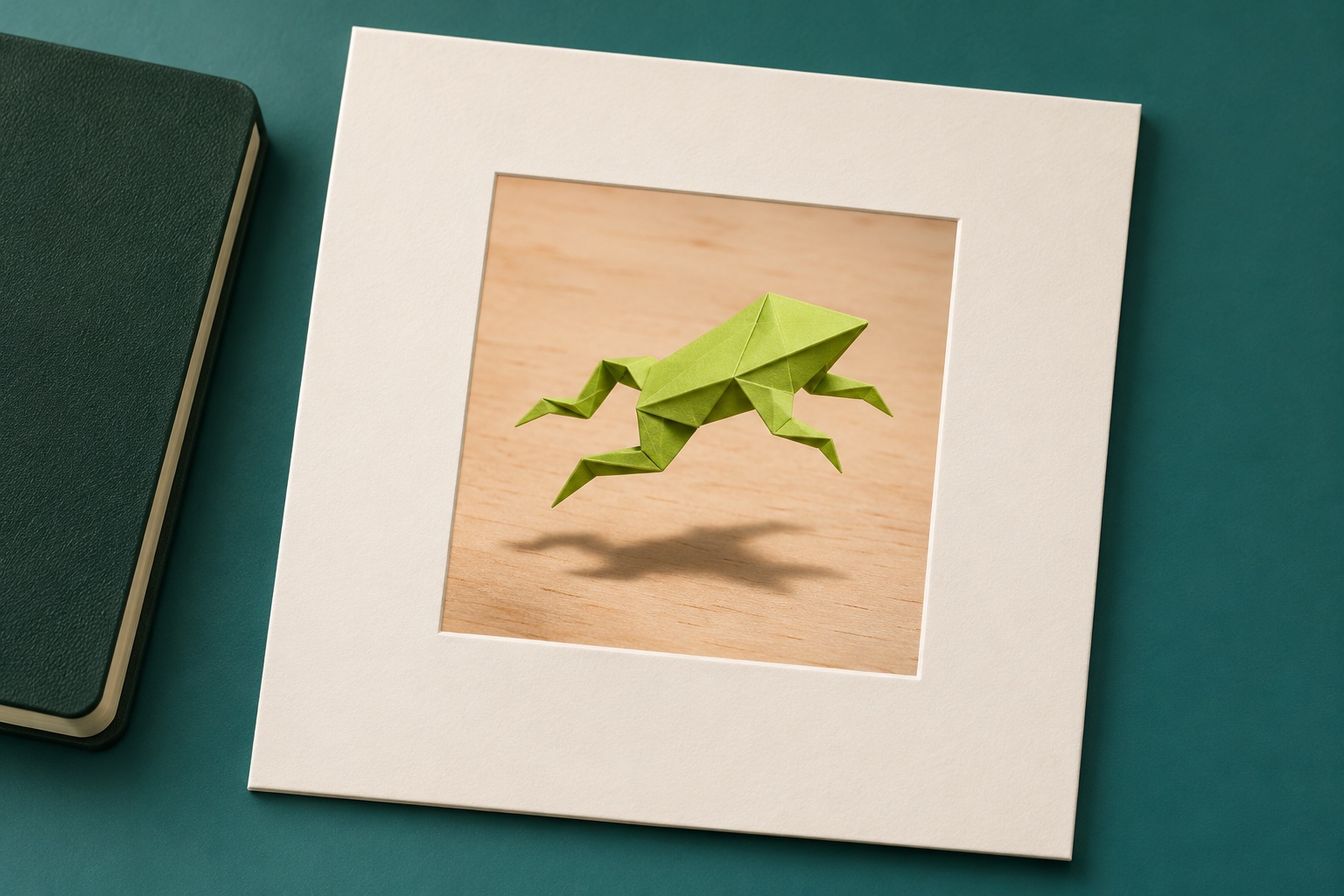
Try the frog idea if you want a practice clip
Photograph your own paper frog on the left of a table, then move it to the right and take a second photo with the same camera position and lighting. Prepare two separate pictures in the aspect ratio you’ll select, such as 16:9 for a wide clip. Use the left-side picture as the start frame and the right-side picture as the end frame in HeyDream’s free image-to-video tool.
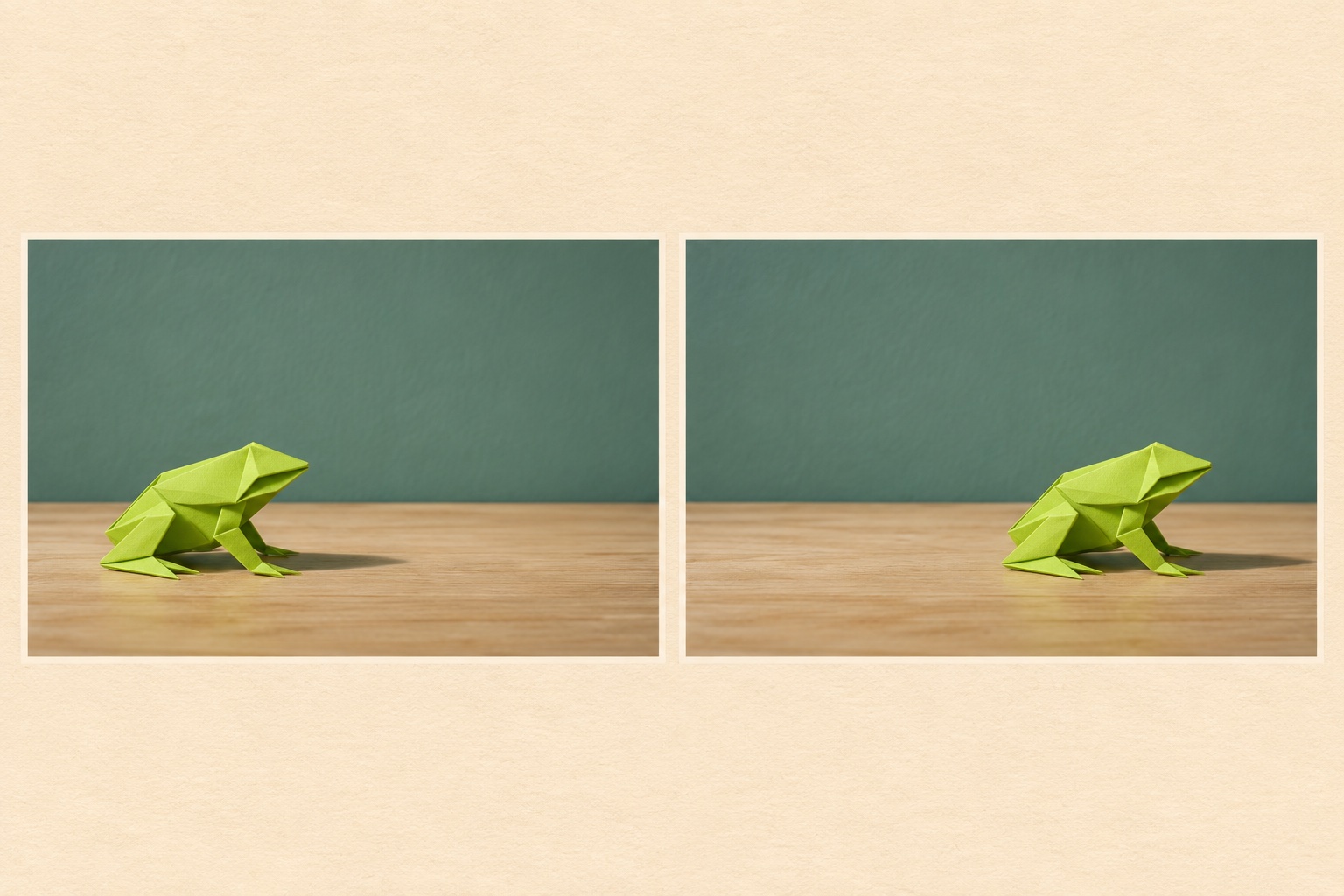
From a fixed side view, the small green origami frog makes one low hop from left to right and lands on the tabletop. Show a clear gap below the paper feet mid-hop. Keep the same folds, light, and framing throughout.
Preview the result and check the frog’s shape and landing. If you get a usable clip, download it and try the same three-moment comparison. The frame you choose should come from the clip you’ll actually share.
Comments
Login to Comment