PST Password Recovery: How to Unlock a Password-Protected Outlook PST File
12 Oct, 2026
17 Views 0 Like(s)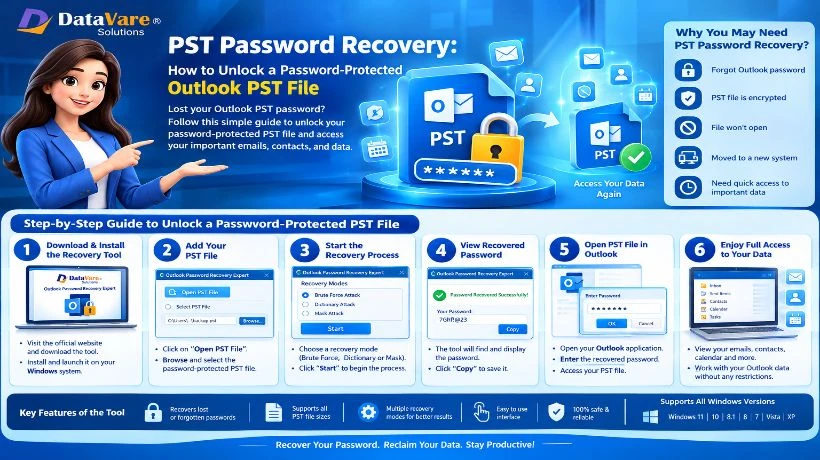
A password on an Outlook PST file might prevent you from accessing important emails, contacts, and other data. Outlook users might attempt the manual method by checking saved passwords or available backups. If you have forgotten the password and manual remedies didn’t help, you may utilize a reliable third-party PST password recovery application to get access to the encrypted file. Always save a backup of the original PST file before trying to restore.
Free methods to recover Outlook PST passwords
Introduction:
Microsoft Outlook stores email messages, contacts, calendars, and other mailbox data in Personal Storage Table (PST) files. Users normally password lock files of this type to prevent unauthorized access. However, if you forget the password it may be difficult to read old emails or access crucial company information. Fortunately there are manual ways and third party recovery tools that can help you to recover password protected PST file.
Why is outlook PST file password protected?
If the user has placed a password on the PST file, then the PST file could ask for a password. It might be in archived mails, backup files or old Outlook data. Users could forget the password if they change computers, reinstall Outlook, or restore an old backup.
Before recovery, make a backup copy of the original PST file. This is a safety mechanism to save your data in case an operation fails.
Method 1:Recover Access Using Outlook
Outlook includes tools to view and manage PST files, but does not have a built-in universal password recovery functionality. If you know the password or have access to the file through an existing Outlook profile, follow these steps.
Step 1: Start your Microsoft Outlook on the Windows PC.
Step 2: Click on File > Open & Export > Open Outlook Data File.
Step 3: Browse to the PST file you want to import and select it.
Step 4: Click on the Open button. If asked for a password, type the password you use to access the mailbox.
Step 5: Open the file, verify your emails and the whole content of your inbox. To turn off the password, go to Account settings or Data File Properties, select the PST file you want and then check for password options available in your version of Outlook.
Step 6: When asked, enter your existing password and leave the new password fields empty if Outlook permits you to.
This can be utilized if you have access to the file or you know the password. If you forget the password, you cannot retrieve it immediately using Outlook
Method 2 – Recover PST Password using Third Party PST Password Recovery Tool
If manual technique fails then a reputable recovery application may allow you to recover or remove password protection from a compatible PST file. For this, clients may wish to use a specialist option like DataVare Outlook Password Recovery Expert.
The software-based solution might be helpful for consumers, IT managers and enterprises who want access to archived mailbox information. Select the recovery application that supports your Outlook data file and Windows environment.
Key Takeaways
When you are picking a PST password recovery application, there are several elements which may assist you evaluate whether it will meet your requires.
User Interface: Simple interface is helpful in the selection of PST file and executing the recovery procedure for technical and non-technical users.
PST File Support: The application should clearly identify the types of PST files that are supported and the ways of password security that are supported.
Compatibility: Verify that the application is compatible with your Windows OS and the versions of Outlook you are using.
Data Safety: Better recovery methods should instruct the users to maintain the original PST file and don’t make unnecessary modifications to the mailbox content.
Correct Recovery Instructions: Step by step instructions can help users to understand the technique and avoid mistakes when handling vital email archives.
How to Use a PST Password Recovery Tool
STEP 1 – Download the software Download the recovery tool from its official site and install it on a suitable Windows PC.
Step 2: Choose PST File Open the software and go to the location of password protected Outlook PST file.
Step 3: Follow the recovery steps. Open the file you choose in the software, and try to recover the password using the available options.
Step 4. Verify results. Program instructions for opening PST files Review the recovery information supplied.
Step 5. Confirm mailbox access If recovery is successful, open the file in a supported version of Outlook and verify that the key emails and folders are available.
The precise interface, supported password kinds and recovery functions vary with the version of the software. Follow the steps in the official literature for the exact directions.
Tips for Successful PST Password Recovery
First, make sure you have a copy of the original pst file.
Verify that the file is not corrupt and that it is not on a disk that you cannot access.
Download recovery utilities only from trusted sources.
Recover without editing the source file.
Try the recovered file in Outlook before deleting any backup copies.
Summary
If the password is known and the file is available and the file is protected by a supported mechanism then it may be unlocked . If you have the right credentials, then the built-in options of Outlook are convenient. If you lost the password then the specialist third-party programs may offer another way. Always verify the recovery results before using the recovered mailbox and always keep a backup of your original data.



Comments
Login to Comment