Print Emails from Gmail with Attachments: Simple Methods and Tips
14 Aug, 2026
663 Views 0 Like(s)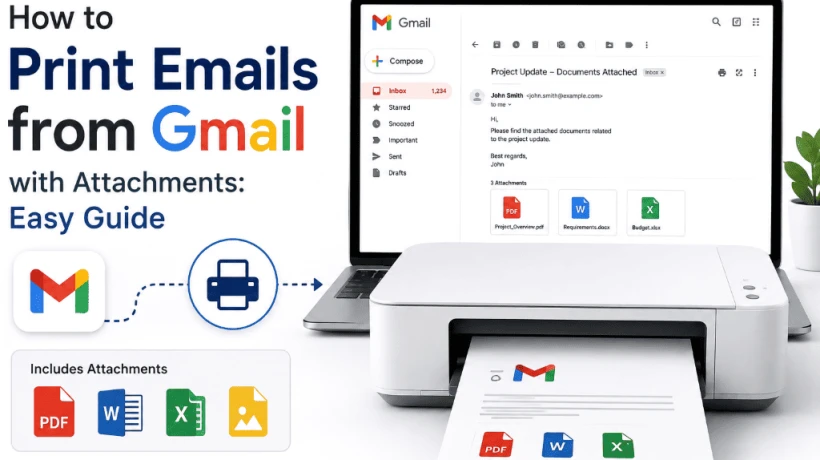
Learn how to print Gmail emails with attachments on desktop, Android, and iPhone. Discover simple manual methods and an easier way to print multiple Gmail emails in bulk.
Gmail has become an essential platform for personal and professional communication. While most email conversations remain digital, there are situations where having a physical copy is still useful. Contracts, invoices, travel documents, business conversations, receipts, and important approvals may need to be printed for records or offline access.
Fortunately, Gmail provides a built-in print option that lets you print individual messages or entire conversations. However, when you need to print a large number of emails or handle messages with attachments, the process can become repetitive.
This guide explains different ways to print Gmail emails, including messages with attachments, and discusses an easier approach for handling emails in bulk.
Why Print Emails from Gmail?
Printing an email can be useful when digital access is not convenient or when physical documentation is required. Some common situations include:
-
Keeping physical records: Printed copies can be useful for contracts, invoices, receipts, and business correspondence.
-
Offline access: Important information remains available even without an internet connection.
-
Documentation: Printed conversations can support business, administrative, or legal record-keeping.
-
Sharing information: A printed email can be easier to review during meetings or discussions.
-
Preserving important messages: Printing can provide an additional copy of information that should not be easily overlooked.
For occasional emails, Gmail's built-in printing feature is usually enough. But printing dozens or hundreds of messages manually can take considerable time.
How to Print an Email from Gmail on a Computer
Gmail allows you to print an individual email directly from its web interface. Follow these steps:
-
Open Gmail in your web browser and sign in to your account.
-
Open the email you want to print.
-
Click the Print icon near the top-right corner of the message.
-
A print preview window will appear.
-
Select your preferred printer and configure the available settings.
-
Click Print to create the physical copy.
If the message contains an attachment, remember that printing the email and printing the attachment are not necessarily the same process. You may need to open the attachment separately and print it depending on its file type.
How to Print Gmail Emails on Android
You can also print Gmail messages from an Android phone when a compatible printer is available.
-
Open the Gmail app on your Android device.
-
Open the email you want to print.
-
Tap the three-dot menu.
-
Select Print.
-
Choose an available printer.
-
Adjust the required print settings.
-
Tap Print.
This method works well when you only need a few messages. However, repeating these steps for a large number of emails can become inconvenient.
How to Print Gmail Emails on iPhone or iPad
iPhone and iPad users can also print individual Gmail messages through the Gmail app.
-
Launch the Gmail app.
-
Open the required email.
-
Tap the More option.
-
Select Print.
-
Choose the printer and adjust the available settings.
-
Confirm the print operation.
The exact options may vary depending on your device, printer, and operating system.
How to Print Gmail Emails with Attachments
Printing an email containing an attachment requires some additional attention. Gmail's print option primarily prints the email message itself. Attachments may need to be opened separately before they can be printed.
For example, if an email contains a PDF invoice, you can open the PDF attachment and use its print option. The same approach can be followed for supported document or image files.
This becomes less convenient when several emails contain multiple attachments. Manually opening each message, locating its attachment, and sending it to a printer can consume significant time.
For users handling large collections of Gmail messages, a dedicated backup and export solution can make the process more manageable.
How to Print Multiple Gmail Emails at Once
Gmail's standard interface is primarily designed for printing individual messages or conversations. If you need to print a large collection of emails, manually opening and printing every message can be tedious.
A dedicated email backup application can provide additional options for processing multiple Gmail messages. For example, SysTools Gmail Email Backup Tool can be used to download Gmail data and save messages in different formats, including PDF.
The general workflow involves:
-
Install and launch the Gmail backup application.
-
Log in to the required Gmail account using the supported authentication method.
-
Select the Gmail folders or messages that you want to process.
-
Choose the required output format.
-
Apply filters if you only need emails from a particular date range.
-
Configure the available advanced settings.
-
Start the backup or export process.
Saving Gmail messages as PDF can be particularly useful when you need a digital copy that can later be reviewed or printed.
What to Consider Before Printing Gmail Emails
Before printing a large collection of messages, consider the following points:
Select Only the Required Emails
Printing an entire mailbox can result in unnecessary pages. Narrow your selection by folder, date, or relevant conversations whenever possible.
Check Attachments Separately
If an email contains an important attachment, verify whether the attachment needs to be printed separately from the email body.
Use PDF for Digital Records
If a physical copy is not immediately required, saving emails as PDF can reduce paper usage while still creating a portable record.
Review the Print Preview
Always check the preview before sending a large print job. This helps identify missing pages, incorrect formatting, or unnecessary content.
Gmail Printing vs. a Dedicated Backup Solution
The built-in Gmail print option is suitable for occasional printing. It is straightforward and does not require additional software.
However, users dealing with a large volume of messages may need features such as date-based filtering, folder selection, multiple export formats, and automated processing. In such situations, a dedicated backup solution can reduce repetitive manual work.
The right approach ultimately depends on the amount of Gmail data you need to process and whether you require only printed copies or a complete digital backup as well.
Final Thoughts
Printing Gmail emails is simple when you only need a few individual messages. Gmail's built-in print feature works well for everyday requirements on computers and mobile devices.
The process becomes more challenging when you need to handle hundreds of emails, multiple conversations, or messages containing attachments. In those situations, using an email backup solution with filtering and export capabilities can provide a more organized workflow. We hope from this information you are clear on how to print emails from Gmail. Whether you choose Gmail's native printing feature or a dedicated application, reviewing the messages, attachments, and print settings beforehand can help ensure that the information you need is preserved correctly.

Comments
Login to Comment