Import MBOX to Microsoft 365: Real Fixes for Common Errors
31 Mar, 2026
3475 Views 0 Like(s)When you import MBOX to Microsoft 365, you can lose emails, attachments, or folders. Methods that are done by hand are slow and can make mistakes. Using a trusted converter makes sure that migration goes smoothly and safely, while keeping the structure and attachments of the email intact.
Moving emails from MBOX files to Microsoft 365 appears to be simple. Everything will function after the files are imported. In actual life, it's not that simple. Many people experience issues with lost emails, empty folders, or missing attachments. These issues make relocating challenging and time-consuming. This blog will demonstrate how to import MBOX to Microsoft 365 and address common issues. We will also discuss a straightforward tool that ensures the process is error-free and seamless.
Why Importing MBOX to Microsoft 365 Can Fail
Thunderbird, Apple Mail, and Eudora are just a few of the email applications that use MBOX files. These files keep all of your emails in one place. Microsoft 365, on the other hand, employs mailboxes in Exchange Online. There can be mistakes during migration because the formats are different. Some such difficulties are
- Emails that are missing after import
- Some folders are not showing up in Microsoft 365.
- Attachments not showing up in emails
- Emails that are the same or in the incorrect order
The majority of these issues arise when the file is too large or when the steps for manual import are not completed appropriately. Knowing how to import correctly can save you time and keep you from becoming frustrated.
Manual Steps to Convert MBOX to Microsoft 365
You can try to import MBOX to Microsoft 365 by hand, utilising a two-step approach. The first thing to do is change MBOX to PST format. Microsoft 365 works with PST. The next step is to use the Import service to upload PST to Microsoft 365. This is how it works:
Step 1: Change MBOX to PST
Start your email application that works with MBOX files.
If you do not already have it, export the mailbox as an MBOX file.
Change the MBOX file to PST using a conversion procedure. You can use software tools or email applications like Outlook to do this.
It can be hard to convert by hand. It could take a long time if the MBOX file is big, and you can lose emails or attachments that don't work.
Step 2: Bring PST into Microsoft 365
Open the Exchange admin centre after logging into your Microsoft 365 account.
Choose the PST file from the Import section.
Put the PST file in the Microsoft 365 mailbox.
Put the PST folders in the right mailbox folders.
Begin the import and let it finish.
Some mistakes can still happen after you do these things. The emails can not be in the appropriate order, or there can be missing attachments. This is why many professionals want to migrate MBOX to Microsoft 365 directly.
Direct and Safe Way to Import MBOX to Microsoft 365
You can easily import MBOX to Microsoft 365 without losing any crucial data or attachments. This WholeClear MBOX to Office 365 Converter makes sure that all folders and emails are kept safe while retaining the original structure. It can handle several files at once and move massive amounts of data swiftly and safely. It's easy to use and makes forwarding emails seamless and reliable, eliminating common issues like lost messages or broken attachments. This method makes the process quick, safe, and easy, whether you are moving a few emails or your full mailbox. It saves you time and work while making sure that all of your crucial email data stays safe during the transfer.
Key Features
- Moving directly from MBOX to Microsoft 365
- Keeps the structure of emails and attachments
- Quick and safe process
- Able to manage multiple MBOX files simultaneously
- Simple UI makes it easy to use
How to Use
- Get the MBOX to Office 365 Converter and install it.
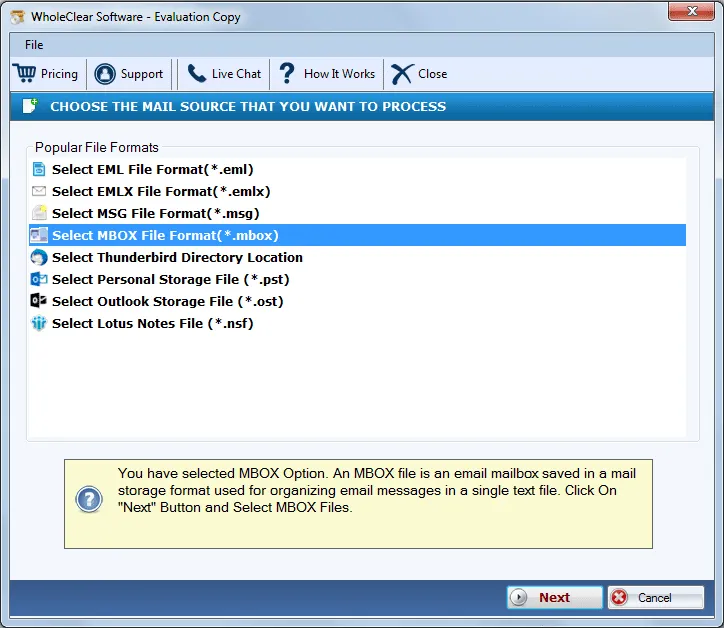
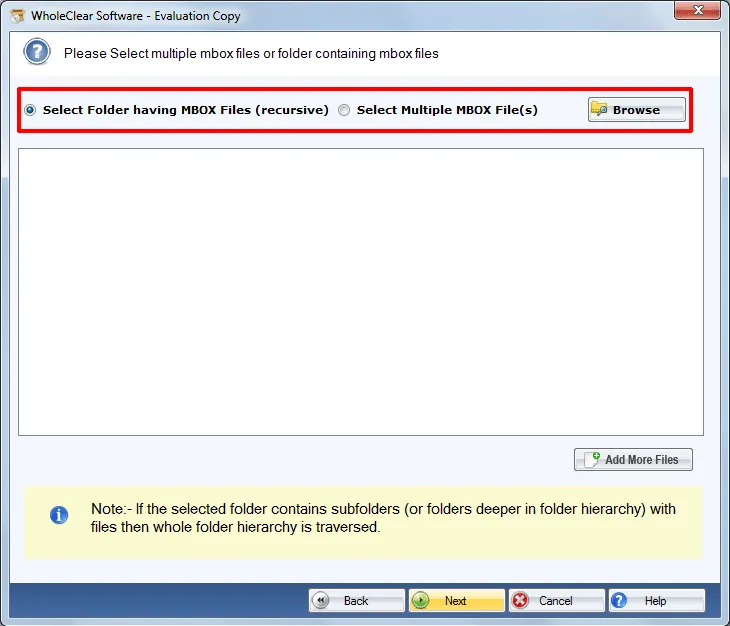
- Start the tool and add the MBOX files you want to bring in.
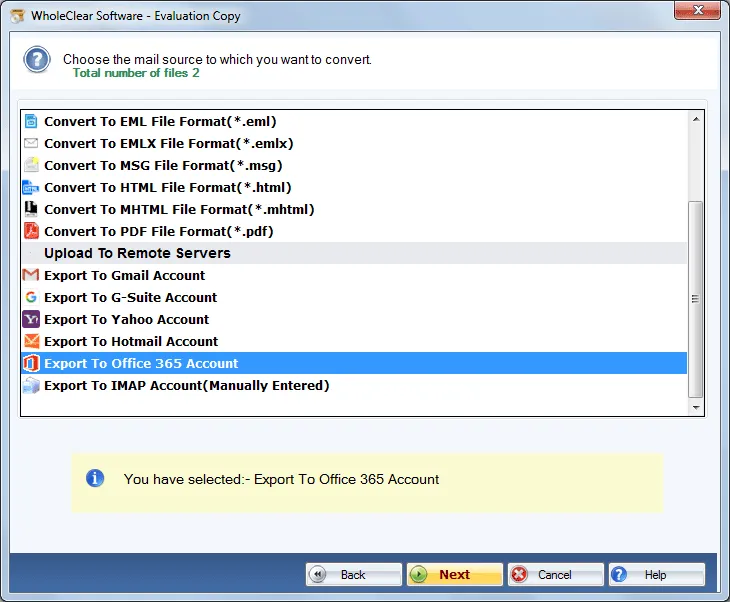
- Choose Microsoft 365 as the destination.
- To connect to your account, type in your Microsoft 365 login information.
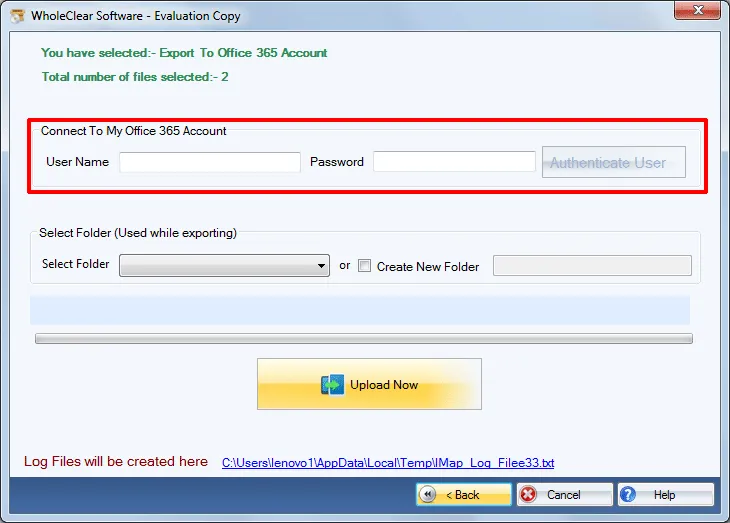
- Select the mailbox folders where the emails should be brought in.
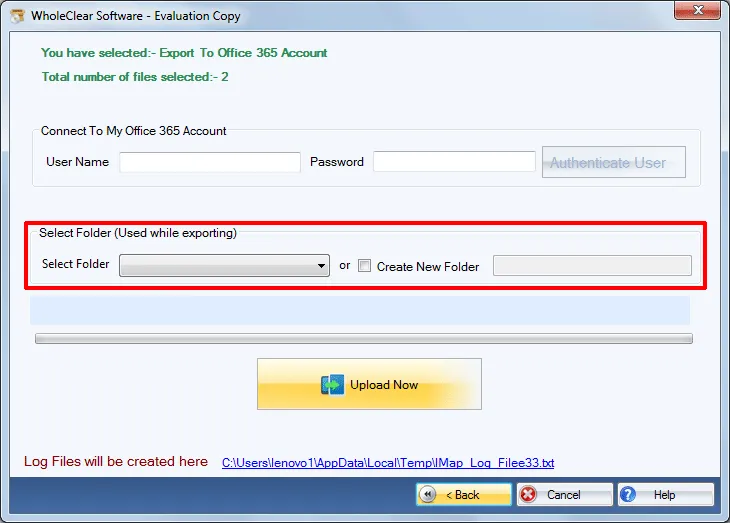
-
Select Start to initiate the migration.
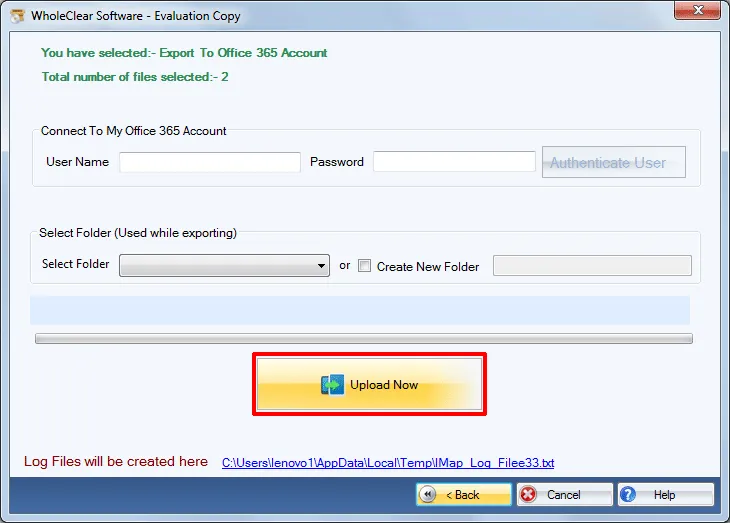
Tips to Avoid Common Errors
Even if you have a tool, adopting a few recommended practices can help.
- Before moving, make sure the MBOX file is not damaged.
- Make sure the Microsoft 365 mailbox has adequate room for all of your emails.
- During the import, make sure you have a solid internet connection.
- If the file is huge, move emails in small groups.
- Before you start the process, make a copy of your MBOX files.
These easy procedures might help you save time and make fewer mistakes when moving.
Conclusion
If you do it by hand, importing MBOX to Microsoft 365 can be hard. It is typical to have problems with missing emails, broken attachments, or files that are incomplete. It helps to follow the appropriate procedures in the manual, but it is still hard for big files. Using an application like MBOX to Office 365 Converter makes things easier. It lets you move directly, keeping all of your emails and attachments safe, and stops typical mistakes. You can safely and quickly Import MBOX to Microsoft 365 if you plan and use the correct tool.
Moving emails does not have to be hard. If you use the right method and trustworthy software, you can finish the process quickly and without losing any crucial data. First, look at your MBOX files. Then, pick the method that works best for you and follow the steps exactly. You will see that transferring MBOX files to Microsoft 365 can be easy, correct, and simple to do.
FAQs
Q1: Is it free to import MBOX to Microsoft 365?
Yes, you can convert MBOX to PST by hand and import it for free, but the procedure can take a long time and produce mistakes.
Q2: What is the simplest approach to bring MBOX into Microsoft 365?
The easiest option is to use the MBOX to Office 365 Converter. It moves emails directly without losing any attachments or folders.
Q3: Will my attachments be safe when I move them?
Yes, if you use the correct tool, all attachments stay the same during the import process.
Q4: Is it possible to import more than one MBOX file at a time?
Yes, Software lets you import more than one MBOX file at a time, which saves you time.
Q5: Do I need to know how to use the tool?
No, the tool is easy to use and made for everyone. You do not need to know how to do technical things to move.



Comments
Login to Comment