How to Search Keywords in PDF Files: A Complete Guide
31 Jul, 2026
770 Views 0 Like(s)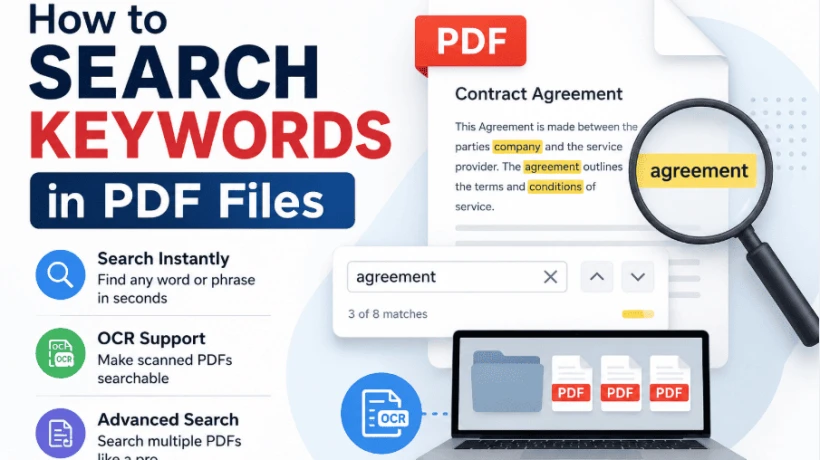
Learn how to search keywords in PDF files using built-in search, OCR for scanned PDFs, and advanced methods to quickly find information in single or multiple documents.
PDF files are one of the most widely used document formats for sharing contracts, reports, invoices, manuals, research papers, and digital records. While they make information easy to distribute, finding a specific word or phrase within a lengthy PDF can become challenging without knowing the right search techniques. Whether you're a student reviewing notes, a professional working with business documents, or an investigator analyzing digital evidence, knowing how to search keywords in PDF files can save significant time.
The good news is that most PDF readers include built-in search functionality. However, not every PDF is searchable. In many cases, scanned documents require Optical Character Recognition (OCR) before you can search their contents. This guide explains the different ways to search keywords in PDF files and what to do when the standard search feature doesn't work.
Search Keywords in PDF Using the Built-in Search Feature
The quickest way to locate text inside a PDF is by using the built-in search option available in almost every PDF viewer.
Simply open the PDF document and press Ctrl + F if you're using Windows or Command + F on a Mac. A search box will appear where you can type the keyword or phrase you're looking for. Press Enter, and the PDF reader will highlight every matching result in the document. You can then move between the results using the navigation arrows.
This method works perfectly for documents that already contain searchable text and is suitable for everyday tasks like reviewing reports, reading eBooks, or locating information inside contracts.
Why Some PDF Files Cannot Be Searched
One of the most common frustrations users experience is pressing Ctrl + F only to find that nothing happens, even though the text is clearly visible on the screen.
This usually means the document is a scanned PDF rather than a text-based PDF. A scanner captures each page as an image, which means the document contains pictures of text instead of actual machine-readable characters. Since PDF readers search text rather than images, they cannot locate keywords in scanned files.
Other reasons why a PDF may not be searchable include:
-
The document was created from scanned pages.
-
The searchable text layer is missing.
-
The PDF is password protected or restricted.
-
Poor scan quality affects text recognition.
-
The document contains handwritten content that OCR cannot accurately detect.
Before assuming the PDF is corrupted, it's always worth checking whether you can select text with your cursor. If you cannot highlight or copy text, the file most likely requires OCR.
Make Scanned PDFs Searchable with OCR
Optical Character Recognition, commonly known as OCR, converts images of text into searchable and selectable content. Once OCR has been applied, the PDF behaves like a normal text document, allowing you to search for keywords, copy content, and extract information more efficiently.
OCR is particularly useful for:
-
Scanned contracts
-
Printed reports
-
Historical records
-
Court documents
-
Paper invoices
-
Email attachments converted into PDF format
Modern OCR technology is capable of recognizing multiple languages while preserving the original layout of the document. After processing, users can perform keyword searches without manually reviewing every page.
Advanced Search Methods for PDF Files
Basic search is sufficient for most users, but professionals often need more advanced capabilities. Large organizations, legal teams, compliance officers, and digital investigators regularly work with hundreds or thousands of PDF documents where manual searching becomes impractical.
Advanced PDF search features allow users to:
-
Search multiple PDF files at once.
-
Find exact phrases.
-
Search document metadata.
-
Locate keywords within comments and annotations.
-
Search attachments stored inside PDF documents.
-
Filter results based on specific search criteria.
These capabilities significantly reduce the time required to locate important information within large document collections.
Search Across Multiple PDF Files
Instead of opening documents individually, many professional PDF applications allow users to search an entire folder of PDF files simultaneously. This feature is especially valuable when reviewing project documentation, legal evidence, research archives, or corporate records.
Searching multiple PDFs helps users:
-
Find all references to a specific keyword.
-
Compare information across different documents.
-
Identify duplicate content.
-
Locate related records more efficiently.
For organizations managing large digital repositories, this approach saves hours of manual effort.
Common PDF Search Problems and Solutions
Even when a document appears normal, users occasionally encounter search-related issues. Understanding the cause makes troubleshooting much easier.
Some common problems include:
No search results returned: The document may be image-based and require OCR.
Unable to select text: The PDF probably doesn't contain a searchable text layer.
Incorrect search results: OCR errors or poor scan quality may have affected text recognition.
Password-protected document: Security restrictions can prevent searching until permissions are removed.
Resolving these issues ensures the document becomes fully searchable and easier to analyze.
Professional PDF Search for Digital Investigations
Standard PDF readers are designed for individual documents, but digital investigations often involve thousands of files collected from computers, email accounts, cloud storage, and external devices. Investigators must search not only document content but also metadata, attachments, and related evidence.
Professional forensic software simplifies this process by combining advanced keyword searching, OCR, metadata analysis, evidence filtering, and reporting into a single workflow.
For organizations that regularly perform digital investigations, solutions like MailXaminer provide powerful search capabilities that extend beyond ordinary PDF readers. Investigators can search keywords across PDF documents, scanned files, email attachments, and other digital evidence while maintaining the integrity of the investigation.
Best Practices for Searching Keywords in PDF Files
To improve search accuracy and efficiency, consider following these best practices:
-
Use exact phrases when searching for specific information.
-
Apply OCR before searching scanned documents.
-
Verify that the PDF contains selectable text.
-
Use advanced search options for large document collections.
-
Organize PDF files into folders for easier bulk searching.
-
Keep OCR software updated for improved recognition accuracy.
These simple practices help users locate information quickly while reducing the chances of missing important details.
Conclusion
Searching keywords in PDF files is straightforward when the document contains searchable text. Keyboard shortcuts such as Ctrl + F on Windows and Command + F on Mac provide the fastest way to locate words within a document. However, scanned PDFs require OCR before keyword searching becomes possible. For users handling large collections of documents or conducting digital investigations, advanced search tools offer greater flexibility, improved accuracy, and significant time savings.
If your work involves analyzing large volumes of PDF documents or digital evidence, MailXaminer provides enterprise-grade keyword searching, OCR support, and advanced forensic capabilities to streamline the entire investigation process.
For a detailed walkthrough with step-by-step instructions, advanced search techniques, and OCR guidance, read our complete guide on How to Search For Keywords in PDF.


Comments
Login to Comment