How to Save .EML Files as PDF on Mac
20 Aug, 2026
585 Views 0 Like(s)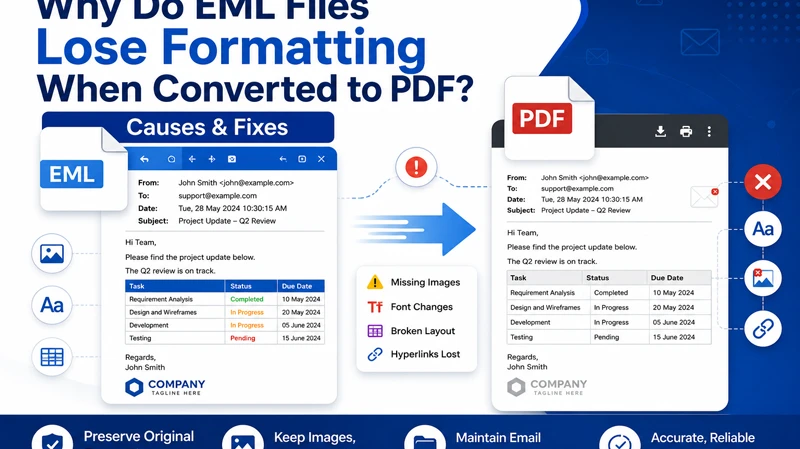
Read blog about how to save EML files as PDF on Mac by manual way & EML to PDF Tool that enables to save EML files to PDF with attachments.
EML is a widely used file format for storing individual email messages, including the sender and recipient details, subject, message body, timestamps, attachments, and other email information. Although EML files are supported by several email applications, sharing or archiving them can sometimes be inconvenient. PDF, on the other hand, is a more accessible format that preserves the appearance of an email and can be opened on almost any device.
For this reason, users often need to save EML files as PDF for documentation, printing, archiving, compliance, or sharing purposes. Mac users can convert EML messages manually or use dedicated EML to PDF conversion software when handling multiple files.
Overview of EML to PDF Conversion
Converting an EML file to PDF changes the email from its original message format into a fixed-layout document. Depending on the conversion method, the resulting PDF can retain important information such as the email header, message content, formatting, and attachments. A PDF copy can be useful when you need to -
- Preserve important email correspondence for future reference.
- Share emails with users who do not have an EML-compatible email application.
- Create printable copies of individual email messages.
- Maintain email records in a commonly supported document format.
- Organize email evidence or business correspondence in a fixed format.
The appropriate conversion method depends largely on the number of EML files and the amount of email data involved.
Manual Method to Save EML Files as PDF on Mac
Mac users can manually convert EML emails to PDF when they only have a few messages to process. The exact steps may vary depending on the email application used to open the EML file.
Step 1: Open the EML File
Locate the required EML file on your Mac and open it using a compatible email application. Make sure the complete email content is displayed correctly.
Step 2: Use the Print Option
After opening the email, select the Print option from the application or macOS menu. The print dialog will appear with available printing and document-saving options.
Step 3: Select Save as PDF
In the print window, choose the PDF option and select Save as PDF. Specify the destination folder, enter a suitable file name, and save the converted email.
Step 4: Verify the PDF
Open the newly created PDF and check whether the email body, formatting, headers, and other required information have been preserved properly.
Limitations of the Manual Method
Although manual conversion can work for a small number of EML files, it becomes less practical when dealing with large email collections. Opening and saving every message individually requires considerable time and repetitive effort. Some common limitations include -
- Time-consuming process - Each EML file generally needs to be opened and saved separately.
- Difficult for bulk conversion - Processing hundreds or thousands of emails manually is inefficient.
- Formatting variations - The appearance of converted emails may depend on the application used to open them.
- Attachment handling - Attachments may not always be represented in the PDF exactly as expected.
- Folder organization - Maintaining the original folder structure can require additional manual work.
Because of these limitations, users working with a large number of EML files may prefer dedicated conversion software.
How to Save .eml files as .pdf for Mac
If you have requirement to know about how to save .eml files as .pdf in batch then the MacMister EML to PDF Converter for Mac provides a dedicated approach for converting EML files into PDF format on macOS. It is designed for users who need to process email files without relying entirely on repetitive manual printing and saving.
The software can be useful when working with multiple EML files and when maintaining email information during conversion is important. Instead of processing each message individually, users can add the required EML files or folders and perform the conversion through a structured workflow. A typical conversion process involves -
- Launch the EML to PDF tool on your Mac.
- Add the required EML files or folders to the software.
- Select PDF as the output format.
- Choose the destination location for the converted files.
- Start the conversion process.
- Open the resulting PDFs and verify the converted email content.
A dedicated converter can make bulk email processing more convenient and reduce the repetitive steps associated with manually opening and printing individual EML messages.
Conclusion
Saving EML files as PDF is useful when emails need to be preserved, shared, printed, or stored in a universally accessible format. The manual approach through an email application and macOS Print feature can be suitable for a few files, but it becomes inconvenient for larger collections. For users handling multiple EML files on Mac, EML Converter for Mac offers a more organized way to convert EML Files to PDF format while reducing manual effort.


Comments
Login to Comment