How to Download Gmail Emails as MBOX for Offline Backup?
24 Jul, 2026
909 Views 0 Like(s)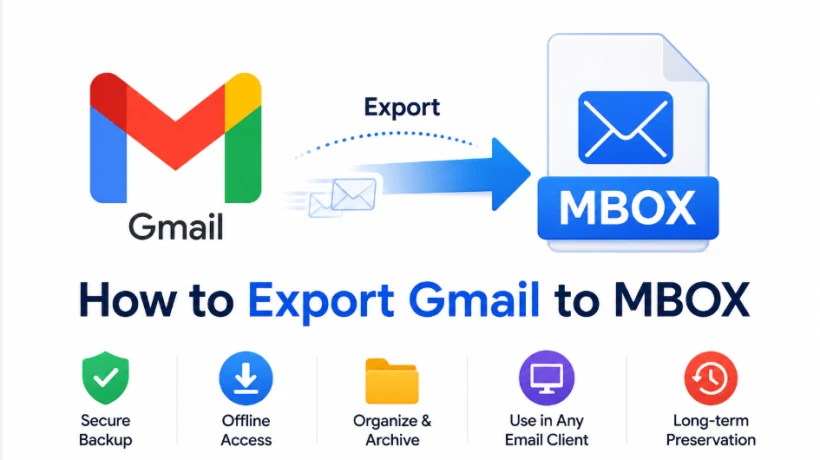
Learn how to download Gmail emails as MBOX using Google Takeout, Thunderbird, or a dedicated backup solution for secure offline access and easy archiving.
Emails often contain years of valuable information, from business conversations and invoices to attachments and personal records. While Gmail keeps this information accessible online, there are situations where having a copy stored on your own computer becomes useful.
One way to create such an archive is to Export Gmail to MBOX. The MBOX format stores multiple email messages in a mailbox file and is supported by several email applications. It can be useful for backup, offline access, migration, and long-term email archiving.
If you are planning to download Gmail emails locally, here are three practical approaches you can consider.
What Makes MBOX Useful for Gmail Backup?
MBOX is an established mailbox storage format. Instead of saving every message as an individual file, it can store multiple emails together within a mailbox.
Creating an MBOX archive can be useful when you want to:
-
Keep an offline copy of Gmail emails.
-
Archive older messages before removing them from Gmail.
-
Transfer email data to an MBOX-compatible application.
-
Preserve important emails and attachments locally.
-
Maintain a separate copy of an old Gmail account.
Users have multiple options for creating such an archive, ranging from Google's own export service to desktop email applications.
Download Gmail Emails Through Google Takeout
Google Takeout is one of the most accessible methods because it is provided by Google and does not require installing additional software.
How to Create an MBOX Export?
Follow these steps:
-
Visit Google Takeout and log in to your Google account.
-
Select Deselect all to remove other Google services.
-
Find Mail and select its checkbox.
-
Choose all Gmail data or select the required labels.
-
Click Next step.
-
Select how you want to receive the archive.
-
Choose the ZIP archive format and desired file size.
-
Select Create export.
Google then starts preparing your account data. Once the archive is ready, you can download and extract it. Your Gmail email data will be available in MBOX format.
Where Does Google Takeout Fall Short?
Takeout works well when you simply need a complete Gmail archive. However, it may become inconvenient for more specific requirements.
For example, users cannot precisely tell Takeout to download messages received between two particular dates. Processing a large Gmail account can also take considerable time.
Another issue is repetition. If Gmail needs to be backed up regularly, users generally need to initiate another export instead of simply downloading newly received emails.
Use Thunderbird to Save Selected Gmail Folders
Mozilla Thunderbird can be useful when you do not want to create an archive of the complete Gmail mailbox.
After adding Gmail to Thunderbird through IMAP, the application synchronizes Gmail folders and messages. Users can then work with the synchronized folders from the desktop.
To create an MBOX file, an extension such as ImportExportTools NG can be added to Thunderbird.
Basic Thunderbird Export Process
After Gmail has synchronized:
-
Install ImportExportTools NG in Thunderbird.
-
Locate the Gmail folder you need.
-
Right-click the selected folder.
-
Open the ImportExportTools NG options.
-
Select the folder export option.
-
Choose MBOX and save it locally.
This approach can be useful when only Inbox, Sent, or another particular Gmail folder needs to be preserved.
However, users should allow Thunderbird to completely synchronize the required emails before creating the archive.
Backup Gmail to MBOX With More Control
Google Takeout and Thunderbird cover many personal requirements, but managing large mailboxes may require additional controls.
A dedicated solution such as the SysTools Gmail Backup Tool provides an alternative when users want to create Gmail backups in MBOX format while controlling what gets downloaded.
Instead of waiting for an entire Google archive, users can configure the backup according to the options available within the application.
How Does the Process Work?
The general process includes:
-
Install and open the backup application.
-
Keep Gmail selected as the email source.
-
Choose MBOX as the required output format.
-
Select the email workload.
-
Configure the available date or email filters when required.
-
Authenticate the Gmail account.
-
Choose where the resulting files should be stored.
-
Start the backup process.
This approach can be particularly helpful when dealing with a mailbox containing several years of emails but only a particular period needs to be archived.
Google Takeout, Thunderbird, or Dedicated Tool?
There is no single method that fits every Gmail user.
For an occasional personal backup, Google Takeout is usually the easiest place to start because it is free and directly provided by Google.
Thunderbird is worth considering when you already use the email client or want to work with specific synchronized Gmail folders.
A dedicated backup solution is better suited to situations where users need additional filtering, repeated backups, or more control over larger Gmail mailboxes.
The choice should therefore depend on mailbox size, backup frequency, and how selectively you need to download the emails.
Conclusion
Keeping an offline Gmail archive can provide an additional layer of control over important email data. MBOX is particularly useful for this purpose because it can store complete mailbox data and can be accessed through compatible email applications.
Google Takeout offers a convenient free approach for occasional exports, while Thunderbird can help users work with individual Gmail folders. For larger or more selective backup requirements, a dedicated Gmail backup application provides another option.
Whichever method you select, periodically keeping important Gmail data outside the account can make future archiving, migration, and email management considerably easier.


Comments
Login to Comment