How to Check Your FASTag Status
27 Jan, 2026
9390 Views 0 Like(s)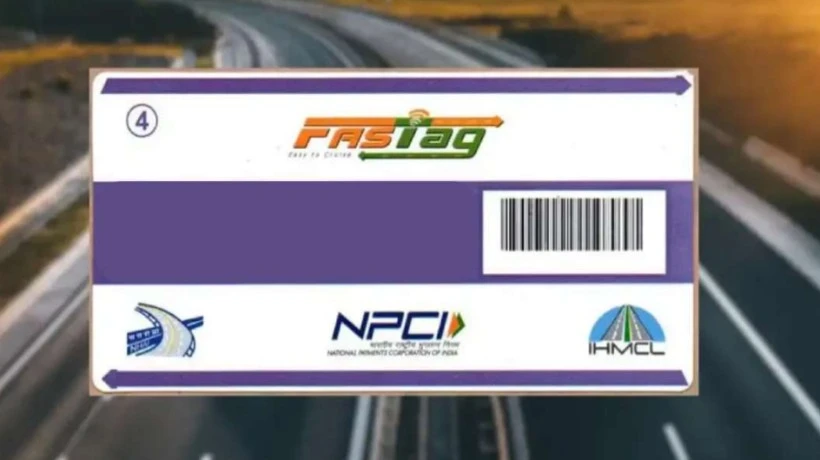
Learn how to check your FASTag status online using your vehicle number or mobile number. Step-by-step guide for active, inactive, or blocked FASTags.
A FASTag makes highway travel smoother by enabling automatic toll payments. But if your tag stops working at a toll booth, it can cause delays, penalties or even arguments with toll operators. That can happen when your tag is inactive, blacklisted or has a low balance. This underscores the importance of checking its status regularly and taking corrective steps before your journey begins. Read further to understand what each status means, how to check it through different methods and how to resolve common issues without hassle.
Why Checking FASTag Status Matters?
A working FASTag ensures quick toll deduction and faster travel. If the system detects a blocked or inactive tag, it will prevent the vehicle from passing. Instead, it may require a cash payment or impose a penalty. Regular checks help you stay aware of your tag's condition and maintain enough balance to keep it active.
Understanding FASTag Status Types
Before checking your tag, it helps to know what the different statuses mean.
-
Active
The tag is valid and ready for toll deductions. It has sufficient balance, correct details and is linked to a wallet or account.
-
Inactive
The tag exists but has not been fully activated. This can happen if KYC is incomplete or the account has not been used for a long time.
-
Blacklisted
A blacklisted tag is temporarily blocked. It could be due to low balance, outdated details or incorrect usage. The tag may not work at toll gates until reactivated.
Mediums to Check FASTag Status Easily
Here are some common ways to view your FASTag status quickly and accurately.
1. Customer Portal or Website
Several FASTag service providers offer a login-based portal.
-
Visit the FASTag customer portal of your provider.
-
Log in using your username or registered mobile number and password.
-
Open the “Manage Tags” or “My Tags” section.
-
You will see whether the tag is active, inactive or blacklisted.
-
You can also view the vehicle number, wallet balance and transaction history.
This method is reliable because it provides real-time details directly linked to your vehicle.
2. Mobile Banking App
Many FASTag providers allow users to view the status through mobile apps, like ICICI Bank's iMobile app.
-
Open the mobile banking app and sign in.
-
Tap on the FASTag option under services, cards or accounts.
-
The dashboard displays balance, recent transactions and tag status.
-
You can also raise service requests or update details here.
This method is useful because it provides both tag- and wallet-related information in one place.
3. SMS and Missed Call Services
If your mobile number is registered, you receive SMS alerts every time money is deducted at toll booths. These messages also inform you about a low balance or blacklisting. Some providers allow users to check their wallet balance and tag details by giving a missed call to a specific number. After the call disconnects, you receive an SMS containing your current balance and basic tag status.
4. Customer Care Helpline
If you are unable to access your account online, you can call customer support.
-
Call the FASTag toll-free number of your service provider.
-
Provide your vehicle number or wallet ID.
-
Ask for the current tag status.
-
If the tag is blacklisted or inactive, the support team explains the reason and solution.
This method is helpful when you need assistance to reactivate your tag.
Why FASTags Get Blacklisted?
Understanding common reasons can help prevent future issues.
-
Insufficient Balance
If your wallet balance goes below the minimum required limit, the system blocks your tag to stop toll deductions. This is one of the most frequent reasons.
-
Incomplete KYC
If KYC documents are not uploaded or approved, the tag becomes inactive or is restricted after a certain period.
-
Incorrect Vehicle Details
Using a tag on a vehicle other than the registered one results in blacklisting.
-
Suspicious Account behaviour
Banks monitor FASTag accounts for fraud. Report suspicious activity promptly to avoid temporary blocks or service disruption.
How to Reactivate a Blacklisted or Inactive FASTag?
Once you know the issue, reactivation is usually simple.
1. Recharge the Tag Wallet
Add funds to your wallet using UPI, Net Banking, card or mobile banking app. Completing a FASTag recharge often resolves blacklisting caused by a low balance.
2. Update KYC Details
If the issue is related to documentation, upload valid KYC details like Aadhaar, PAN card and RC. Once verified, the tag becomes active again.
3. Contact Customer Support
For issues like technical errors or incorrect tagging, reach out to customer care. They guide you with tag replacement or activation steps.
4. Replace a Damaged Tag
If the tag is torn or not readable, apply for a new one through your provider. You may need to close the old tag before activating a new one.
Preventive Tips to Keep FASTag Active
Staying alert helps avoid blacklisting or inactivation.
-
Maintain adequate balance: Ensure your wallet always has enough balance. Some users set reminders or enable automatic FASTag Recharge to avoid sudden blocking.
-
Update vehicle and contact details: Whenever you change your mobile number or vehicle ownership, update details in your FASTag account.
-
Check transactions often: Review your transaction history regularly to spot deductions, double charges or incorrect toll entries.
-
Do not use one tag for multiple vehicles: Each vehicle must have its own tag. Using the same tag on different vehicles can lead to blacklisting.
Conclusion
A FASTag saves time and keeps traffic moving at toll plazas, but it works smoothly only if it is active and funded. Regularly checking its status ensures uninterrupted travel and avoids penalties. Whether your tag is active, inactive or blacklisted, the process to verify it is simple through portals, apps, SMS or customer care. If an issue arises, quick steps like recharging, updating KYC or contacting support can restore functionality.

Comments
Login to Comment