From One Cloud to Another: GainTools IMAP Migration Tool Review
08 Jun, 2026
1445 Views 0 Like(s)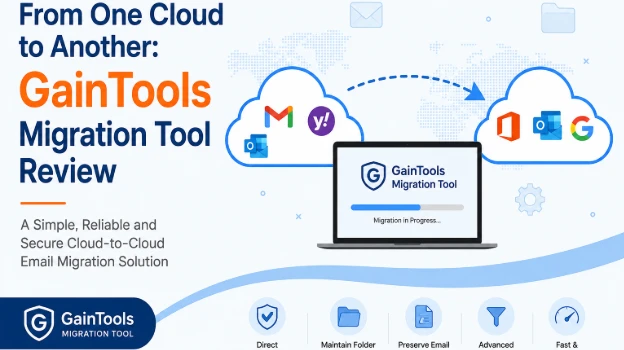
A detailed review blog on GainTools IMAP Migration Tool.
Overview
Cloud email services are now a necessary component of contemporary communication. To handle everyday communication, both individuals and businesses rely on platforms like Gmail, Outlook.com, Microsoft 365, Yahoo Mail, Zoho Mail and other hosted email options. However, there are instances when users must move from one email provider to another because of more affordable prices, greater security, more storage space or better collaboration tools.
Although switching email providers might seem easy, moving years' worth of email data might be difficult. Thousands of messages, attachments, folders and important business documents are often found in large mailboxes. Manual migration methods might lead to missed emails or corrupted folder structures and are typically time-consuming.
Specialized migration software is useful in this situation. In order to ascertain whether GainTools Cloud Migration Tool is a valuable investment for email migration projects, we will examine its features, performance, cost, benefits, drawbacks and general user experience.
Understanding the Software
GainTools Cloud Migration Tool is a dedicated utility designed to transfer emails directly between IMAP-supported cloud email accounts. Without the need for laborious export and import processes, the software enables users to transfer mailbox data between cloud platforms.
Numerous well-known email providers, including as Gmail, Office 365, Outlook.com, Yahoo Mail, AOL Mail, Zoho Mail, G Suite and other IMAP-enabled email services, are supported by the program. The program streamlines the migration process while preserving mailbox integrity by creating a direct connection between the source and destination servers.
The tool is appropriate for individuals, companies and IT managers in charge of email migrations since it was designed for both technical and non-technical users.
The Purpose of an IMAP Cloud Migration Tool
Software that moves email data between two email accounts that support the Internet Message Access Protocol (IMAP) is known as an IMAP cloud migration tool. The program interacts directly with both email servers rather than downloading emails to a local computer and uploading them again.
There are various advantages to this direct server-to-server communication:
- Quicker migration rates
- A lower chance of data loss
- Improved mailbox structure preservation
- Less labor-intensive
- Increased precision in migration
Users are able to move emails, attachments, folders and mailbox properties more effectively as a result.
Key Functionalities
Straightforward Cloud-to-Cloud Transfer
The program allows emails to be transferred directly across cloud accounts without the need for local downloads or intermediary file conversions.
Support for Various Email Systems
It gives users freedom when switching providers by supporting migration between different IMAP-enabled email systems.
Maintains the Folder Structure
During migration, the mailbox hierarchy doesn't change. After the transfer is finished, users can access their folders in the same structure.
Sustains Email Properties
Throughout the transfer process, crucial email features including sender and recipient details, timestamps, subject lines, formatting, and attachments are preserved.
Migration of Selective Folders
Instead of moving the entire mailbox, users can select which folders to migrate.
Advanced Options for Filtering
Users can move only the emails they require based on predetermined criteria thanks to the software's filtering features.
Migration of Bulk Emails
The solution is appropriate for commercial settings because it allows for the transfer of large mailboxes without major restrictions.
Easy-to-use Interface
The user interface is simple to use. Without a lot of technical expertise, even novice users can finish migration chores.
The Main Benefits of This Software
Mailbox data is frequently exported, downloaded, imported and verified during manual migration. By automating these processes, the program drastically shortens the migration time.
Reduces Human Errors
Errors like lost emails, misplaced folders, or incomplete transfers are less likely when automation is used.
Ideal for Big Mailboxes
Large amounts of email data can be processed by the program without sacrificing mailbox organization or quality.
Preserves the Integrity of Data
Throughout the migration process, the program maintains crucial email attributes, guaranteeing that transferred data stays unaltered.
No Need for Extra Software
To finish the move, users don't require any extra apps or third-party email clients.
Adaptable Migration Choices
Users can move just pertinent data thanks to selective folder migration and filtering tools.
Business-Friendly Approach
Businesses can minimize business impact by moving several employee mailboxes.
Real-World Illustration
Let's take an example of a developing business that presently uses Yahoo Mail for business correspondence. Because of its improved security and collaboration features, management chooses to move to Microsoft 365 as the business grows.
The company has more than 60 staff mailboxes with years' worth of correspondence, contracts, reports, bills and attachments.
It would take a lot of work and raise the risk of mistakes to manually migrate every mailbox. The IT administrator starts the migration process by choosing the necessary folders, entering the source and destination account credentials and using the GainTools Cloud Migration Tool.
The mailbox data is successfully transferred while preserving folder structures and email attributes in a comparatively short amount of time. The business gains from a more seamless transition, and workers may carry on with little disruption.
Detailed Migration Procedure
Step 1: Set up the program
Install the software on a Windows PC after downloading it.
Step 2: Enter the details of the source account.
Give the source account's email address, password, and IMAP server information.
Step 3: Configure the destination account.
Enter the destination email account's login credentials and server details.
Step 4: Choose Mailbox Folders
Select the folders you want to move.
Step 5: Use Filters
If selective migration is necessary, use the available filter options.
Step 6: Begin the Transfer
To start the transfer procedure, click the migration button.
Step 7: Track Development
Use the software interface to monitor the status of the process.
Step 8: Confirm the Outcomes
Once completed, check that all emails, files and attachments have been properly moved by logging into the destination account.
Cost Overview
Before making a purchase, users can test the software's functionality using its free trial version.
Users can verify compatibility and performance by migrating a restricted number of emails from each folder in the trial edition.
Personal License:
- Individuals and non-commercial use.
- Installed on a single system.
- Lifetime Validity.
- Priced at $99.
Business License:
- Small businesses and commercial use.
- Installed on multiple systems, but in one location.
- Lifetime Validity
- Priced $299
Enterprise License:
- Corporations and organizations use.
- Installed on multiple systems in multiple locations.
- Lifetime Validity,
- Priced at $199.
Before making a purchase, consumers should confirm the current price immediately because it may vary over time.
System prerequisites
Make sure your machine satisfies the following requirements before installing the software:
- Windows 11, 10, 8.1, 8, 7, Vista or XP.
- A processor running at least 1 GHz.
- A minimum of 512 MB of RAM.
- 100 MB of available disk space.
- A display resolution of at least 1024 × 768.
- A reliable internet connection.
Minor Drawbacks
There are a few restrictions even if the software works effectively in the majority of situations:
- Only compatible with Windows-based operating systems
- Throughout the move, constant internet access is necessary.
- Limited migration is supported in the trial version.
- Server responsiveness affects migration speed.
- Depending on network circumstances, large mailbox transfers could take longer.
Experience of the User
The migration process is made simple by the program. The interface required very little configuration and was simple to use throughout testing.
Even when managing big mailboxes, the transfer process stayed steady. Attachments, metadata, folder hierarchy and email layout were all correctly maintained.
When only particular mailbox data needed to be moved, the selective migration and filtering tools were also helpful.
Both novice and seasoned administrators can use the software because of its generally seamless user interface.
User Evaluations
Features: 4.8/5
Value for Money 4.8/5
Performance 4.7/5
Reliability 4.8/5
Ease of Use: 4.6/5
Customer Contentment 4.7/5
Overall Score: 4.7/5
Conclusion
This migration solution provides a useful and dependable method for anyone wishing to transfer emails between cloud-based IMAP accounts. It is appropriate for a variety of migration scenarios due to its capacity to carry out direct cloud-to-cloud transfers, maintain email characteristics, preserve mailbox structure and enable selective migration.
The software offers a mix between ease of use and functionality, whether you are an IT administrator overseeing numerous mailboxes, a small business upgrading communication infrastructure or an individual switching email providers.
The overall performance, ease of use, and transfer accuracy make it a solid candidate among email migration options, even though the trial limitations and Windows-only compatibility might not be to everyone's taste.
This service is definitely worthwhile for anyone looking for a reliable way to move emails between cloud accounts without the hassle of manual processes.



Comments
Login to Comment