Can Your How-To Video Still Make Sense in Grayscale?
10 Nov, 2026
9Views 0 Like(s)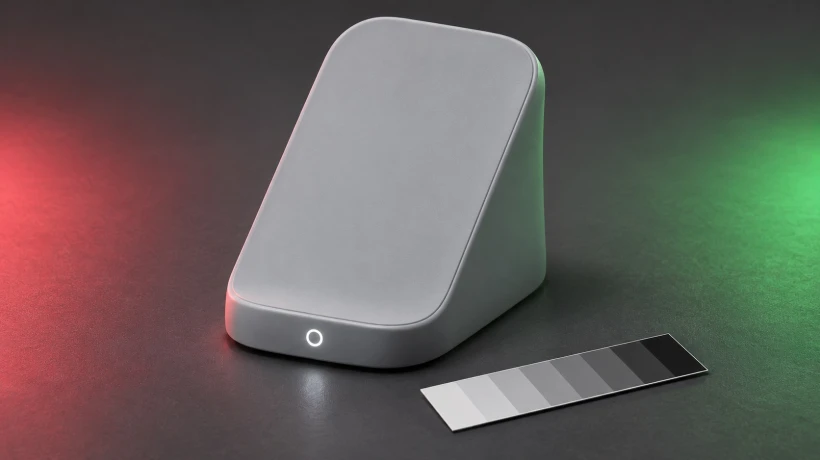
Test your how-to video in grayscale. Add labels and icons so viewers can tell Charging from Ready even when red and green look alike.
Imagine a five-second tutorial about a charging stand. A small light changes from red to green. The creator knows that red means Charging and green means Ready, but a viewer who has trouble telling those colors apart has to guess. This fictional stand gives you a simple way to spot the same problem in a clip you plan to publish.
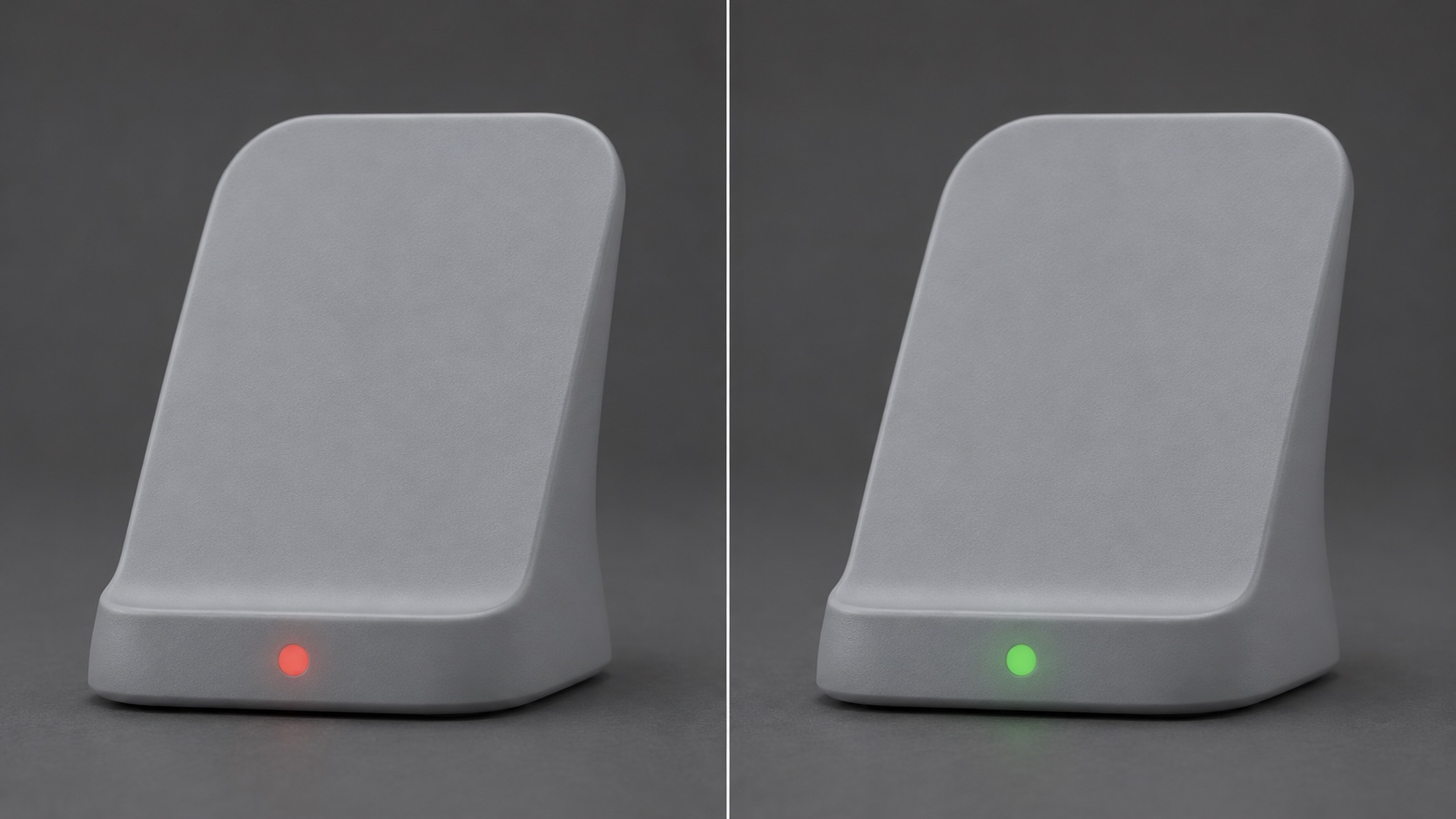
Watch the clip with the color and sound off
Open a copy of the clip in your editor and apply a grayscale preview or turn saturation down to zero. Mute the sound and play it at the size it will appear on a phone. Pause once in each state and ask yourself what you can tell from the frame alone. If the light still looks different in grayscale, ask whether the viewer can tell what each version of the light means.
The W3C guidance on using color explains why a second visual cue matters when color carries meaning. A grayscale pass helps you notice where a clip depends on color. It covers one aspect of accessibility and leaves individual color vision differences untested.
Give each state a word and an icon
On the first part of the timeline, add Charging with a lightning bolt. At the moment the stand is ready, switch the overlay to Ready with a check mark. Keep the text in the same place and visible throughout each state. Give viewers time to read the second label before the clip ends.
Put the labels on a solid plate with strong contrast against the lettering. Keep it clear of the status light and the area where captions or player controls will appear. Choose a text size you can read without zooming on a phone. The two icons offer an additional cue and the words say exactly what they mean in this demo.
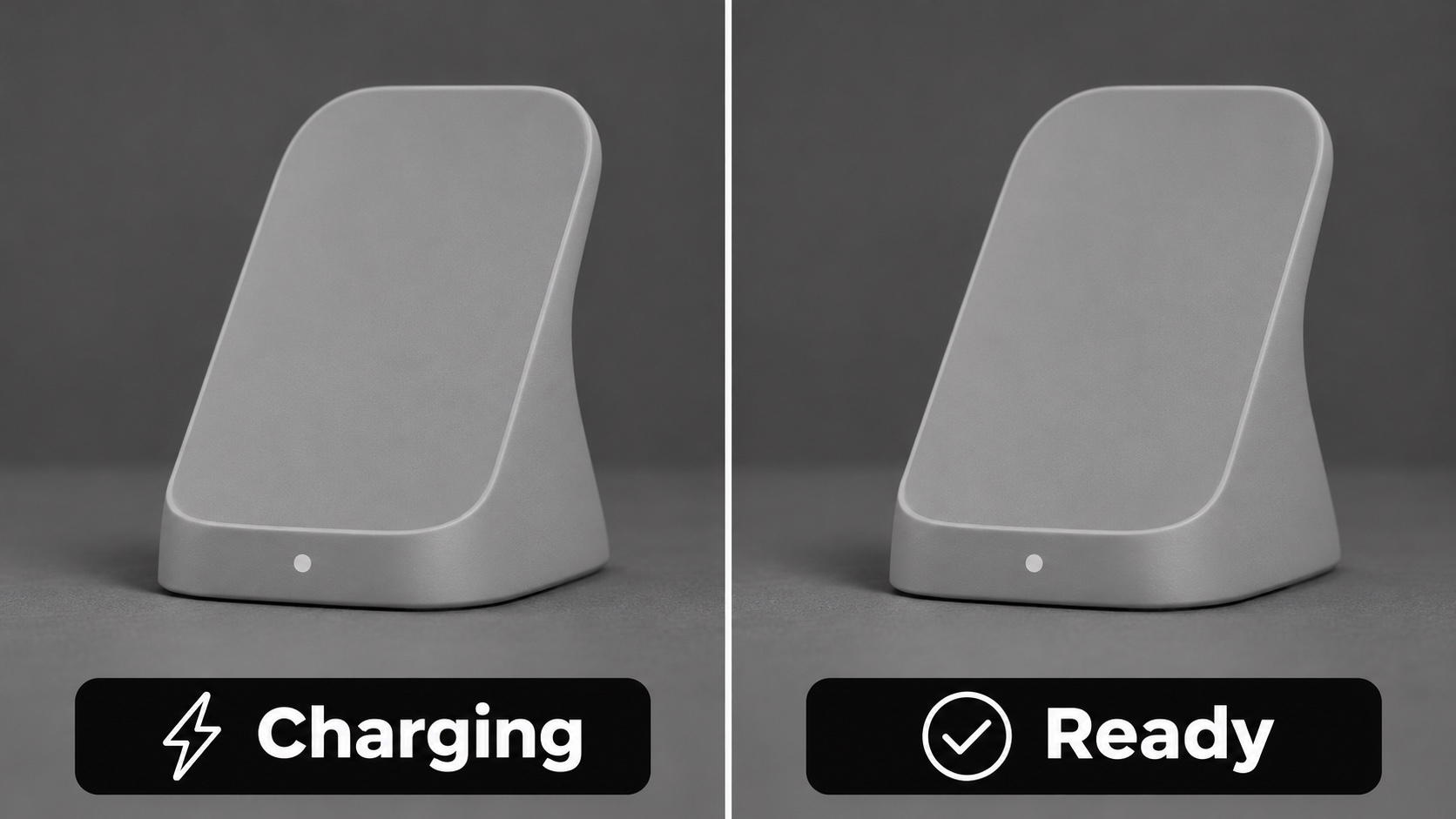
Turn the grayscale preview on again and compare both versions at the same size. If possible, send the edited version to someone who has never seen the clip. Ask what the stand is doing at the beginning, what it is doing at the end, and when the status changes. If they can name both states but miss the change, check that the second label appears on time and stays up long enough to read.
Stage a five-second example from two images
For a practice clip, make two unlabeled images of the same fictional stand. Keep the framing, light, and position the same. Use a red indicator in the first image and a green one in the last. Two clean frames let you focus on the change you want to show.
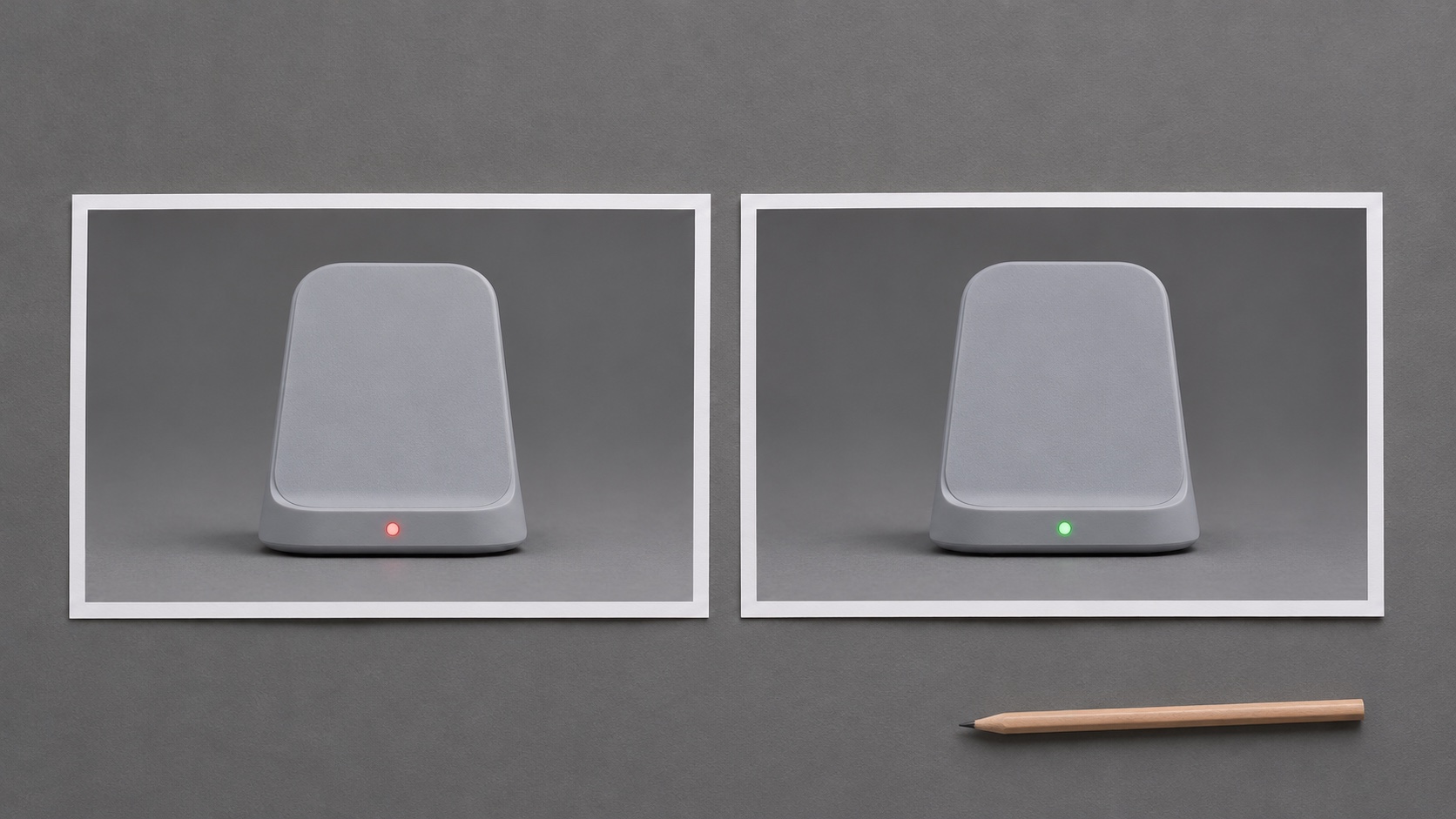
The free image-to-video form on VO4 AI takes a start image, an end image, and a motion prompt. The page lists five seconds at 480p with no signup. Upload the two images in that order and try this prompt.
Five-second, fixed-camera shot of a fictional matte gray charging stand on a neutral table. Hold the small red indicator for the opening. Change only that single light to green, then hold the green state through the final beat. Keep the stand, background, lighting, and framing steady. Leave the image free of text and icons.
Watch the clip to find the actual change before placing your labels in the editor. If the indicator flickers or the stand changes shape, put the two stills on the timeline and cut between them. You can use that sequence to practice the same label timing. For an instructional clip about a real device, use its documented status meanings.
Check the exported clip on a phone
- Sound off. Can you name both states from the image?
- Grayscale. Do the words and icons still distinguish Charging from Ready?
- Timing. Does each label match what the device is doing, with enough time to read it?
- Placement. Can you see the labels and the indicator with captions or player controls showing?
- Final file. Return to normal color and play the exported clip to confirm the overlays are present.


Comments
Login to Comment