Bulk EML Emails Difficult to Manage? Discover a Faster & Easier Way to Move Them into Outlook
24 Aug, 2026
535 Views 0 Like(s)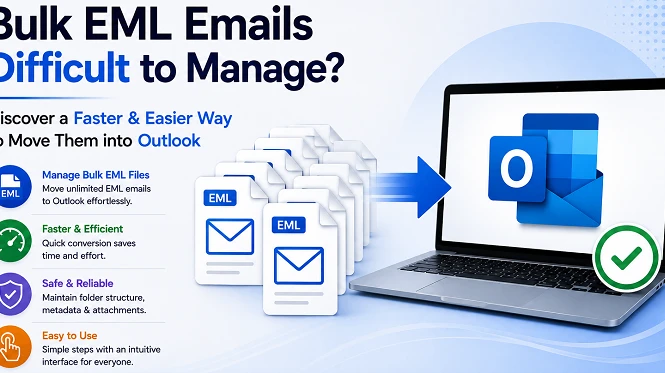
Learn how to move bulk EML emails to Outlook using a manual method or professional solution, with key features, conversion steps, limitations, and benefits.
Introduction
EML files are a common format for saving individual email messages. This format can be created or supported by applications such as Thunderbird, Windows Live Mail, Apple Mail and other email clients. But if users wish to migrate these messages to Microsoft Outlook, they need to convert them into PST, which is the main data storage format used in Outlook.
It might be a simple process when there are only a few emails. However, manual migration of a large collection of emails can be time-consuming and difficult to manage. Dedicated conversion software can ease bulk processing and give additional choices for organising and validating the produced data in the mailbox.
This guide describes the manual method, its drawbacks, the features of the professional solution, and the conversion process.
What Are EML and PST Files?
EML normally refers to a single e-mail message, comprising message text, headers, sender and recipient information, and attachments. Therefore, a mailbox with hundreds or thousands of EML files consists of multiple individual email messages.
However, a PST is an Outlook data container that can include emails, folders, contacts, calendars, tasks and other mailbox information. Changing a file extension won't do what it takes to convert a collection of standalone messages to this structured Outlook format.
This difference causes users moving large EML archives to seek a dedicated email migration tool.
Reasons to Export EML to Outlook
You might want to convert an EML collection to an Outlook data file for many scenarios:
- View old communications in Microsoft Outlook.
- Migrating email data from other compatible email software.
- Merging numerous message files into one Outlook mailbox.
- Make older emails easier to search and organise.
- Keeping email attachments when you migrate.
- Creating a more organised archive for long-term access.
The choice of approach depends on the quantity of messages and the degree of control needed throughout the transfer.
Manual Method to Migrate EML Emails
If you only have a handful of messages, you might use an EML-capable email client and then import the messages into Outlook.
Procedure
1. Combine all the required emails in one folder, then organise them as per the migration.
2. Open the messages in an EML viewing application and verify that they open properly.
3. Select the messages you want to move. With a limited collection, it would be possible to make choices on a case-by-case basis.
4. Move the messages into the Outlook environment using the application’s export, copy or drag-and-drop features.
5. Open Outlook and verify the transferred emails. Check message content, dates, sender details, folder location and attachments.
It might work for a few emails, but it is not very convenient for large archives.
Disadvantages of Manual Migration
Manual transfer doesn’t require special conversion software, but it has some disadvantages.
- Time-Consuming Process: In case of a large number of files, it is tedious to process each message separately.
- Poor Scalability: A routine that works for 10 emails might not work for thousands.
- Risk of Human Error: Users can forget to upload files, send duplicate files, or put messages in the wrong directories.
- Attachment Checking: Attachments might need to be checked following the migration.
- Limited Automation: Manual operations have reduced ability to bulk pick, filter and organise conversions.
- Intermediate Application Dependency: This step can depend on the features of the email client you use.
For larger email collections, these constraints can make a professional converter more acceptable.
Professional EML to PST Converter Solution
Softaken EML to PST Converter is an exclusive solution for those who have a large number of EML files to convert to Outlook PST format. Instead of having to process each message individually, the user can upload their source files or directories and conduct the conversion through a systematic workflow.
The software is meant to make mass migration easy yet provides settings that are important when dealing with enormous email archives.
Professional Tool’s Important Features
Bulk EML Conversion
The software allows users to process many EML files in bulk, saving the time and effort of processing individual messages.
Selective Conversion
Users can choose the particular EML data they want to include in the final PST instead of processing all the files available.
Attachment Preservation
You can maintain email attachments and associated messages during the conversion process.
Email Preview
The preview function enables users to examine email contents before conversion and verify that the source data is ready for processing.
Maintains Email Properties
The conversion flow preserves crucial email data, including sender, recipient, subject, date and message content.
Compatible with Outlook
The converted data is stored in PST format so that it can be accessed by Microsoft Outlook.
Easy-to-Use Interface
The process is made easier to follow even for users without deep technical understanding, with an easy interface.
How to Convert EML to PST with Professional Software
Step 1: Install and run the conversion software on a Windows system.
Step 2: Use the available selection option to add individual EML files or a folder.
Step 3: Preview the emails and the attributes they include. Choose the files or folders you want to process.
Step 4: Choose PST as the target format from the export options.
Step 5: Choose the folder where you want to save the created PST file.
Step 6: Click on the conversion option to start processing the selected EML data. The software takes the messages and creates the output in an Outlook-compatible format.
Step 7: After completion, view the produced PST file in Outlook and verify the email folders, message content, attachments and other relevant aspects.
Why choose the Professional Method?
A professional conversion method is very helpful when migrating large volumes of messages. Bulk processing can save you time, while selective file and folder choices give you more control over the conversion process.
It also reduces repetitive manual steps and provides a more organised approach for those who have to convert large email archives. It is always recommended to take a backup of the original EML files before starting the conversion and check the resulting PST after the process is complete.
Conclusion
If the size of the data is small, then the EML messages can be manually imported into Outlook. But larger archives can make manual transfer laborious, repetitive, and difficult to verify.
A dedicated conversion tool provides a more structured option as it supports bulk processing, selective migration, attachment handling, preview and PST generation. Choosing the approach appropriate to the size and complexity of the email collection will make the transfer to Outlook easier and more organised for users.


Comments
Login to Comment