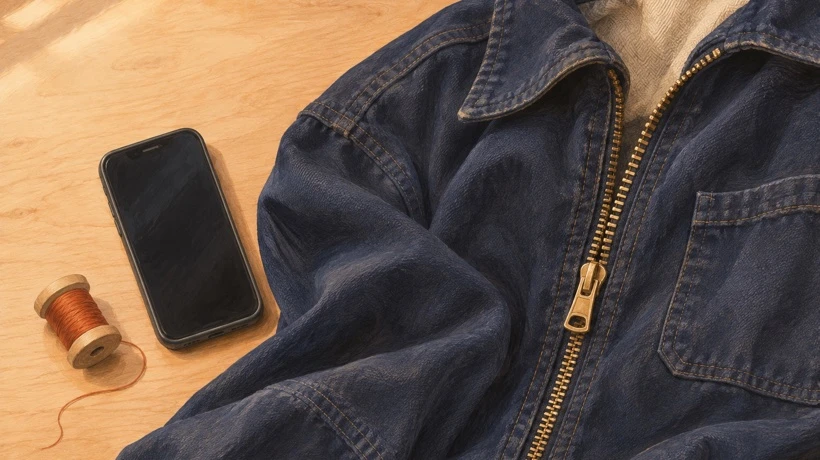
You send a short zipper video to a friend who wants to see where two teeth separate. They pause it, zoom in and ask for a photo. On your phone, the teeth looked clear. Before you record the whole thing again, find the last copy in which you can still see the gap.
The zipper scene and illustrations are fictional. Use your own clip to follow the comparison below.

Pause both copies at the same moment
Open the exact file you attached. If you trimmed or exported the video before sending, find that saved version as well as the camera original. Pause when the slider stops moving and pick a detail you can describe, such as the small dark gap between two teeth just below the slider.
Open the chat video full-screen after it has loaded. Pause on the same moment, hold the phone the same way and match the zoom. If the two videos fit the screen differently, save the received copy if you can and play both files in the same viewer. Judge the gap at the size your friend is likely to watch.
- The gap is already hard to see in the camera original. Record a short close-up. Add light, steady the phone and give the camera a moment to focus on the teeth. Pause the recording to make sure the gap is visible before sharing.
- The camera original is clear and the export is soft. Check the exported copy before sending again. Try a closer crop or a higher quality export, then compare that same frame.
- The file you attached is clear and the chat copy is soft. Use that file for the sending comparison. WhatsApp says shared media is usually compressed and can look lower quality than the original.

Try HD for playback, or a document for the file
Attach the saved clip again. If you see the HD control on the preview screen, choose HD quality and send it to a chat where you can check the received copy. Compare it with the earlier Standard quality copy if that is how you sent it. Use the same file both times, without trimming it or adding a filter between sends. If the gap is clear in the HD copy and your friend can play it in the chat, you have a usable version.
If your friend needs to save or inspect the file, try Attach → Document and choose the saved video from your files. Ask them to open what arrives and check the same detail. These routes are for individual and group chats. The documented Android labels are a starting point if your device shows a different attachment menu.
If only one detail matters, send a close-up still alongside the clip. Crop the still around the zipper and mark the gap with a small circle. Add one line in the chat, such as “Look at the gap between the first two teeth below the slider.” That line gives your friend a place to start even if they watch later.
Try the comparison with a plain fabric clip
If you need a sample you can share, a short clip of dark woven cloth gives you a clear detail to compare. This article promotes UGC Maker AI as one optional way to make the sample. Its free generator is powered by MiniMax H3 and works without signup. The dedicated UGC Maker AI Free MiniMax H3 page describes the tool as “unlimited.”
For this exercise, prompts that keep the camera still make it easier to pick a matching frame. Leave the frame uploads empty and try this description.
Short, locked close-up of dark indigo canvas on a pale wood table under steady side light. Two small orange stitches sit several millimeters apart on the cloth. A loose orange thread slides slowly beside the stitches and settles. Keep the stitches, cloth and camera still. Keep the weave visible from start to finish. Use a single shot with no people, text, logos or music.

Download the clip and pause it where the loose thread settles. Check that the two stitches and the space between them are clear in the downloaded file. Once you have a clear starting frame, send the same file through your chosen chat route and check what arrives.


Comments
Login to Comment