Ultimate Guide to Creality Slicer for High-Precision 3D Printing
04 Jun, 2026
1471 Views 0 Like(s)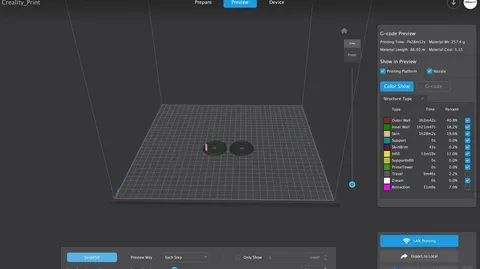
By understanding its features, optimizing settings, and troubleshooting common issues, users can significantly improve their printing results.
3D printing has evolved rapidly in recent years, and achieving high precision is no longer limited to industrial machines. Today, desktop printers paired with powerful slicing software can produce highly detailed and accurate models. One of the most popular tools in this space is Creality Slicer, designed to simplify printing while maximizing quality and control.
This guide explores how Creality Slicer works, its key features, and how you can use it to improve print accuracy. Whether you are a beginner or an advanced maker, understanding this tool can significantly improve your 3D printing results.
Understanding Creality Slicer and Its Core Purpose
Creality Slicer is a slicing software developed to convert 3D models into printable instructions (G-code) for Creality printers. It is based on Cura, but optimized specifically for Creality hardware, making it more compatible and user-friendly for those machines. The main goal of creality slicer is to bridge the gap between digital design and physical printing with precision.
Unlike generic slicers, Creality Slicer comes pre-configured with profiles tailored for Creality printers. This reduces setup time and minimizes errors during printing. Users can quickly load models, adjust settings, and begin printing without deep technical knowledge.
At its core, the software translates STL or 3MF files into layered instructions. Each layer is carefully calculated to ensure accuracy in dimensions, structure, and surface quality. This process is essential for achieving high-precision 3D printing results.
In addition, Creality Slicer allows users to fine-tune critical parameters such as layer height, print speed, and infill density. These settings play a vital role in determining how detailed and strong the final object will be.
Key Features That Improve Printing Precision
One of the most powerful aspects of Creality Slicer is its extensive feature set designed for accuracy. The software includes advanced control over layer height, temperature settings, and retraction, all of which directly influence print precision. With creality slicer, users can adjust these parameters to match the complexity of their model.
Another important feature is the preview mode, which allows users to visualize the entire printing process before starting. This helps detect potential issues such as weak supports, overhangs, or gaps in the model. By identifying these problems early, users can avoid failed prints and wasted material.
Creality Slicer also includes multiple print profiles optimized for different quality levels. Users can choose from draft, standard, or high-quality settings depending on their project needs. These presets help beginners achieve good results while giving experts room for customization.
Additionally, the software supports support structure generation. This ensures that complex geometries are properly supported during printing, reducing deformation and improving surface finish. Combined, these features make Creality Slicer a reliable tool for precision-focused printing.
Optimizing Settings for High-Precision Results
To achieve the best results with Creality Slicer, proper configuration is essential. One of the most important settings is layer height. A smaller layer height increases detail but also increases print time. Using creality slicer, users can fine-tune this balance depending on the model’s requirements.
Print speed is another critical factor. Slower speeds generally improve accuracy by allowing the printer more time to position each layer correctly. However, excessively slow speeds may lead to inefficiency. Finding the right balance is key for high-precision outcomes.
Temperature settings also play a major role. Incorrect nozzle or bed temperatures can cause warping, stringing, or poor layer adhesion. Creality Slicer provides recommended temperature ranges for different materials, helping users maintain consistent quality.
Finally, infill density and pattern selection influence both strength and precision. Higher infill improves structural integrity but increases material usage. By carefully adjusting these settings in Creality Slicer, users can achieve both durable and precise prints.
Advanced Tools and Customization Options
Creality Slicer is not just for beginners—it also includes advanced tools for experienced users. One of these tools is custom G-code editing, which allows users to modify printer behavior at specific stages of printing. This level of control is ideal for complex projects requiring fine adjustments.
Another powerful feature is multi-model printing. With creality slicer, users can place multiple objects on the build plate and print them simultaneously. This improves productivity and reduces overall printing time without sacrificing quality.
The software also supports plugin extensions and custom profiles. These allow users to create specialized settings for different materials such as PLA, ABS, PETG, or TPU. Each material behaves differently, and customization ensures optimal results for each one.
Additionally, advanced users can adjust retraction settings to minimize stringing and improve surface finish. Small tweaks in these settings can significantly enhance print precision, especially for detailed models.
Troubleshooting Common Issues in Creality Slicer
Even with a powerful tool like Creality Slicer, users may encounter printing issues. One common problem is layer shifting, which usually results from mechanical instability or incorrect speed settings. Adjusting print speed and checking printer calibration often solves this issue.
Another frequent issue is poor adhesion to the build plate. Using creality slicer, users can modify bed temperature, add a brim or raft, and improve first-layer settings to enhance adhesion. These small adjustments can prevent failed prints.
Stringing and oozing are also common problems, especially with higher temperatures or incorrect retraction settings. Fine-tuning retraction distance and speed within Creality Slicer can significantly reduce these defects and improve surface quality.
Lastly, under-extrusion or over-extrusion can affect dimensional accuracy. This is often caused by incorrect flow rate settings. Calibrating extrusion within Creality Slicer ensures consistent filament flow and improves overall precision.
Conclusion
Creality Slicer is an essential tool for anyone aiming to achieve high-precision 3D printing. With its user-friendly interface, powerful customization options, and printer-specific optimization, it simplifies the entire slicing process while maintaining professional-level accuracy.
By understanding its features, optimizing settings, and troubleshooting common issues, users can significantly improve their printing results. Whether you are a beginner exploring 3D printing or an advanced maker refining complex models, mastering creality slicer will help you unlock consistent, high-quality prints every time.
Disclaimer: ThynkTales is a public blogging platform where content is contributed by individual users. While we encourage thoughtful and accurate sharing, we do not independently verify the information provided. Readers are advised to use their discretion and verify any information before relying on it.



Comments
Login to Comment