Turning Gmail Conversations Into a Reliable Offline Email Archive
08 Oct, 2026
9 Views 0 Like(s)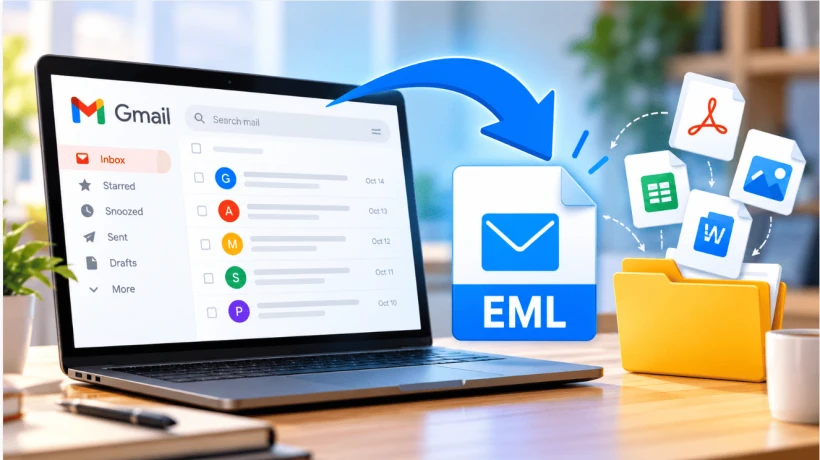
Discover practical ways to preserve Gmail emails as EML files, manage attachments, filter large archives, and create secure offline backups for easy access and long-term storage.
Gmail is convenient for everyday communication, but important messages can become difficult to manage when an account contains years of accumulated correspondence. Business discussions, customer conversations, receipts, contracts, project updates, and attachments can quickly turn an inbox into a large digital archive.
Keeping important messages organized is therefore not only about finding emails quickly. It is also about creating an additional copy that can be accessed when needed. Saving messages in EML format is one practical option for users who want individual emails stored outside their Gmail account.
An EML file represents an email message along with its core information. Depending on the export process, it can preserve details such as the sender, recipient, subject, message content, headers, and attachments. Since EML is supported by several email applications, the files can also be useful for offline viewing and long-term reference.
Understanding the Need for Local Email Copies
Cloud-based email services provide excellent accessibility, but users may still have reasons to maintain local copies of important correspondence.
For example, a freelancer might want to retain client communications after completing a project. A business could archive messages associated with a particular customer or contract. Similarly, an individual may want to keep important financial, travel, or purchase-related emails independently of the online mailbox.
A local archive can make these messages easier to categorize. Instead of relying entirely on Gmail's search system, users can create folders on their computer and arrange EML files according to their own requirements.
The approach can also provide an additional layer of data preservation. However, exported files should not be considered a replacement for secure backups. Important archives should be stored carefully and, when appropriate, duplicated in another secure location.
What Makes EML Different From a Simple Text Copy?
Copying the visible text of an email into a document may appear to be an easy backup method, but it does not necessarily preserve the email as an actual message.
Email messages contain more than the words visible in the reading window. Information such as headers, sender details, recipient information, timestamps, formatting, and attachments may be relevant later.
An EML file is designed specifically to represent an email message. This makes it more useful when the original structure of the correspondence matters.
For instance, someone reviewing an archived conversation may need to identify who sent a message, when it was sent, which files accompanied it, or what technical information was included in the original email. A properly created EML archive can retain considerably more context than a simple copy-and-paste operation.
Gmail's Manual Export Option
For users who only need to save a handful of messages, Gmail already provides a convenient method.
After opening an email, the message options menu provides a download function that allows the message to be saved locally. The resulting file can then be moved to a preferred folder and opened with a compatible email application.
This method is particularly useful for occasional archiving. There is no need to install a separate application when only a few messages are involved.
The limitation becomes apparent when the number of emails increases. Saving dozens, hundreds, or thousands of messages individually requires considerable time. It can also lead to inconsistent organization if each downloaded file is manually handled.
Therefore, the manual approach is best suited to small-scale requirements rather than comprehensive mailbox preservation.
Managing Large-Scale Email Export
When a Gmail account contains a substantial amount of information, an automated workflow can make the task easier.
A dedicated backup utility can connect to the Gmail account and process multiple messages without requiring the user to download each email separately. Depending on the application, users may be able to select specific folders, define a date range, and choose an output format before beginning the backup.
For people looking for a dedicated solution, the SysTools Gmail Email Backup Tool provides an option for downloading Gmail mailbox content to a local destination while supporting different export requirements.
The advantage of this type of software is the ability to approach email preservation as a planned backup rather than a collection of individual downloads. Users can decide what information should be included before starting the process.
Using Filters to Keep the Archive Manageable
One of the most useful ideas when creating an email archive is avoiding unnecessary data.
A complete Gmail account may contain promotional emails, newsletters, automated notifications, old conversations, and other messages that have little long-term value. Exporting everything can create a large archive that becomes difficult to navigate.
Filtering the data first can produce a cleaner result.
For example, users could focus on:
-
Emails received during a particular project period
-
Messages exchanged with selected contacts
-
Important business correspondence
-
Emails containing invoices or financial records
-
Customer communication
-
Specific Gmail folders or labels
-
Messages from a particular date range
The available filtering capabilities depend on the backup method being used, so users should review the software's supported options before beginning a large export.
Don't Forget About Attachments
For many users, the attachment is just as important as the email itself.
An email discussing a contract may contain the actual document. A travel confirmation could include a PDF ticket. A business conversation might include spreadsheets, presentations, images, or invoices.
When creating an offline archive, users should verify that the selected export method preserves the attachments associated with the messages.
After completing the export, opening several representative EML files is a good practice. Check whether the email content appears correctly and whether important attachments are accessible.
Testing a small portion of the archive can identify problems before the entire collection is considered complete.
Preparing Gmail Before the Backup
Account authentication is another part of the process that should not be overlooked.
Modern Gmail security policies can affect how third-party applications access mailbox information. Depending on the software and account configuration, users may need to complete an authorized sign-in process or configure appropriate authentication credentials.
Before starting, it is useful to verify that the Gmail account can be accessed normally and that the selected backup application supports the current authentication method.
Users should also check available disk space. If the mailbox contains numerous attachments, the final archive may occupy substantially more storage than the plain email text alone.
Organizing EML Files After Export
Creating the files is only half of the job. Good organization makes the archive useful later.
Instead of placing every EML file into a single directory, users can create a logical folder structure. A business might organize files by client and year, while an individual could use categories such as Finance, Travel, Purchases, and Personal.
A consistent naming system can also improve usability. Where supported, names based on the sender, subject, or date can make individual messages easier to identify.
It is also advisable to keep a record of what was exported. For a large business archive, documenting the date of the backup, mailbox involved, selected folders, and date range can make future maintenance easier.
Security Matters After Export
An offline email archive can contain sensitive information, so it should not be treated like ordinary documents.
Before storing EML files on a shared computer or external drive, users should consider who can access them. Confidential business correspondence, customer details, invoices, and personal information should be protected appropriately.
Keeping an additional copy in a secure location can also help reduce the risk of losing the archive because of hardware failure or accidental deletion.
For especially important records, periodically checking whether the stored files can still be opened is worthwhile. A backup is most valuable when the information can actually be recovered when required.
Choosing the Right Export Strategy
There is no single approach that works for every Gmail user.
Someone who needs to save one or two messages can simply use Gmail's built-in download capability. This is quick, straightforward, and requires no additional software.
On the other hand, users managing a large mailbox may benefit from a dedicated backup workflow. Automated processing can reduce repetitive actions and make it easier to apply selection criteria before exporting the data.
The important consideration is to match the method with the size and purpose of the archive.
Conclusion
Gmail provides an excellent environment for managing online correspondence, but maintaining a separate archive can be valuable when certain messages need to remain accessible for future reference. EML offers a practical way to preserve individual email messages while retaining important message information.
Manual downloads are suitable for occasional needs, whereas larger collections may require a more systematic solution. Before beginning an export, users should decide which messages are important, check attachment preservation, prepare sufficient storage, and organize the resulting files carefully.
A thoughtful approach can turn a crowded Gmail account into a structured offline archive that is easier to access, manage, and preserve over time. Whether the requirement involves a small set of important conversations or a much larger mailbox, choosing the appropriate export method can save time while making valuable email information easier to retain.


Comments
Login to Comment