Stuck with Old MBOX Files? Here’s How to Convert Them into Easy-to-Read and Manageable PDFs
21 Aug, 2026
544 Views 0 Like(s)
Learn what MBOX and PDF files are, why email conversion matters, how to create PDFs manually, and when professional software is a better choice.
Introduction
Old email backups can be hard to access if they are stored in a manner that relies on a particular email application. MBOX is good for storing large collections of messages, but it's not necessarily easy for users to read, share, print, or organise individual emails.
PDF is compatible with most computers, phones and other devices. You can archive communications as a PDF. This makes it easier to deal with critical correspondence without having to keep opening up email software. This guide describes the two formats, why you might want to convert, one manual method, its disadvantages, and when specialised software can make the process easier.
What is an MBOX file?
MBOX is a file format for storing email messages that stores a collection of email messages in one file. It is utilised by many email systems and can store message text, sender and recipient information, subject lines, dates and other email information.
The format usually retains a series of communications together, rather than keeping each message as a distinct document. This makes it handy for email backup and archiving. But you might need an app that can work with them to open those messages.
That reliance can be a pain for users with legacy backups. If the original email application is not available or difficult to set up, opening the archived correspondence can require some additional effort.
What Is a PDF File?
PDF means Portable Document Format. It is a document format that is designed to keep the presentation of content the same on multiple devices. A PDF can be opened with various apps, without the need for the original software used to create the document.
PDF can also be a better approach to preserve message content for the email record. Depending on the conversion procedure, information such as the sender, receiver, date, subject and message body can be preserved in a readable document.
PDF is widely supported, making it practical for sharing, printing, reviewing and maintaining records.
Why Convert Archived Emails to PDF?
Saving your correspondence in a portable document format will resolve many of your day-to-day concerns.
- Users can browse through saved messages without constantly relying on a particular mailbox application.
- Individual chats can be sent to another person without the entire mailbox archive.
- Using a common document format makes it easier to retrieve archived material later.
This conversion helps users manage and share files more easily while keeping outdated records accessible for future reference.
Manual Method: Convert MBOX Emails to PDF Using Print
Steps to Convert MBOX to PDF Manually
1. Open an email client that supports MBOX files and import the required mailbox.
2. Select the email you want to convert and open it.
3. Click Print from the email application's menu.
4. In the printer options, select Save as PDF, Microsoft Print to PDF, or another available PDF printer.
5. Choose where you want to save the PDF and give the file a meaningful name.
6. Click Save to create the PDF version of the email.
7. Follow the same process for every email you want to save as a PDF.
What Problems Does the Manual Method Cause?
The manual method is adequate for a small number of emails, but it is not convenient for large archives.
- Each e-mail generally needs to be opened and processed individually.
- Hundreds of messages can turn a simple activity into a long routine.
- Repetition of manual processing increases the risk of missing crucial correspondence.
- Printing an email does not always give you the same handling of attachments as a dedicated conversion operation.
- Users still need to have an email client that can read the original mailbox.
Before You Convert: Prepare the Archive
E-mail archiving: Prepare in advance to avoid issues.
First, back up the original mailbox. Do not use converted files as the only copy of important correspondence.
Then choose which emails you want to save. Removing irrelevant material reduces processing time and improves the manageability of the document collection.
Lastly, establish a naming scheme. PDF files allow for easy searching of records by date, subject, project, or sender name.
Quick Tips for Cleaner Email Records
First, check the source: Make sure the mailbox opens properly before you start the export procedure.
Keep relevant messages together: You can organise emails by project, sender or date to make them easier to find later.
Review Important files: Open some of the converted documents to make sure the information is showing appropriately.
After the conversion is successfully done, keep the source mailbox intact.
Descriptive Filenames: Use descriptive filenames, so preserved correspondence is easily identifiable.
Professional Way to Convert MBOX files into PDF format
A manual approach might be fine for a modest number of emails. Things change when users need to process a large inbox, do the work consistently or reduce repeated procedures.
There is a separate converter meant for this kind of email data. TrustVare MBOX to PDF Converter can offer a more comfortable solution for those users who wish to convert archived mailbox messages into PDF documents without using a message-by-message printing routine.
Professional software can be particularly valuable when productivity, consistent output and better handling of larger collections of emails are requirements.
Core Capabilities
This professional conversion utility can offer some helpful characteristics that are tough to obtain by manual printing.
MBOX file support: Users can work directly with mailbox data.
Bulk conversion: Allows you to convert many emails without saving each message individually.
Standalone Tool: It does not require any third-party software to perform the conversion process.
Selective Conversion option: You can choose individual mailbox folders for conversion.
Email preview: Lets users view messages before processing them.
Structured output: Provides a way to organise the converted documents.
Free Demo Version: This software allows users to test the software for free before buying it.
Less manual work: Eliminates much of the repetitive print-and-save operations.
How to Convert MBOX Files to PDF using Professional Software
Step 1: Download the professional converter and upload the MBOX file or mailbox data containing the emails you want to export.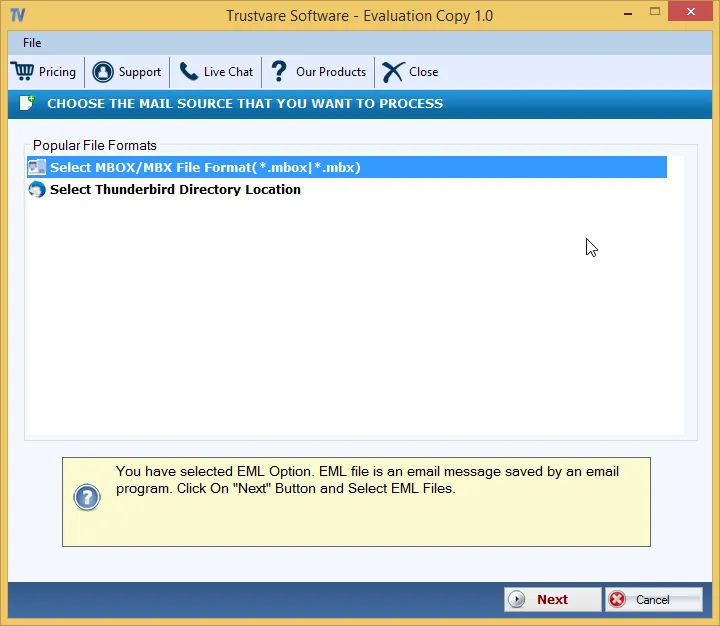
Step 2: Browse the loaded mailbox and choose the folders or messages you want to process. By looking at the data, you can verify that you have the correct source.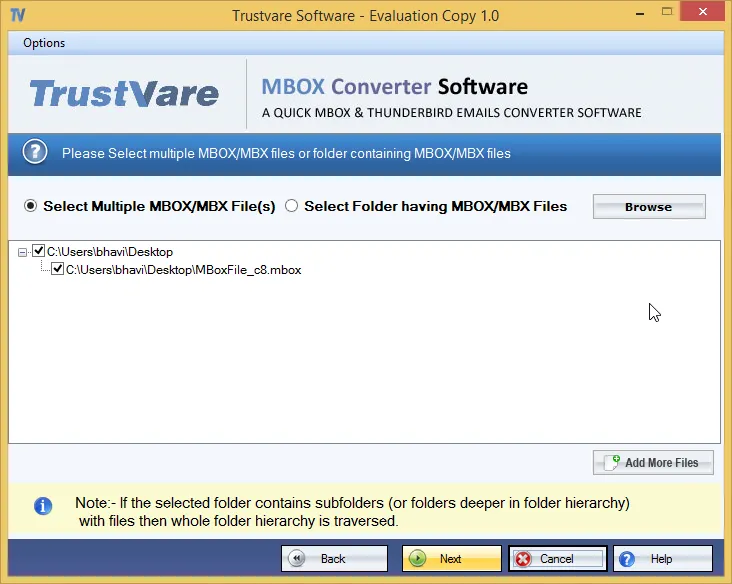
Step 3: Choose PDF as the export format from the available export options. Set the necessary output settings according to your needs.
Step 4: Select a folder to save the converted PDF documents. Pick a well-organised place so that the produced files can be accessed quickly.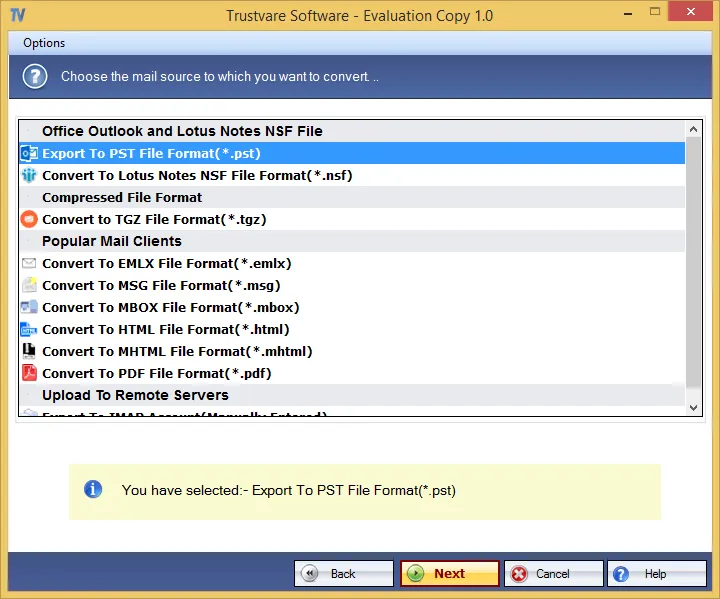
Step 5: Begin the conversion procedure and enable the software to process the selected mailbox data. When finished, open the output directory to view the PDF files generated.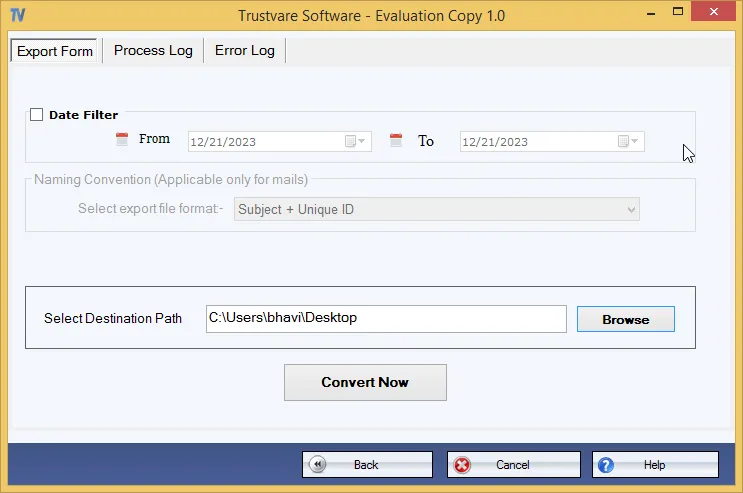
Why Choose a Professional Approach?
The key advantage of specialised software is ease of use. Users can follow a conversion-focused process rather than having to open messages one by one through a print dialogue.
- It works better on large archives where manual file processing takes a lot of time. A specialised workflow will cut down on repetitive steps.
- Structured processes make it easier to review and disseminate papers for business records, migration initiatives, documentation or personal archives.
- You can export a few emails manually, but for larger archives, a dedicated conversion tool is the better option, as it allows you to convert bulk emails.
Final Verdict
Old MBOX backups can include valuable correspondence, but keeping those messages locked within a mailbox format can unduly complicate everyday access. PDF is a familiar, portable format for saving email information to read, share, print and refer to later.
The manual print-to-PDF method is fine for infrequent conversions, but becomes impractical with a growing volume of messages. Back up the source first and clean up the archive. Check the outcome documents. For large collections or recurring demands, specialised conversion software provides a simpler, more efficient solution to convert stored email data into manageable PDF records.
Frequently Asked Questions
Q1. Is the manual MBOX to PDF conversion procedure suitable for large mailboxes?
Ans. The manual print-to-PDF method is more ideal for a modest quantity of e-mails. Processing a large mailbox message by message is time-consuming and raises the likelihood of missing messages.
Q2. Should I keep the original MBOX file after conversion?
Ans. It is advised to keep a copy of the original mailbox after conversion. You can use the source file as a backup copy if you need to validate or retrieve the original email data at a later date.
Q3. When Should I go for Professional Conversion Software?
Ans. Professional software is recommended when you have to process a large mailbox, convert large numbers of messages, reduce repetitive manual work, or generate an ordered collection of PDF email records.



Comments
Login to Comment