Softaken Excel to vCard Converter: An In-Depth Review of Excel-to-VCF Contact Migration
01 Sep, 2026
533 Views 0 Like(s)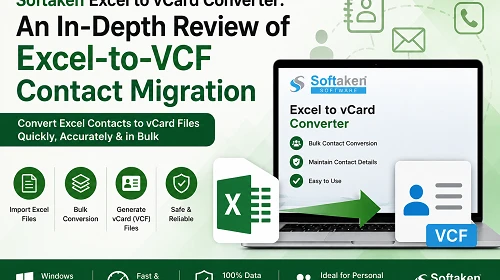
Softaken Excel to vCard Converter, I have focused on the factors that matter the most while converting contacts, such as user-friendliness, multi-record management, contact details retention, conversion procedure and overall ease
Introduction
If you need to arrange, amend, or maintain your contact information in bulk, an Excel spreadsheet is a practical way to do so. However, spreadsheets are not always the most practical format for transferring contacts to mobile phones, email clients, or other contact management services. This is when conversion of the Excel contacts to vCard format comes in handy.
In reviewing Softaken Excel to vCard Converter, I have focused on the factors that matter the most while converting contacts, such as user-friendliness, multi-record management, contact details retention, conversion procedure, and overall ease. The objective was to determine if the software can simplify the process of spreadsheet-to-contact file conversion for users who do not want to manually produce separate vCard files.
In this review I will cover the key features, benefits, procedures to convert, system requirements, and limits to help users determine if a dedicated solution is right for their contact management needs.
Why convert contacts from spreadsheet to vCard files?
Excel is great for preserving structured information, but it’s not expressly built to import contacts into every application and device. Users can suffer compatibility concerns while transferring contact details when they are stored in rows and columns to address books.
The vCard format, often saved as a VCF file, is generally used for storing contact information for a person. It can contain info such as names, phone numbers, email addresses, company info, job titles, addresses, and other supporting fields.
So, converting the spreadsheet entries to VCF files can make the contact transmission more flexible. Users can prepare existing data and convert it into a format more appropriate for contact applications rather than entering each contact manually into a phone or address book.
Excel to vCard Converter Overview
Softaken Excel to vCard Converter is a Windows-based tool to convert contact information saved in Excel spreadsheets into vCard files. It is designed to make it easy to convert tabular contact records to a format that can be used by compatible contact-management software and devices.
This software is especially useful for users who have a large number of contacts stored in spreadsheet files and wish to avoid writing VCF entries one by one. A simple conversion method might also be useful for individuals with poor technical understanding.
Features That Really Stand Out
Transforms Excel contact records
The major objective is to convert contact data from Excel sheets into vCard format. This allows users to break out of spreadsheets any time a specialized contact-file format is needed.
Support for Bulk Contact Conversion
Building vCards manually is becoming a pain in the neck when you have tons of information in a spreadsheet. By using a bulk conversion method, you can convert several contact entries at once. This reduces repetitious effort and makes it easier to work with large contact lists.
Keeps Important Contact Information
Important fields should be preserved in contact migration. Available contact details (e.g., names, telephone numbers, email addresses, corporate data, etc.) need to be appropriately paired with each entry. Maintaining the original information structure reduces the amount of correction required post-conversion.
Simple Process for Conversion
A conversion utility should not force users to go through complex technical settings. Clear workflow lets users select their spreadsheet, evaluate the choices, select the output location, and initiate the conversion without much effort.
Helpful for Various Contact Management Needs
The generated VCF files can be handy if you need to transfer contacts between compatible apps, devices, or address books. This makes spreadsheet-to-vCard conversion interesting not only for personal contact collections but also for business directories.
How to Export Excel Contacts to vCard Format?
Step 1: Install the software on a supported Windows PC and launch the main interface.
Step 2: Go to the location where the spreadsheet with the contact records is saved and load the required file.
Step 3: Check the imported records and make sure the spreadsheet has the necessary fields for contacts.
Step 4: Select the folder to store the converted VCF files.
Step 5: Start the conversion and wait for the application to create the vCard files.
Step 6: Before you import the entire set of files into the destination application, open some of the created contact files and verify that names, phone numbers, email addresses, and other vital information are correct.
Pro Tip
Before you convert a large spreadsheet, get rid of duplicate rows, fix incorrect contact information, and maintain well-organized column headings: A clean source file can make the resulting contact collection easier to handle and reduce post-conversion adjustments.
System Prerequisites
The app is designed for Windows users. Before you start a large contact conversion process, ensure that your computer has enough free storage space and memory to hold both the source spreadsheet and the VCF files that will be generated. It is also a good idea to save a copy of the original Excel file before starting any conversion.
My Experience
The most important advantage of a spreadsheet to contact utility is the decrease of human labor. Rather than recreating contacts manually, one at a time, users can tap into an existing Excel database and turn the entries into a more appropriate contact format.
The method is also more straightforward than manually preparing individual VCF entries. When you process records jointly, the users with a large contact list will save a lot of time.
However, users should check the converted files before importing them to another platform. Spreadsheet formatting might vary widely, so it’s a good idea to inspect a sample of the output to spot wrongly mapped or incomplete fields.
Pros and Cons
Advantages
- Converts contact records in spreadsheets to vCard format.
- Less time spent on manual contact entry.
- Suitable for larger contact collections.
- Provides an easy conversion flow.
- Helps to move contacts between compatible systems.
- Keeps the original Excel file as a backup.
Disadvantages
- Need to install the software for large migration tasks
- Limited trial versions available.
Conclusion
When you need to transfer spreadsheet entries into contact-oriented software or devices, converting Excel contact lists into vCard format can be a suitable solution. Manual entry can be a solution to a few records, but it is not a very efficient solution when your contact database is growing.
Specific conversion software can use a more systematic method to convert Excel data into VCF files, without having to recreate every contact from scratch. It is notably beneficial for individuals maintaining business directories, personal address books, or other structured contact databases.
Overall this kind of software is worth considering for anyone working regularly with Excel-based contact lists and requiring a more straightforward approach to prepare them for vCard-compatible computers. As with any data conversion work, it's wise to keep a backup and check the created contacts before the final import.
Overall Score: 4.7 out of 5
FAQ
Q1. Why would you want to convert Excel contacts to vCard?
vCard is a contact-oriented format and is supported by numerous compatible address books, software, and devices. The contact transfer might be more convenient by conversion of spreadsheet records.
Q2. Can we convert a large Excel contact list together?
Yes, an exclusive conversion utility can assist you to process multiple contact records instead of creating each VCF manually by the users.
Q3. What information can a vCard file store?
Depending on the source data and interoperability with the destination application, vCards can contain names, phone numbers, email addresses, corporate details, addresses, and other contact fields.


Comments
Login to Comment