Move QuickBooks to a New Computer: Complete Step-by-Step Guide
15 Jun, 2026
1348 Views 0 Like(s)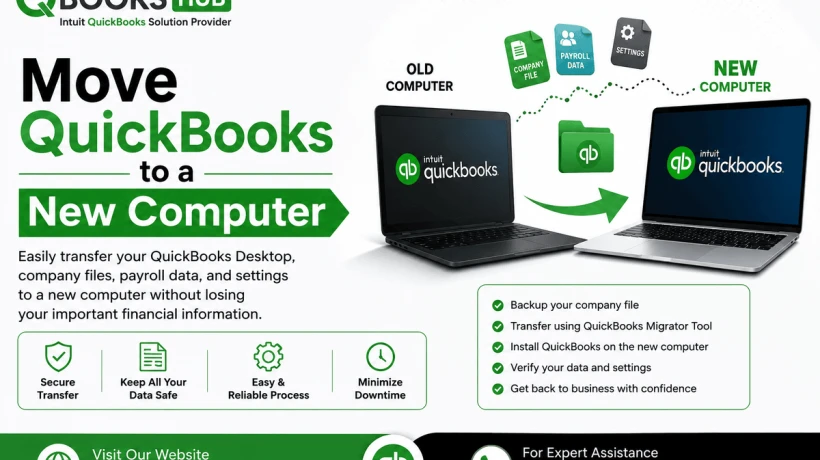
Learning how to Move QuickBooks to a New Computer is essential for maintaining uninterrupted business operations during system upgrades or hardware replacements. Whether you choose the QuickBooks Migrator Tool or perform a manual transfer, following a structured migration process helps protect your company data and minimizes potential issues.
Upgrading your computer is exciting, but transferring business-critical software like QuickBooks requires careful planning. Whether you're replacing an old workstation, upgrading hardware, or switching to a new office setup, knowing how to Move QuickBooks to a New Computer properly can save you from data loss, licensing issues, and unnecessary downtime.
What Should You Do Before Moving QuickBooks?
Preparation is the key to a successful migration.
Before you move QuickBooks to a new computer, complete the following checklist:
Verify Your QuickBooks License Information
You'll need:
-
License number
-
Product number
-
QuickBooks version details
You can find this information by pressing F2 inside QuickBooks Desktop.
Update QuickBooks
Install the latest QuickBooks updates before starting the migration process.
Benefits include:
-
Improved compatibility
-
Better security
-
Reduced migration errors
Create a Full Company File Backup
Always back up your QuickBooks company data.
To create a backup:
-
Open QuickBooks Desktop.
-
Select File.
-
Choose Back Up Company.
-
Click Create Local Backup.
-
Save the backup file to an external drive or secure cloud storage.
Document Payroll and User Settings
If you use QuickBooks Payroll, record:
-
Payroll subscription details
-
Service keys
-
Employee payroll information
These settings may require verification after migration.
Method 1: Move QuickBooks Using the QuickBooks Migrator Tool
The QuickBooks Migrator Tool is the easiest method recommended by Intuit.
Step 1: Open QuickBooks on the Old Computer
Launch QuickBooks Desktop on the current computer.
Step 2: Access the Migrator Tool
Navigate to:
File > Utilities > Move QuickBooks to Another Computer
Step 3: Create a One-Time Password
QuickBooks will generate a one-time password used during the migration process.
Keep this password secure.
Step 4: Copy Migration Files
Insert a USB drive and allow QuickBooks to create the migration package.
The tool copies:
-
Company files
-
Templates
-
Letters
-
Images
-
Preferences
Step 5: Install QuickBooks on the New Computer
Download and install the same QuickBooks version on the new system.
Step 6: Run the Migrator Tool
Insert the USB drive into the new computer.
Open the Migrator Tool and enter the one-time password.
QuickBooks will automatically transfer the selected files.
Method 2: Manual QuickBooks Transfer
If the Migrator Tool isn't available, you can manually transfer QuickBooks.
Step 1: Install QuickBooks Desktop
Download and install QuickBooks on the new computer.
Use the same version and edition as your existing installation.
Step 2: Activate QuickBooks
Enter:
-
License number
-
Product number
Complete the activation process.
Step 3: Transfer Company Files
Locate your company file on the old computer.
Common file extensions include:
-
.QBW (Company File)
-
.QBB (Backup File)
-
.QBM (Portable File)
Copy these files to:
-
External hard drive
-
USB drive
-
Secure cloud storage
Then transfer them to the new computer.
Step 4: Open the Company File
Launch QuickBooks.
Select:
File > Open or Restore Company
Choose the transferred company file and verify that all data loads correctly.
Common Issues After Moving QuickBooks to a New Computer
Although migration is generally straightforward, some users encounter post-transfer issues.
Payroll Subscription Errors
Payroll services may require reactivation.
Verify:
-
Payroll service key
-
Subscription status
-
Tax table updates
Multi-User Mode Problems
If multiple users access QuickBooks:
-
Reconfigure hosting settings
-
Update firewall permissions
-
Verify network connectivity
Missing Templates or Custom Reports
Some customizations may not transfer automatically.
Review:
-
Invoice templates
-
Memorized reports
-
User permissions
QuickBooks Payroll Update Not Working
A common issue after migration is payroll updates failing to download.
This usually occurs because:
-
Payroll settings were not transferred correctly
-
Service keys need reactivation
-
Firewall settings are blocking updates
After moving QuickBooks, always test payroll functionality and install the latest tax table updates.
Best Practices for a Successful QuickBooks Migration
Over the years, I've found these practices dramatically reduce migration issues:
Use the Latest Backup
Avoid transferring outdated company files.
Verify Data Integrity
Run:
File > Utilities > Verify Data
before creating backups.
Test the New Installation
Confirm:
-
Company files open correctly
-
Reports generate successfully
-
Payroll functions properly
-
Banking features operate as expected
Keep the Old Computer Temporarily
Do not immediately uninstall QuickBooks from the original computer.
Maintain access until you've verified that everything works properly on the new system.
Benefits of Moving QuickBooks to a New Computer
A successful migration provides several advantages:
-
Improved software performance
-
Faster report generation
-
Enhanced security features
-
Better compatibility with newer QuickBooks versions
-
Reduced risk of hardware-related failures
Many businesses experience noticeable productivity improvements after upgrading their QuickBooks workstation.
When Should You Seek Professional Assistance?
Consider consulting a QuickBooks professional if:
-
Company files are damaged
-
Payroll data fails to transfer
-
Multi-user configurations are complex
-
Network hosting issues occur
-
QuickBooks installation repeatedly fails
Professional support can significantly reduce downtime and prevent costly accounting disruptions.
Frequently Asked Questions
Can I move QuickBooks to a new computer without losing data?
Yes. By creating a backup and transferring your company files properly, you can move QuickBooks without losing important accounting data.
Do I need to reinstall QuickBooks on the new computer?
Yes. QuickBooks must be installed and activated on the new system before opening transferred company files.
What is the QuickBooks Migrator Tool?
The QuickBooks Migrator Tool is a built-in utility that helps users transfer QuickBooks files and settings to another computer.
Will payroll information transfer automatically?
Most payroll data transfers successfully, but payroll subscriptions and service keys may require reactivation.
Can I use QuickBooks on both computers after migration?
This depends on your QuickBooks license agreement. Always review your licensing terms before using the software on multiple devices.
Why is QuickBooks Payroll not working after moving to a new computer?
Payroll issues often occur because service keys, subscription settings, or firewall permissions need to be reconfigured after migration.
Conclusion
Always create backups, verify data integrity, document payroll settings, and thoroughly test the new installation before retiring your old system. With proper preparation, you can transfer QuickBooks safely and continue managing your finances without interruption. Learning how to Move QuickBooks to a New Computer is essential for maintaining uninterrupted business operations during system upgrades or hardware replacements. Whether you choose the QuickBooks Migrator Tool or perform a manual transfer, following a structured migration process helps protect your company data and minimizes potential issues.


Comments
Login to Comment