How to Migrate Office 365 to Office 365 Easily
23 Apr, 2026
1762 Views 0 Like(s)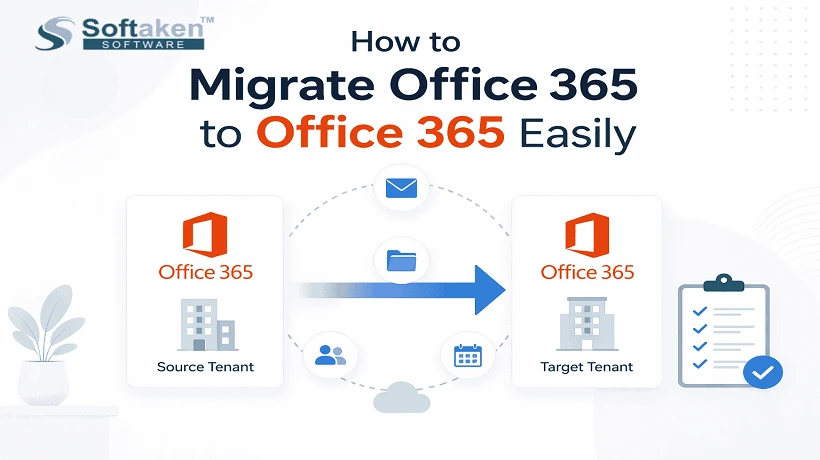
Learn how to Migrate Office 365 to Office 365 easily with simple steps, tools, and best practices for smooth tenant to tenant migration.
Introduction
Migrating Office 365 data from one account to another can be hard, especially for businesses that have a lot of emails, files, and user data to deal with. But knowing how to migrate Office 365 to Office 365 can make the whole thing easy and stress-free.
People often utilise this kind of migration, which is also called Office 365 tenant-to-tenant migration, when companies combine, move domains, or restructure their organisations. It makes sure that all vital business information, such as emails, contacts, calendars, and documents, are migrated safely and without any problems.
This post will show you how to effortlessly migrate Office 365 to Office 365 using both manual and automated techniques.
What is Office 365 to Office 365 Migration?
Migrating from one Office 365 tenancy to another is called "Office 365 to Office 365 migration." This is also called moving from one Office 365 tenancy to another.
What Data Can Be Migrated?
- You can migrate different kinds of data, like:
- Emails and mailboxes
- Calendars and contacts
- OneDrive files
The goal is to migrate all of the company data to the new tenant safely without affecting daily work.
Why Do You Need to Migrate Office 365 to Office 365?
Businesses migrate Microsoft 365 to another tenant for a number of reasons:
1. Business Mergers and Acquisitions
Companies that merge generally consolidate their IT systems, which includes Office 365 accounts.
2. Domain Name Change
You might have to relocate data to a new tenancy that is linked to the new domain if your firm changes its domain name.
3. Organisational Restructuring
Sometimes companies break up into smaller groups or make new sections, which means they need different tenants.
4. Data Management Needs
Companies can wish to have more control, better security, or a cleaner space.
Pre-Migration Checklist
Planning beforehand is important before you start the transfer process. Here's a quick list:
1. Backup Your Data
To keep your Office 365 data safe, always make a backup of it.
2. Verify Domain Ownership
Check that your domain is verified in the new tenant.
3. User Mapping
Link users from the source tenant to the target tenant. This makes sure that data migrates to the right accounts.
4. Assign Licenses
Make sure that everyone in the new tenant has a valid Office 365 license.
5. Check Permissions
Check that both tenants have the right admin access and permissions.
Planning these actions ahead of time can help the relocation go more smoothly.
Manual Method to Migrate Office 365 to Office 365
You can migrate Office 365 data manually using built-in tools and steps.
Steps:
- Create a new tenant and users
- Check your domain in the new tenant.
- Take the domain out of the old tenancy
- Put the domain in the new tenant
- Use PowerShell or tools for moving data, like IMAP.
- Move mailboxes and information
- Change the settings for Outlook and services
Limitations of Manual Method
This approach is free, but it has a few problems:
- A process that takes a lot of time
- Needs technological know-how
- Chance of losing data
- Limited data transfer (for example, calendars and contacts may not move over correctly)
- No good reporting or tracking
A lot of people would rather use automated solutions because of these problems.
Automated Method to Migrate Office 365 to Office 365
Migration is quicker, safer, and easier with a professional tool.
The Softaken Office 365 to Office 365 Migration Tool is one of these solutions. It enables users to migrate data without having to deal with complicated technical issues.
This strategy works for both small and large businesses.
Step-by-Step Working of the Tool
Here is how you can migrate Microsoft 365 to another tenant using an automated tool:
1.Get the migration software and install it on your computer.
2. Log in to the source mailbox and wait for all the folders to load.

3. After the source is ready, log in to the destination mailbox.

4. Select your settings, including which data to migrate, migration mode, and filters.

5. To start the transfer, click Start Migration.
6. Watch the migration progress on the screen
7. After the migration, download the report files to track progress or check for errors.

This technique is easy and cuts down on the amount of work that needs to be done manually.
Key Benefits of Office 365 Migration
- An interface that is easy to utilise
- Allows for batch migration
- Keeps data safe
- Allows selective data transfer
- Keeps the folder structure
- No loss of data during the migration
- Works with all versions of Office 365
- Gives you detailed reports
These things make it a good choice for moving Office 365 tenants from one to another.
Common Challenges and Solutions
Even with good planning, problems might still come up.
1. Risk of Losing Data
Solution: Always make a backup before moving as a solution.
2. Downtime Issues
Solution: Plan the migration during non working hours.
3. Problems with Domains
Solution: To fix this, take the domain away from the existing tenant before giving it to the new one.
4. Errors with permissions
Solution: Make sure both tenants have admin permissions.
5. Slow Migration Speed
Solution: Use a trusted tool and a stable internet connection to fix the problem.
Being ready helps you avoid these issues.
Best Practices for Safe Migration
To make your migration go well, follow these tips:
- Make plans for everything ahead of time
- Try out migration with a small batch of data.
- Let users know before migration
- Make sure you have a backup of all your data.
- Use a migration tool you can trust
- Monitor the process continuously
- Verify data after migration
These things make sure your data stays safe and whole.
Frequently Asked Questions
1. What is the simplest approach to migrate Office 365 to Office 365?
Using an automatic migration tool is the ideal way to do it because it makes the process easier and cuts down on mistakes.
2. Is it possible to move all of the data from one renter to another?
Yes, you can move files, emails, contacts, and calendars.
3. How long does it take to migrate data?
It depends on how much data there is and how fast the connection is. Small migrations might take hours, but big ones can take days.
4. Is it secure to migrate Office 365 data?
Yes, if you do things well, make backups, and use a good tool.
5. Do I need technical knowledge for migration?
Manual methods require technical skills, but automated tools are user-friendly and do not need advanced knowledge.
Conclusion
Migrating Office 365 data doesn't have to be hard. If you plan ahead and do things the right way, you can effortlessly migrate Office 365 to Office 365 without any problems.
There are manual ways to do it, but they can be hard and take a long time. The process is faster, safer, and more reliable when you use an automated tool.
Make sure you're ready, follow the rules, and pick the method that works best for you. This will help you make sure that your migration goes smoothly and is a success.



Comments
Login to Comment