How to migrate Office 365 emails to IMAP
22 May, 2026
1640 Views 0 Like(s)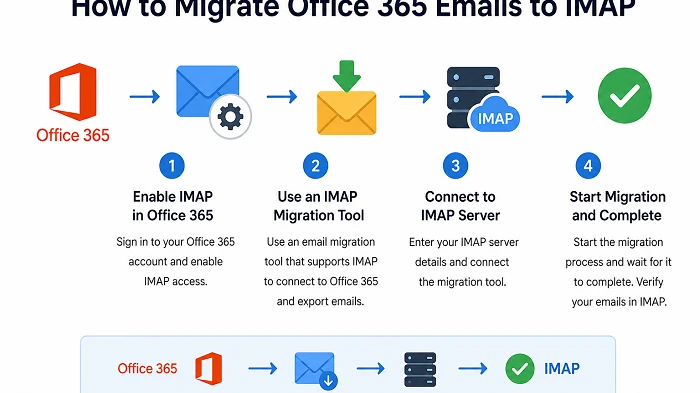
Migrate Office 365 emails to IMAP
Introduction
Here is how to migrate your emails from Microsoft 365 to IMAP, which seems easy until you actually attempt it. Many users will start the transfer process expecting it to take just a few clicks. Then the problems begin:
This is often because of the different ways Office 365 and IMAP sync the mailbox, especially with IMAP involved. There are various secure ways to migrate Office 365 emails to IMAP. Manual techniques are free, but professional migration tools speed up the process and guarantee a more reliable transfer.
In this guide, you will explore:
- How Office 365 to Gmail IMAP migration works
- The different migration methods available
- Step-by-step instructions for each approach
- The pros and cons of manual migration
- Common problems users face during transfer
- Which method is best for large mailboxes?
Can You Migrate Office 365 Emails to Gmail Using IMAP?
Yes, IMAP enables email clients and services to synchronize mailbox data between servers. Both Microsoft 365 and Gmail support IMAP, which allows emails to be moved between the two services.
There are some important limitations:
- IMAP mainly migrates emails only.
- Tasks and notes usually do not transfer.
- Large mailboxes may take a significant time.
- Folder mapping can sometimes break.
- Gmail labels and Outlook folders behave differently.
- Internet interruptions may pause synchronization.
That’s why choosing the right migration method matters.
For smaller mailboxes, manual approaches can be adequate. Automated migration tools are usually faster and more secure for massive data transfers or business users.
Why Do Users Need to Migrate Office 365 Emails to IMAP?
There are many practical reasons users move from Office 365 to Gmail IMAP.
1. Migrate to Google Workspace
Many users migrate from Microsoft 365 to Google Workspace because of the Gmail interface and Google collaboration capabilities.
2. Office 365 Email Backup
Individuals only copy emails to have a second backup copy saved in Gmail.
This protects important communication in case:
- Accounts get deleted
- Licenses expire
- Data corruption occurs
- Mailboxes become inaccessible
3. Use One Place for All Your Email Accounts
Many users wish to access all emails from a single Gmail account instead of entering different Office 365 profiles.
IMAP migration helps centralize communication.
4. Reducing Subscription Costs
Some specific individuals and businesses want to cancel Microsoft 365 subscriptions and go all in with Gmail or Google Workspace.
Migrating emails ensures old communication remains accessible.
5. Easier Mobile Access
A lot of users find Gmail apps easier and speedier on mobile devices than Outlook syncing. Migrating Office 365 emails allows smoother access across Android and iPhone devices.
6. Company Domain Migration
Organizations changing their email infrastructure may need to move employee mailboxes from Microsoft servers to Gmail systems.
This often happens during:
- Company mergers
- Rebranding
- IT restructuring
- Domain changes
7. Long-Term Email Archiving
Some users transfer old Office 365 emails to Gmail accounts for long-term preservation and faster searches. The Gmail search tool is frequently employed to quickly locate old emails
Method 1: Migrate Office 365 Emails to IMAP Using the Import Feature
This is one of the simplest methods for personal users with smaller mailboxes.
Best For
- Private Accounts
- Move the little mailbox
- non-technical end users
- Simple Mail Transfer
How to Import Office 365 Emails to IMAP?
Step 1: Turn on IMAP in Office 365
First, check that IMAP access is turned on for your Office 365 account.
Sign in to Outlook on the web and make sure IMAP settings are turned on.
Typical Office 365 IMAP settings are:
- IMAP Server: outlook. Office 365. com
- Port 993
- Encryption: SSL/TLS
Step 2: Navigate to Gmail Settings
Log in to your Gmail account.
Go to
Settings > See all settings > Accounts and Import
Step 3: Select “Import Mail and Contacts”
Click on:
Import Mail & Contacts
A new migration window pops up.
Step 4 – Enter Office 365 Credentials
Give:
- Office 365 E-Mail Address
- Your password
- IMAP authentication rights, if requested
Google can connect to your Office 365 mailbox.
Step 5: Choose Import Options
Choose to Import:
- Existing e-mail
- Contactos
- Forward the letter for 30 days
Begin the migration procedure.
Benefits
- Technique free
- Simple for beginnings
- No software to download.
- Integrated right into Gmail.
Cons
- Slow for large mailboxes can time out with huge attachments.
- Limited control over mapping folders
- Migration risk (partial)
Method 2: Migrate Office 365 Emails to IMAP Using Outlook Desktop
Another common choice is to use Microsoft Outlook.
Best For Existing Outlook Desktop Users
- Midsize mailbox migration
- Users who demand more control
Steps in the Process
Step 1: Add your Office 365 account to Outlook
Open the Outlook desktop
Use the links below:
File > Add Account
Type your Office 365 credentials.
Download all mailbox data locally in Outlook.
Step 2: Set up a Gmail account in Outlook
Now add your Gmail account.
While adding Gmail:
- Enable IMAP settings
- If you have two-factor authentication turned on, use App Passwords
- Allow Gmail to sync entirely.
Step 3: Moving Emails Between Mailboxes
Outlook:
- Choose folders from Office 365
- Move them to Gmail folders
Outlook uploads messages to IMAP synchronization.
Step 4: Sync to Complete
Depending on the next steps, large mailbox migrations can take hours or days:
- Internet speed
- Size of mailbox
- Volume of attachment
Do not synchronize while closing Outlook.
Advantages
- Additional folder management
- Helps with selective migration
Cons
- Time-consuming
- Manual effort required
- High risk of duplicates
- Outlook can freeze with huge mailboxes
- Requires an internet connection
Method 3: Migrate Office 365 Emails to IMAP Using Google Workspace
Business users migrating to IMAP or Google Workspace can use the migration tools.
Best for moving businesses
- Multiple mailboxes.
- System administrators
- Migration by Domain
How It Works
Admins of Google Workspace can turn on the import of data from Microsoft 365 to Gmail accounts.
The process is normally as follows:
- Domain ownership verification
- Granting access to Microsoft 365
- Create migration endpoints
- User mailbox mapping
- Running batch migrations
- More control at the company level.
- Migration dashboard centralized
- Mailbox migration in bulk
- Less manual work.
- More stable than manual IMAP migration.
Limitations
- Needs technical setup
- Most suitable for organizations
- Can get complicated for novices
- Certain setups require authority
Recommended Method for Most Users
For small personal mailbox transfers, the IMAP built-in import feature usually works well enough.
However, for larger mailboxes, business data, or important professional communication, a more advanced migration solution is generally safer.
Why?
Because email migration problems usually appear when:
- Mailboxes exceed several GBs
- Thousands of emails are involved
- Internet interruptions occur
- Duplicate messages appear
- Folder hierarchies break
- Attachments fail to sync
Alternative Manual Method Using Email Clients
Some advanced users prefer a fully manual migration using desktop email clients such as Thunderbird or Outlook.
Best For
- Technical users
- Users wanting full control
- Selective mailbox migration
Basic Process
- Configure Office 365 account via IMAP
- Configure Gmail account via IMAP
- Synchronize both mailboxes locally
- Copy folders manually
- Verify migrated messages
Risks of Manual Migration
Although manual migration gives more control, it also introduces several risks:
1. Duplicate Emails
Dragging folders multiple times can create duplicate mail items.
2. Folder Mapping Issues
Outlook folders can not match Gmail labels correctly.
3. Interrupted Synchronization
Weak internet connections may pause transfers midway.
4. Missing Attachments
Large attachments occasionally fail during IMAP uploads.
5. Long Completion Time
Very large mailboxes may require days to complete.
Professional Office 365 to IMAP Migration Solutions
Professional Office 365 to IMAP migration tools are designed for users. These tools automate most of the migration work while reducing human error.
Typically, professional solutions support:
- Office 365 email migration
- Gmail and Google Workspace migration
- Bulk mailbox transfer
- Folder preservation
- Incremental migration
- Large attachment handling
Some tools also include filtering options that allow users to migrate:
- Specific date ranges
- Selected folders
- Particular mailbox items only
This is especially useful for organizations moving thousands of emails.
Key Features Users Should Look For
When choosing a professional Office 365 to IMAP migration solution:
- Secure IMAP-based transfer
- Preservation of folder hierarchy
- Support for large mailboxes
- Incremental migration support
- Duplicate email prevention
- Selective mailbox migration
- Pause and resume functionality
- Detailed migration reports
- Multi-user mailbox support
- Attachment integrity preservation
Common Problems During Office 365 to IMAP Migration
Understanding common migration issues helps avoid mistakes before they happen.
Authentication Errors
Modern Microsoft accounts often block basic IMAP authentication unless configured correctly.
Gmail Storage Limits
Large Office 365 mailboxes may exceed Gmail storage quotas.
Slow Synchronization
IMAP migration speed depends heavily on the internet bandwidth.
Missing Folder Structure
Outlook folders sometimes convert incorrectly into Gmail labels.
Duplicate Emails
Repeated sync attempts can create duplicate mailbox items.
Partial Migration
Interrupted sessions may leave some emails behind without obvious warnings.
Tips for a Smooth and Easy Migration:
Before starting migration, follow these practices:
- Clean unnecessary emails first
- Remove duplicate messages
- Archive old mail if possible
- Ensure a stable internet connection
- Verify Gmail storage availability
- Test migration with a small folder first
- Avoid running multiple sync processes simultaneously
- Keep backup copies of important mailboxes
These steps reduce the chance of migration failure significantly.
Final Thoughts
Migrating Office 365 emails to Gmail IMAP is absolutely possible but it depends on your mailbox size, how comfortable you feel with tech, and how vital your email history is.
Or tiny personal stuff, Gmail's native import function frequently works nicely. The Outlook-based migration approach for medium-sized transfers is a little more flexible. In the case of organizations, especially for large mailboxes or mission-critical data, professional migration alternatives are usually the safest and fastest experience. When done properly, it is possible to transfer Office 365 emails to IMAP while keeping your folders, attachments, and conversations more or less intact.
Frequently Asked Questions
Can I migrate Office 365 emails to IMAP for free?
Yes. You can use IMAP built-in mail import, or desktop clients like Outlook for free migration.
Does IMAP migration transfer contacts and calendars?
IMAP mostly moves emails. Contacts and calendars usually need separate export and import steps.
How long does the Office 365 to IMAP migration take?
It depends on mailbox size, internet speed and how heavy the attachments are. Smaller mailboxes might finish in hours, while larger ones can stretch into days.
Will folder structures remain the same after migration?
Not always. Gmail relies on labels instead of classic folders, so some folder mapping can shift.
Can I migrate multiple Office 365 accounts at once?
Yes, though doing it at a bulk scale typically means admin tools or dedicated migration software



Comments
Login to Comment