How to Manage Gmail Labels Without Losing Control of Your Inbox
17 Feb, 2026
7324 Views 0 Like(s)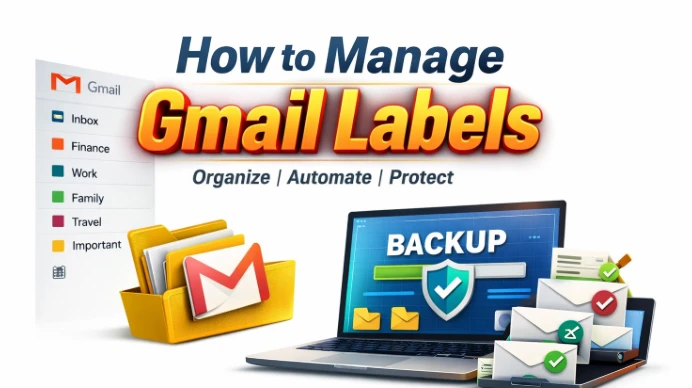
Struggling to manage Gmail labels without losing important emails? This guide shows you how to organize, automate, and protect your Gmail labels step-by-step—so your inbox stays clean, structured, and safe from accidental loss.
Blog Overview - How to manage Gmail labels is the question most people ask when their inbox starts feeling like a garage stuffed with random boxes. You search for one email, and it disappears under five similar labels. You try to clean things up, and suddenly something important is missing. If that sounds familiar, breathe easy. In the next few minutes, you’ll learn how to organise Gmail labels clearly, safely, and permanently, step by step.
Gmail labels are powerful. But without structure, they turn into digital clutter. Let’s fix that.
Why Gmail Labels Become Difficult to Manage Over Time
Think of Gmail labels like sticky notes on a file cabinet. One sticky note works fine. Ten is manageable. Fifty? Now you’re confused.
In the United States, people receive hundreds of emails weekly, including Amazon receipts, IRS notices, school alerts, medical updates, client documents, and banking notifications. Gmail allows one email to carry multiple labels. That flexibility is powerful, but it also creates overlap.
For example, one email might sit under:
-
Taxes
-
2025
-
Finance
-
Important
Now imagine this happening for years. Suddenly, your sidebar looks like a detective’s evidence wall in a crime movie, with strings connecting everything, but no clear direction. That is why Gmail label organisation slowly becomes complex. It grows silently.
How to Manage Gmail Labels the Right Way
Learning how to manage Gmail labels properly is like becoming a squadron leader preparing for a mission. You do not take off blindly. You analyse, organise, and secure your system first.
Here is the complete solution.
Step 1: Build a Clear Label Structure Like a Command Centre -
Before creating new labels, pause. Open your Gmail sidebar and review what already exists.
Create top-level categories first:
-
Finance
-
Clients
-
Family
-
Medical
-
School
-
Legal
Then create sub-labels inside them:
-
Finance → Taxes 2025
-
Clients → Active Clients
-
Medical → Insurance
This method is called nesting. It works like folders inside folders. Seniors find it easy because it mirrors physical filing cabinets. Gmail pros love it because it scales cleanly.
Keep names short and specific. Avoid vague names like “Stuff” or “Misc.”
Structure first. Expansion later.
Step 2: Rename and Merge Duplicate Labels Carefully
Over time, you may notice:
-
Tax
-
Taxes
-
Tax 2024
-
2024 Taxes
That is duplication. It causes confusion. Rename labels so they follow one naming pattern. Choose either “Taxes 2025” or “2025 Taxes.” Stay consistent.
If two labels hold similar emails, move all emails under one label and delete the extra label. Think of it like renaming streets in a city without changing the houses.
Be patient here. One wrong deletion can remove an organisation built over years.
Step 3: Automate Labelling with Gmail Filters
Manual labelling works, but automation saves time. Filters allow Gmail to automatically label emails when they arrive.
For example:
-
All emails from your bank → Finance
-
All emails containing “Invoice” → Clients
-
All school emails → School
To create a filter:
-
Click the search bar arrow.
-
Enter sender or keyword.
-
Click “Create filter.”
-
Choose “Apply the label.”
Step 4: Protect Your Label System Before It’s Too Late
Here is what most people never realise.
Labels do not exist independently. They are attached to emails. If the emails are deleted, hacked, or lost, your entire label structure collapses.
Imagine organising your home office perfectly and then a flood destroys the house.
In the US, account compromises and accidental deletions happen daily. Small businesses lose client records. Teachers lose categorised student communication. Seniors accidentally empty the trash without realising what was inside. This is where a backup layer becomes critical.
Using a Gmail Backup Wizard allows you to save emails with their labels intact on your system. That means:
-
Your entire label structure stays preserved.
-
You can access categorised emails even without Gmail.
-
Accidental deletions do not destroy your organisation.
Think of it as keeping a duplicate mission map in a secure vault. Even if your aircraft dashboard fails mid-flight, you still have navigation.
Manual organisation gives clarity. Backup gives safety.
Hidden Risk Most Gmail Users Ignore
When you delete a label, Gmail only removes the tag. But when emails are permanently deleted, labels tied to them vanish with no easy recovery. There is no “restore full label structure” button.
An organisation without protection is temporary.
Why Manual Management Alone Is Not Enough
You can organise beautifully. But Gmail is still cloud-based. Accounts get locked. Sync errors happen. Human mistakes happen. Professionals never rely on one layer of control. They organise and protect. That is true Gmail label organization.
Quick Self-Check
Ask yourself:
-
Do I have duplicate labels?
-
Do I depend fully on Gmail cloud?
-
Do I have important emails organised by labels?
If the answer makes you slightly uncomfortable, that is your signal.
Common Mistakes People Make
-
Creating too many labels.
-
Using inconsistent names.
-
Forgetting to automate filters.
-
Never back up labelled emails.
Avoid these, and your system becomes clean and reliable.
Final Thought
Learning how to manage Gmail labels is not just about cleaning your inbox. It is about control.
When your labels are structured properly, you think clearly. When your emails are protected, you sleep peacefully.
Start by organising your labels today. Then secure them with a backup layer so your work, memories, and records remain safe no matter what happens.
That is how you truly manage Gmail labels like a pro whether you are a senior citizen, a small business owner, or a Gmail power user.



Comments
Login to Comment