Best Ways to Convert vCard Contacts to CSV Easily? Top Methods & Conversion Software
01 Aug, 2026
802 Views 0 Like(s)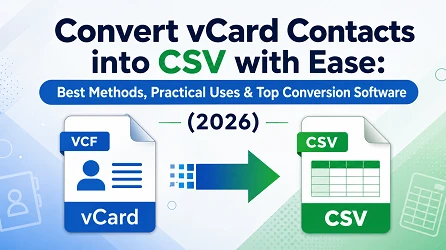
Learn how to convert vCard contacts into CSV format using manual and professional methods. Explore the best contact conversion software, compare different approaches, and choose the right solution for accurate and efficient contact management.
Introduction
Managing contact information effectively is crucial, whether you are switching devices, creating a backup, organising your business contacts, or migrating to a new email platform. One of the most common problems faced by users is conversion of vCard (VCF) files to CSV (Comma-Separated Values) format.
vCard files are a common medium for storing digital contact information as they preserve detailed contact information and are compatible with most smartphones, email clients and contact management applications. However, they are not always appropriate when you need to edit, analyse, filter, or import contacts into spreadsheet applications, CRM systems, or email marketing platforms.
That’s where CSV is a much better option. CSV files are more flexible when working with large contact lists because they can be opened and edited in Microsoft Excel, Google Sheets, and many database applications.
If you’re a business managing user databases, an organisation transferring contact information, or an individual organising personal contacts, converting VCF files to CSV format can make managing contacts easier and improve compatibility across different platforms.
At the end of this guide, you will be clear on the right way to convert your contacts accurately while preserving valuable contact information.
What is a vCard (VCF) File?
A vCard is an internationally recognised file format commonly saved with the .vcf extension, used to store contact information electronically. It acts as a digital business card, which can contain much more than just a person’s name and phone number.
Today, almost all smartphones, email software, and contact management systems support VCF files, making it fast and easy to share contact information.
Depending on how it is created, a single VCF file can contain a single contact or multiple contacts (unlike spreadsheets).
What Is a CSV File?
One of the simplest and best supported file formats to store tabular data is the CSV (Comma Separated Values) file. CSV stores data in rows and columns separated by commas instead of saving data in a proprietary format.
Typically, each row represents a single contact, and each column holds a particular field. This could be First Name, Last Name, Email Address, Phone Number or Company Name.
Due to their simplicity, CSV files are supported by many software applications across a wide variety of industries.
What Does VCF to CSV Conversion Mean?
VCard to CSV conversion is the process of transforming the contact information contained inside VCF files into a structured CSV spreadsheet while retaining important contact details.
During the conversion process, each contact field is mapped to its own separate spreadsheet column, making the information much easier to organise, edit, search, filter and import into other applications.
Depending on the conversion method chosen, the exported CSV file can contain:
- Contact person
- Email addresses
- Telephone numbers
- Company names.
- Home & Office Address
- Notes, website URLs
- Additional ways to contact
The main purpose of the contact conversion is not to change the extension but to convert the contact data into a more manageable, analysable, and reusable form across platforms.
Why Should We Convert VCard Contacts to CSV?
Eventually, many users will find that VCF files, while great for storing contacts, are not always the most useful format for managing contacts daily.
Here are the most common reasons for users to convert their digital contacts into CSV format.
- With CSV files, users can edit hundreds or even thousands of contacts at one time using spreadsheet software, rather than opening each contact individually.
- Most email marketing platforms will require you to upload your contacts as a CSV file before you can create your mailing lists.
- CSV files are small and easy to archive, and can be opened by countless applications, without depending on a particular contact manager.\
- CSV files are universally recognisable and can be easily sent to colleagues, clients or teams that work on different OS.
Manual Method 1: Export vCard to CSV through Windows Contacts
If you have only a handful of VCF files to convert, Windows Contacts offers a simple way to export contact information as a CSV file. This technique requires no additional software, so it is suitable for occasional conversions.
How to Convert VCF to CSV Using Windows Contacts
- Launch File Explorer, then create a new folder.
- Copy all your VCF files to this directory.
- Open the folder and select all the VCF files.
- Select the files, right-click, and select Open.
- Windows Contacts will now import the selected vCard files.
- Open Windows Address Book.
- Click Export on the toolbar.
- Choose CSV (Comma Separated Values) as the export format.
- Select the destination location where you want to save the CSV file.
- Choose the contact fields you want to include.
- To export contacts, click Finish.
You can now open the exported CSV file in Microsoft Excel or any spreadsheet software.
Manual Method 2: Convert vCard to CSV Using Microsoft Outlook
Microsoft Outlook also supports importing VCF contacts and exporting as CSV. This method is helpful for users who already have Outlook installed on their computer.
How to Export vCard Contacts to CSV in Outlook
- Start Microsoft Outlook.
- File > Open & Export > Import/Export
- Choose Import VCF File (.vcf).
- Import or search your VCF contacts.
- When imported, go to File > Open & Export > Import/Export.
- Select Export to a File.
- Choose Comma Separated Values (CSV).
- Click the Contacts folder.
- Select Destination Folder.
- Click Finish to create the CSV file.
Your contacts are now in CSV format and can be opened in spreadsheet software for editing.
Drawbacks of Manual Techniques:
Manual techniques are free, but they have a lot of drawbacks that make them not suitable for users with large databases of contacts.
Some of the usual limitations are:
- Multiple VCF files slow
- Not suitable for mass contact conversion
- More likely to lose contact information
- Needs Windows Contacts or Microsoft Outlook
- Manual adjustment of contact field mapping can be required
- Chance of duplicate contacts
- Not ideal for business users with thousands of contacts.
- Technical knowledge can be required for some users
- No automated repetitive conversions
Due to these limitations, many users like to use special contact conversion software that can convert multiple files correctly and save valuable time.
Pro Solution Technique: Using a Professional Converter
Softaken vCard to CSV Converter is a desktop application designed to convert single or multiple VCF files to CSV format with minimal effort. The software is optimised for contact accuracy and ease of conversion so that even beginners and experts can use it.
If you want to move contacts to Microsoft Excel, import them into a CRM system, or just organise your address book in spreadsheet form, the software provides an efficient way to do it.
The software also supports single contact file conversion and bulk conversion, which is very useful for users with a large number of contacts to convert.
Key Capabilities
This Converter offers some of the major functionalities such as:
- Convert VCF Files (single or multiple)
- Convert contacts in batch
- Keep full contact details
- Maintain contact field correctness
- Supports multiple versions of VCF
- Converts contacts to standard CSV format
- Easy and simple interface
- Fast processing speed
- Offline conversion process
- Works with all major Windows Versions
- Technical skills not necessary
- Maintains data integrity during conversion
These features allow users to perform rapid contact conversion projects with minimal manual work.
How to convert vCard files to CSV
The software is easy to use and can generally be completed in just a few steps.
- Download & install the tool for the conversion process.
- Click Add File or Add Folder to import your VCF files.

- Preview the imported contact files.
- Choose CSV as the output format you want.

- Choose the destination folder where you want to save the converted file.

- Click the Convert button and start the conversion process.
When finished, your contacts will be saved as a CSV file that you are able to edit, import, or share.
Why Should You Choose Professional Software Instead of Manual Methods?
The best way to convert depends on how many contacts you need to convert and how often you do it.
Manual methods are okay for a few contacts, but not for larger datasets. A dedicated conversion utility has multiple benefits that increase efficiency and decrease manual work.
Professional software is often preferred because it provides:
- Processing speed for large contact lists
- Support for bulk conversion
- Improved contact details retention
- Greater precision when converting
- Less risk of losing data
- No manual, repetitive work
- Easy workflow for beginners
- Improved compatibility with different VCF files
- Performance you can count on for business environments
If you are regularly working with user databases, employee directories or personal address books, then a professional solution can greatly simplify the conversion of contacts and guarantee correct results.
Conclusion
vCard and CSV are both great file formats to use, but for different things. While VCF files are great for storing and exchanging digital contact information, CSV files are more flexible for editing, organising, importing and managing large contact databases. CSV is a popular choice for personal and professional use as it is compatible with spreadsheet software, CRM systems, email marketing platforms, and database software.
For users who regularly deal with hundreds or thousands of contacts, a dedicated solution like Professional Converter offers a faster and more reliable approach. It helps simplify the entire conversion process with bulk conversion support, accurate contact field preservation and a user-friendly interface while reducing manual effort.
Before deciding on a conversion method, consider factors like the number of contacts, the accuracy you need, how easy it is to use, and if you need to process contacts in batches. The right way will make sure that your contact info is well-organised, accessible and ready to use across different applications and platforms.
FAQ (Frequently Asked Questions)
Q1. Is all information gathered in the CSV file from a vCard file?
Ans. The information that is included in the CSV file comes mostly from vCard files such as names, numbers, email IDs, and information about companies. However, any extra information found in the vCard file can be treated differently based on whatever software is being used.
Q2. Does the software used for conversion ensure that the data of the contacts gets preserved?
Ans. The conversion software varies, but it can determine whether or not the data, such as names and numbers, is going to be transferred. Hence, it is possible to have most of the basic contact data, but that depends entirely on the conversion software.
Q3. What advantages are there in using conversion software?
Ans. Converting vCard files using conversion software is advantageous in several ways, as it saves time because the conversion software can help in transferring multiple contacts at once.



Comments
Login to Comment