How to Delete Duplicate Contacts from iPhone 16 Pro Max – Best Working Methods
30 Apr, 2026
1899 Views 0 Like(s)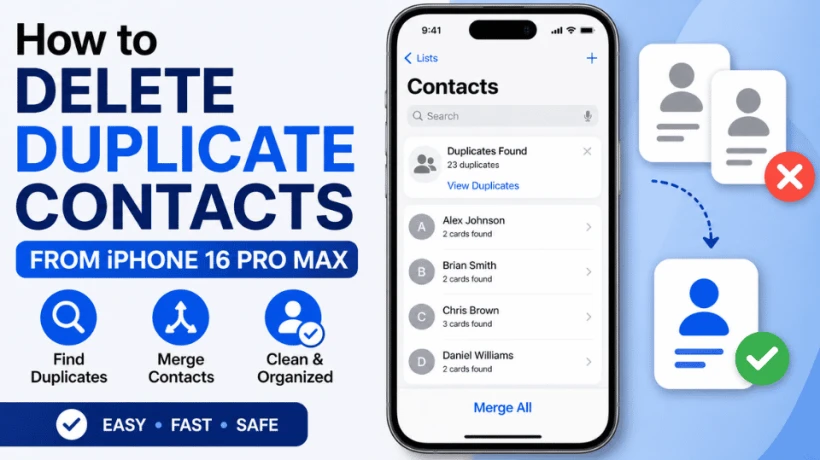
Learn how to delete duplicate contacts from iPhone 16 Pro Max using simple and effective methods. Merge repeated contacts, clean your contact list, and keep your iPhone contacts organized quickly.
If your contact list is cluttered with repeated names and numbers, you may be wondering how to delete duplicate contacts from iPhone 16 Pro Max. Duplicate contacts are a common issue that happens when syncing iCloud, Gmail, Outlook, or restoring backups multiple times.
These repeated entries can make it harder to find the right contact, send messages, or make calls. In this guide, we’ll explain the best ways to remove duplicate contacts from your iPhone 16 Pro Max quickly and safely.
Why Duplicate Contacts Appear on iPhone 16 Pro Max?
There are several reasons duplicate contacts may appear on your device:
-
Syncing contacts from multiple accounts (iCloud, Gmail, Yahoo, Outlook)
-
Importing VCF files more than once
-
Restoring old backups repeatedly
-
Saving the same number under different accounts
-
Importing VCF files more than once
-
Restoring old backups repeatedly
-
Saving the same number under different accounts
-
Third-party apps creating duplicate entries
If you want to delete duplicate contacts from Samsung phone, then you can also do.
Method 1: Use Built-in Merge Duplicates Option on iPhone
Apple provides a built-in duplicate detection feature in the Contacts app.
Steps to Delete Duplicate Contacts:
-
Open the Contacts app on your iPhone 16 Pro Max.
-
Tap All Contacts.
-
If duplicates are found, you will see a notification saying Duplicates Found.
-
Tap View Duplicates.
-
Select Merge All or merge contacts one by one.
Benefits:
-
Free and built-in solution
-
Safe and easy to use
-
Works instantly for most users
Method 2: Remove Duplicate Contacts Using iCloud
If your contacts are synced with iCloud, you can manage them online.
Steps:
-
Visit iCloud.com from a browser.
-
Sign in with your Apple ID.
-
Open Contacts.
-
Look for repeated contacts.
-
Select duplicates and delete or merge them manually.
After syncing, changes will appear on your iPhone.
Method 3: Delete Duplicate Contacts Manually
If there are only a few duplicate contacts, manual deletion is simple.
Steps:
-
Open Contacts app.
-
Search the duplicate name.
-
Open one contact entry.
-
Tap Edit.
-
Scroll down and tap Delete Contact.
Repeat for other duplicate entries.
Method 4: Use Professional Duplicate Contacts Cleaning Software
If you have hundreds or thousands of contacts, a professional tool can save time. Tools like SysTools Duplicate Contacts Remover help remove duplicate contacts in bulk.
Features:
-
Remove duplicates automatically
-
Merge same-name contacts
-
Supports iPhone backup contacts and vCard files
-
Safe and accurate processing
-
Saves time for large contact lists
Why Choose Automated Tool Over Manual Methods?
Tips to Prevent Duplicate Contacts on iPhone 16 Pro Max
-
Use only one primary sync account
-
Avoid importing same contact file twice
-
Regularly check duplicate alerts in Contacts
-
Keep iCloud sync organized
-
Avoid importing same contact file twice
-
Regularly check duplicate alerts in Contacts
-
Keep iCloud sync organized
-
Backup contacts before major changes
Final Words
If you are searching for how to delete duplicate contacts from iPhone 16 Pro Max, the built-in Contacts merge feature is the easiest solution. For a few repeated entries, manual deletion works fine. For large contact lists, an automated tool is the best option.
Keeping your contacts clean helps you stay organized and improves your iPhone experience.



Comments
Login to Comment