How to Convert Outlook Appointment to Teams Meeting?
28 Mar, 2026
3788 Views 0 Like(s)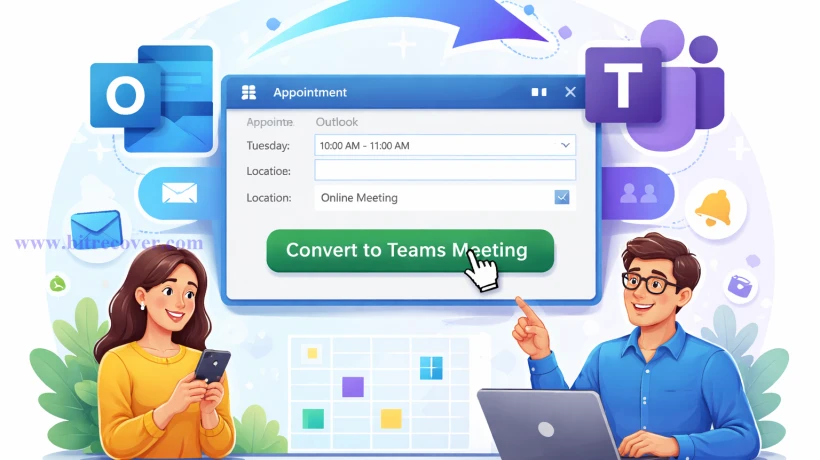
Learn how to convert appointments in Microsoft Outlook into meetings on Microsoft Teams using both desktop and web methods. This guide walks you through simple manual steps, highlights common limitations like time consumption and lack of bulk conversion, and introduces a faster, automated solution for seamless and secure migration.
The use of Microsoft Outlook for email communication, contacts, and event management is the best choice for both professional and personal users. But what if you need to convert Outlook appointment to Teams meeting?
This article will guide to move Outlook appointment to Teams meeting easily. Inside the article, we are going to explain how you can change Outlook appointment to Teams meeting using the desktop and web versions of Outlook in your Windows operating system for free. But you also face some challenges while using this free solution, such as no bulk conversion, time consumption, and security issues.
Pro users always prefer an automatic, risk-free, time-saving, and bulk conversion option like PST converter for an instant solution. Whether you need to transfer Outlook appointment to Teams meeting for your personal use or you need to move Outlook appointment to Teams meeting for professional use.
The use of free solutions might fail in the conversion of Microsoft Outlook appointment to Teams meeting on Windows, and does not give you complete data integrity during the conversion process. However, you can try to follow all the solutions is going to be discussed below in this article. Get ready to face the loopholes of the free desktop and web version of Outlook that occur while using them.
Change Outlook Appointment to Teams Meeting Manually
To convert Outlook appointment to Teams meeting, you can do it by using the solution listed below and its steps. We are using Classic Outlook and Outlook Web to change Outlook appointment to Teams meeting on Windows. So, follow the detailed instructional steps carefully.
1st Solution: Move Outlook appointment to Teams meeting with Outlook Classic
- Open the Classic Outlook on your Windows OS.
- Go to the “Calendar” tab from the bottom panel of Outlook.
- Now, look at the ribbon on top, click on “New Teams Meeting” button.
- Then, “add meeting members” by entering their names.
- Next, enter other details like meeting subject, location, and timing details, etc.
- After that, create a message you want to send with appointment.
- Finally, hit the “send button” to complete the conversion of Outlook appointment to Teams.
- Done! Your Outlook appointment has been successfully converted into a Teams meeting.
2nd Solution: Transfer Outlook appointment to Teams meetings using Outlook Web
- Firstly, open a supported browser on your Windows Operating System.
- Next, go to the search bar and search for Outlook or live.com in it.
- Then, open the Outlook website and enter your login ID and password to log in to your account.
- After that, click on the calendar icon, which is given on the side panel of Outlook web.
- Double-click on the schedule appointment and turn on the Teams meeting toggle on it.
- Finally, hit the “save” button to save the Outlook appointment on the Teams meeting as well.
- Done! You successfully converted the Outlook appointment to Teams meetings.
Note: The Outlook Web solution is also working on “New Outlook.” If you have New Outlook, then you can do it from there also. Simply, you just need to follow the same steps described in 2nd solution from point number 3rd after opening the “New Outlook” application on your Windows OS.
Loopholes of Manual Solutions
The free solution to convert Outlook appointment to Teams meeting requires technical knowledge to perform. Without having tech knowledge, performing the above shared free solutions creates risk for the account. Below are listed some unavoidable loopholes of using free solutions to change Outlook appointment to Teams meeting.
- Both manual solutions might confuse the first-time user; the new user may accidentally delete appointments.
- Using the solutions given above to move Outlook Appointment to Teams meeting users need to open each appointment separately to change them into Teams meeting which is a time-consuming process
- In classic Outlook, if any add-ins get missed or are disabled accidentally, then the “New Teams Meeting” button is greyed out.
- The Outlook Web requires a stable and fast internet; without the connection, the Outlook Web doesn’t work.
- Users need to do re-checks of the meeting details individually, such as time, subject, and location, etc.
- In the free solutions, the users need to repeat these steps multiple times if they are using multiple accounts.
After facing these challenges in the free solutions, we found the manual solutions to transfer Outlook appointment to Teams Meetings are time-consuming, full of multiple steps, risky, and not easy for non-tech users. In such a case, if you want an automatic, hassle-free solution that can instantly, safely, and easily move Outlook appointment to Teams meeting, then you can use the expert solution described in the next section.
Pro way to Convert Outlook Appointment to Teams Meeting on Windows
The users will struggle when they are going to use free solutions to change Outlook appointment to Teams meeting then they use BitRecover PST Converter Wizard to convert Outlook appointment to Teams meeting on Windows. This is a desktop-based pro solution that can run without an internet connection and move Outlook appointment in bulk into Teams meeting within a few clicks.
Easy Steps of Automatic Solution
- Open the recommended application on your Windows computer and click Next.
- Click on “Convert configured Outlook mailbox data” button and hit Next.
- After that, choose the “calendar” folder from the preview panel of tool and click Next.
- Then, select “Office 365” as a saving option.
- Next, enter your email ID and password, and click Next to start the conversion.
- Finally, after a few minutes, your Outlook appointment is converted into Teams meeting.
Final Thoughts
At the end of this article, “convert Outlook appointment to Teams meeting.” We’ve discussed a free solution to change Outlook appointment to Teams meeting and found major loopholes in the manual solutions. This makes the conversion of Outlook appointment to Teams meeting is not easy, but rather risky and time-consuming. On the other hand, the users who choose the pro solution can move Outlook appointment to Teams meeting on Windows easily, safely, and instantly.



Comments
Login to Comment