
In this article, we will discuss some of the methods to convert EML emails into Apple mail email clients.
Can’t Import EML Files on Mac Mail? Here’s How to Solve It
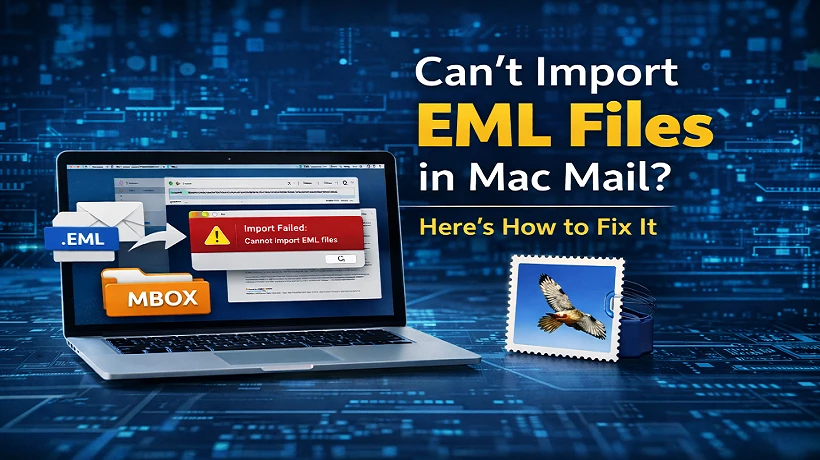
Users of macOS can trust Apple Mail as an email client, but regular users sometimes have trouble when trying to import EML files into the app. An email file type called EML is used by many email clients including Windows Live Mail Outlook Express and more. However Apple Mail doesn't always work well with these files which can be annoying when you need to convert EML files. If you are having trouble importing EML files into Mac Mail, then this article will show you the common reasons why this happens and how to solve it.
Why EML Files Don’t Import Properly in Mac Mail
To find the best answers it's first helpful to know why the problem happens. Here are some common reasons:
1. Problems with file compatibility: Apple Mail mostly works with the MBOX format. Mac Mail might not be able to import the files directly and the process might fail because EML files are stored in a different way.
2. Incorrect method to import: A lot of people try to drag and drop EML files into Apple Mail, but this doesn't work. This might work with a few letters at a time, but what about many files at once? Not so much.
3. Corrupted EML Files: If the EML files were copied incorrectly and damaged during process Mac Mail might not be able to read them.
4. Limitations on macOS and Apple Mail Versions: Some versions of macOS act erratically when importing other email types mainly when working with large EML files.
Method 1: Manually Import into Apple Mail
There is an important tool built into Apple Mail that can be useful occasionally.
How it Works
• On your Mac, open Apple Mail.
• Go to the top menu and click on File.
• Click on Import Mailboxes.
• Pick files in mbox file and keep going.
• Find the folder that has the email files in it.
If you have already converted your EML files to MBOX, Apple Mail should be able to import them. But if they stay in the EML files, the import might not work.
Method 2: Drag and Drop Each EML File
You can use a simple workaround for a few texts.
How it Works
• Start up Apple Mail.
• Make a new folder in your mailbox.
• Drag and drop EML files into the folder one by one.
Apple Mail can sometimes open and store the emails when you use it this way. It's not reliable for big collections, as the process slows down and doesn't always work right.
Step 3: Convert EML Files to MBOX Format
Exporting EML files to MBOX is often the best thing to do because Apple Mail works best with MBOX files. The Mail import tool makes it simple to bring in the files after they have been transformed. You can use several programs to transform EML files into formats that Mac Mail can read. For example Mailvita EML to MBOX Converter for Mac is a utility that makes it easy for macOS users to convert files. These programs allow users to combine multiple EML files into a single MBOX file. Apple Mail can then easily load this file. When you have many emails to deal with and manual methods don't work a converter can be quite beneficial.
Conclusion
Apple Mail generally works with the MBOX format and it can be tricky to import EML files into Mac Mail. You can open a few EML files by dragging and dropping them but for big collection you usually need a more organized way to do so. The most reliable way to add EML files is to convert them to MBOX and then utilize Apple Mail's built-in import utility. Using a special program might make it easier to convert a lot of files and make sure that the emails are converted correctly.
Related Posts

Email Forensic Investigation Techniques to Uncover Digital Evidence
Emails carry more than just messages they carry hidden evidence. From tracing sender paths to analyzing attachments and metadata, email forensic investigation techniques uncover the truth behind cybercrime, fraud, and insider threats. Learn how investigators extract critical evidence quickly and reliably.
Laptop repair in Roehampton: Techno-instant and dependable
Professional Laptop repair in Roehampton: Techno-instant and dependable
Professional Laptop repair in Roehampton: Techno-instant and dependable
Professional Laptop repair in Roehampton: Techno-instant and dependable

Comments (0)
Login to comment.
Share this post: